
Your website is your school’s front door
For many families, your school website is the first place they meet your school. It’s where parents check term dates, read the latest newsletter, find the uniform policy and decide whether to book a visit. Governors use it, staff point people to it, and prospective families judge you by it.
But a front door is only welcoming if everyone can get through it. If a parent with low vision can’t read the text, or a grandparent struggles with a busy page, or a pupil with dyslexia finds the letters swimming, then your website has quietly shut them out. They may never tell you. They simply leave.
That’s what web accessibility is about: making sure everyone can use your website comfortably, whatever their needs.
Who accessibility helps (it’s more people than you think)
Around one in four adults in the UK has a disability, and around one in ten people has dyslexia. Many more have needs that never appear on a form:
- People with sight loss or low vision, who need bigger text or stronger contrast.
- People with dyslexia or other reading differences, who find some fonts and tightly packed text hard to follow.
- People who are colour blind or sensitive to bright colours, for whom a softer or calmer page makes all the difference.
- People with ADHD, autism or a sensory sensitivity, who can find moving carousels and animations distracting or even distressing.
- People who use a keyboard instead of a mouse, who need to see clearly where they are on the page.
- Everyone else, some of the time. A parent reading on a phone in bright sunshine, a governor who has left their reading glasses at home, or a tired member of staff at the end of a long day.
There’s a legal side too. Under the Equality Act 2010, schools have a duty to make reasonable adjustments so that disabled people aren’t put at a disadvantage, and that includes the information you share online. But the best reason is the simplest one: a school that values every child and every family should have a website that works for every child and every family.
How Smart Accessibility helps
Every visitor is different, so no single design will suit everyone. Smart Accessibility solves that by letting each visitor adjust your website to suit them.
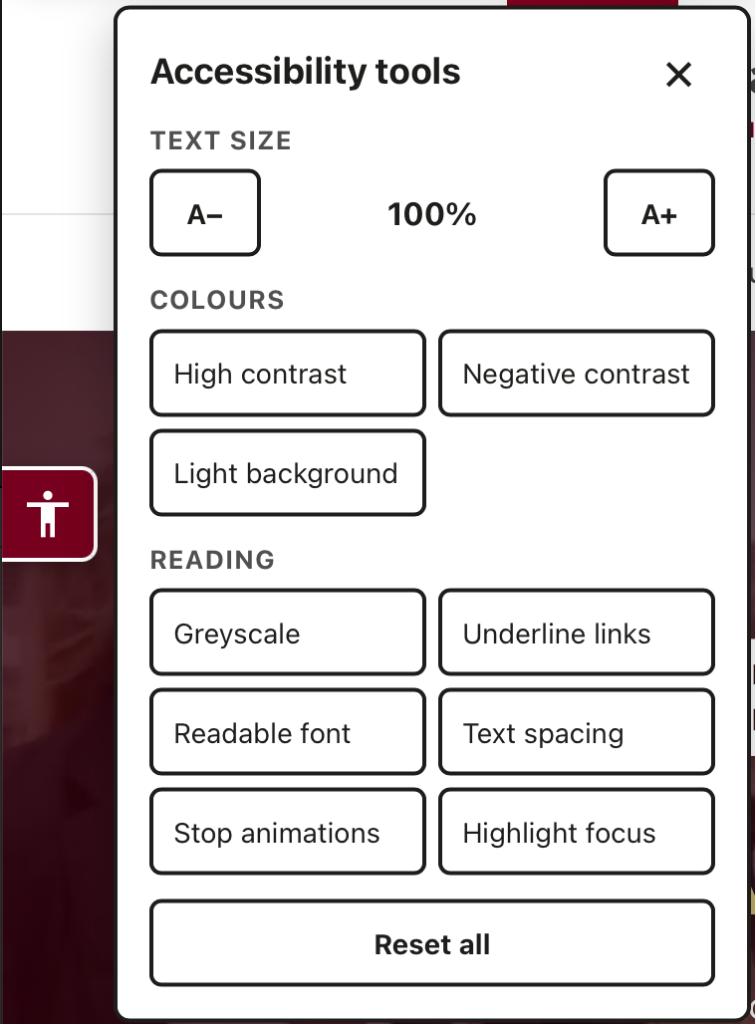
Once it’s switched on, a small accessibility tab appears on the left hand edge of every page. Click it and a panel opens with a set of simple options:
- Text size: make text anywhere from 80% to 200% of its normal size.
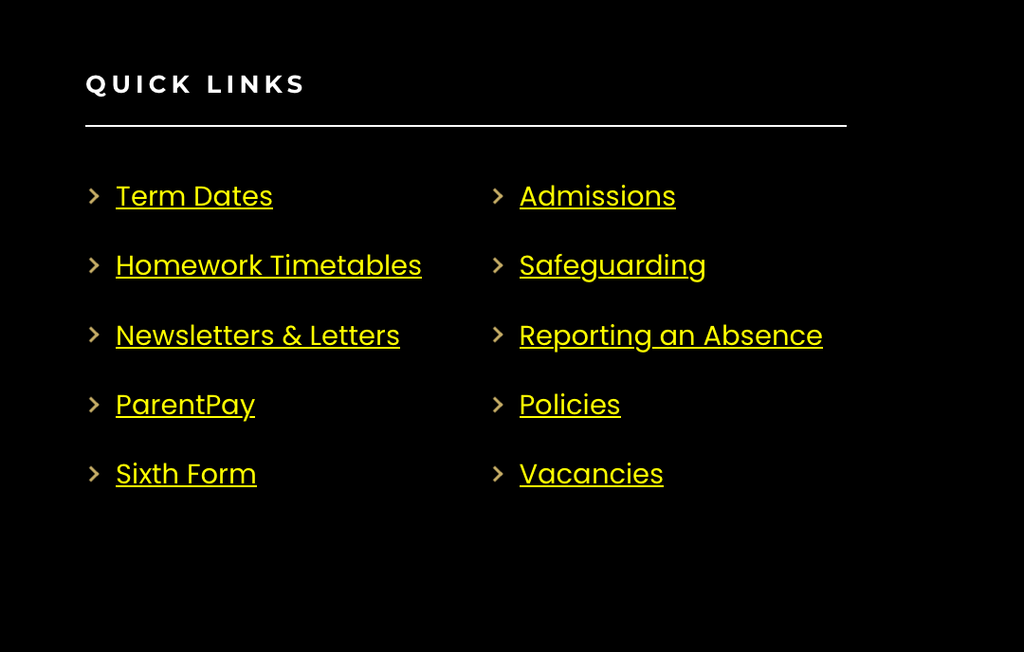
- Colour modes: choose high contrast (see image below), negative contrast or a light background, whichever is most comfortable to read.
- Greyscale: remove colour from the page, which can help people who find bright colours overwhelming.
- Underline links: make every link stand out clearly from the surrounding text.
- Readable font: switch to a plain, wide font that many people with dyslexia find easier to read.
- Text spacing: add more space between lines, words and letters, in line with the spacing recommended in the Web Content Accessibility Guidelines (WCAG).
- Stop animations: pause movement on the page, including autoplaying videos and image carousels.
- Highlight focus: add a thick yellow outline to whatever is selected, so keyboard users can always see where they are.
- Reset all: return everything to normal with one click.
Visitors can mix and match these to find what works for them. Their choices are remembered in their own browser, so they carry over as they move from page to page and are still there next time they visit on the same device. Nothing is stored on your school’s server, and visitors don’t need to sign in or create an account.
For your school, it means a more welcoming website with no extra work for staff. You don’t need to rewrite pages or create special versions of your content. Visitors simply shape the site to suit their needs.
Turning it on for your school
Smart Accessibility is off until you choose to switch it on, and it takes three quick steps:
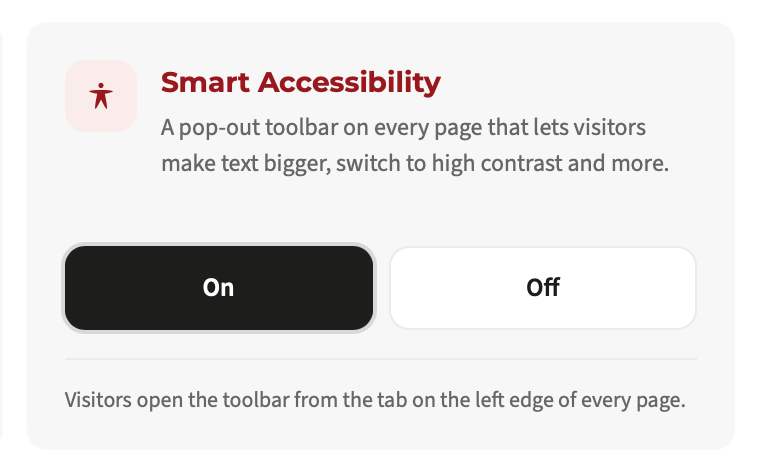
- Go to Smart Plugins in the menu on the left, find the Smart Accessibility card and click On.
- Click the red Save changes button at the bottom right of the page.
- Open any page of your website. You’ll see a square button with a person symbol on the left edge, in your school’s brand colour.
There are no settings to configure, because each visitor picks the tools they need.
One thing to remember: the toolbar helps visitors who find your website hard to read, but it doesn’t make your website accessible on its own. Clear headings, descriptive link text, alt text on images and an up-to-date accessibility statement all still matter.
Our help guide walks you through it step by step: How to turn on Smart Accessibility.
A small change that opens the door wider
Accessibility isn’t a box to tick. It’s about making sure every parent, pupil, governor and member of your community can find what they need on your website, in a way that works for them. Smart Accessibility is a simple, practical step towards that, and it takes only a moment to switch on.
If you have any questions, our support team is always happy to help.