
If you lead a trust, you know how this goes. The call from Ofsted comes in, and somebody has to check the governance information, the complaints policy, the pupil premium strategy and the rest of the statutory pages, school by school. Inspectors routinely look at a school’s website before they arrive, and missing information is usually picked up. With a dozen schools, “somebody checks” can mean a morning of opening tabs and hoping.
We’ve built two things to take that scramble out of it.
Move between your trust’s websites from the bar
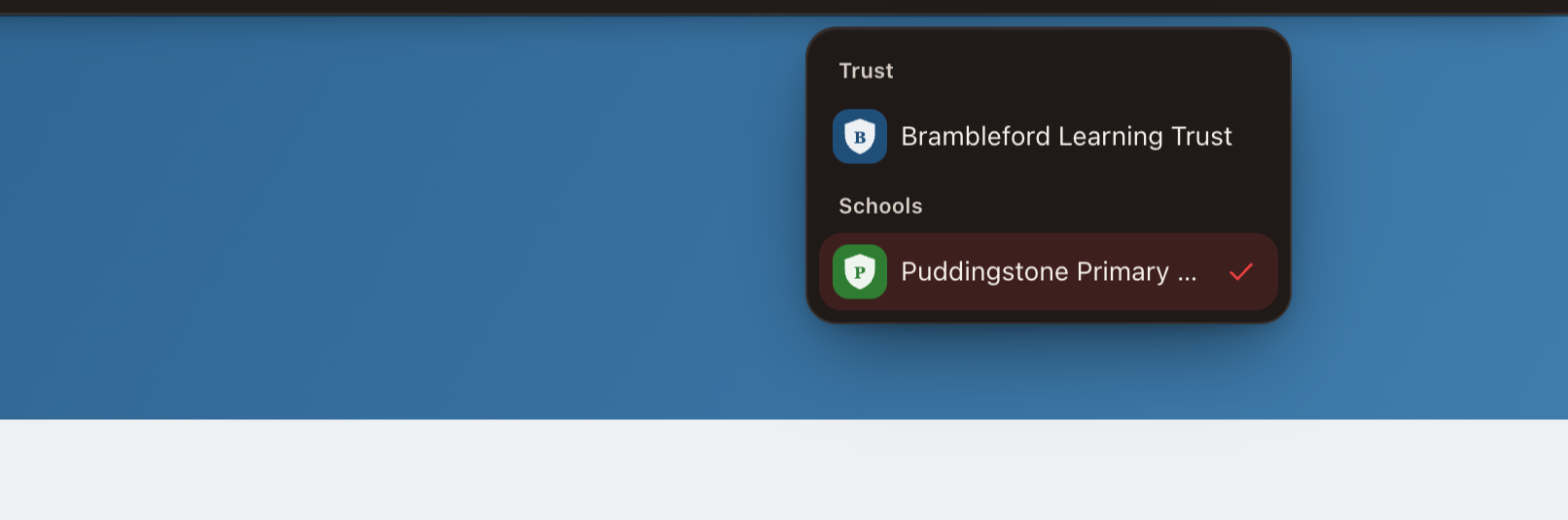
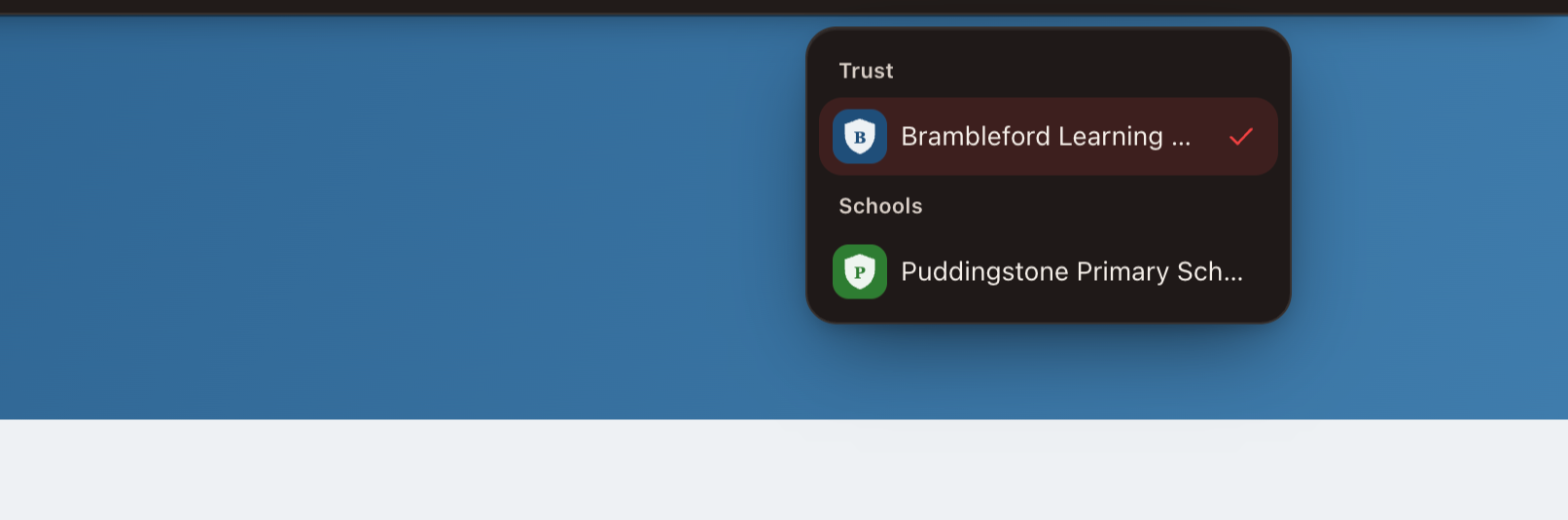
The Realsmart bar now has a School Switcher. Trust and school staff with admin access can move between their trust’s websites from the bar on any of them. The list only shows the schools you can actually sign in to, the trust’s own website comes first, and the site you’re on is ticked. If you’re an admin at a member school, you’ll see your own school and the trust website.
See compliance for every school at a glance
On the trust’s own website, trust admins also get a summary at the top of the switcher: how many requirements are met across all your schools, how many of the legal must-haves are covered, and how many schools are not scanned or out of date. Each school has its own score chip, and the trust website’s score is shown separately, because trusts have their own set of requirements. Select a chip and you go straight to that school’s Website compliance page to see what needs doing.
The School Switcher on a trust’s website, with a compliance summary and a score for each school. Fictional schools and illustrative scores.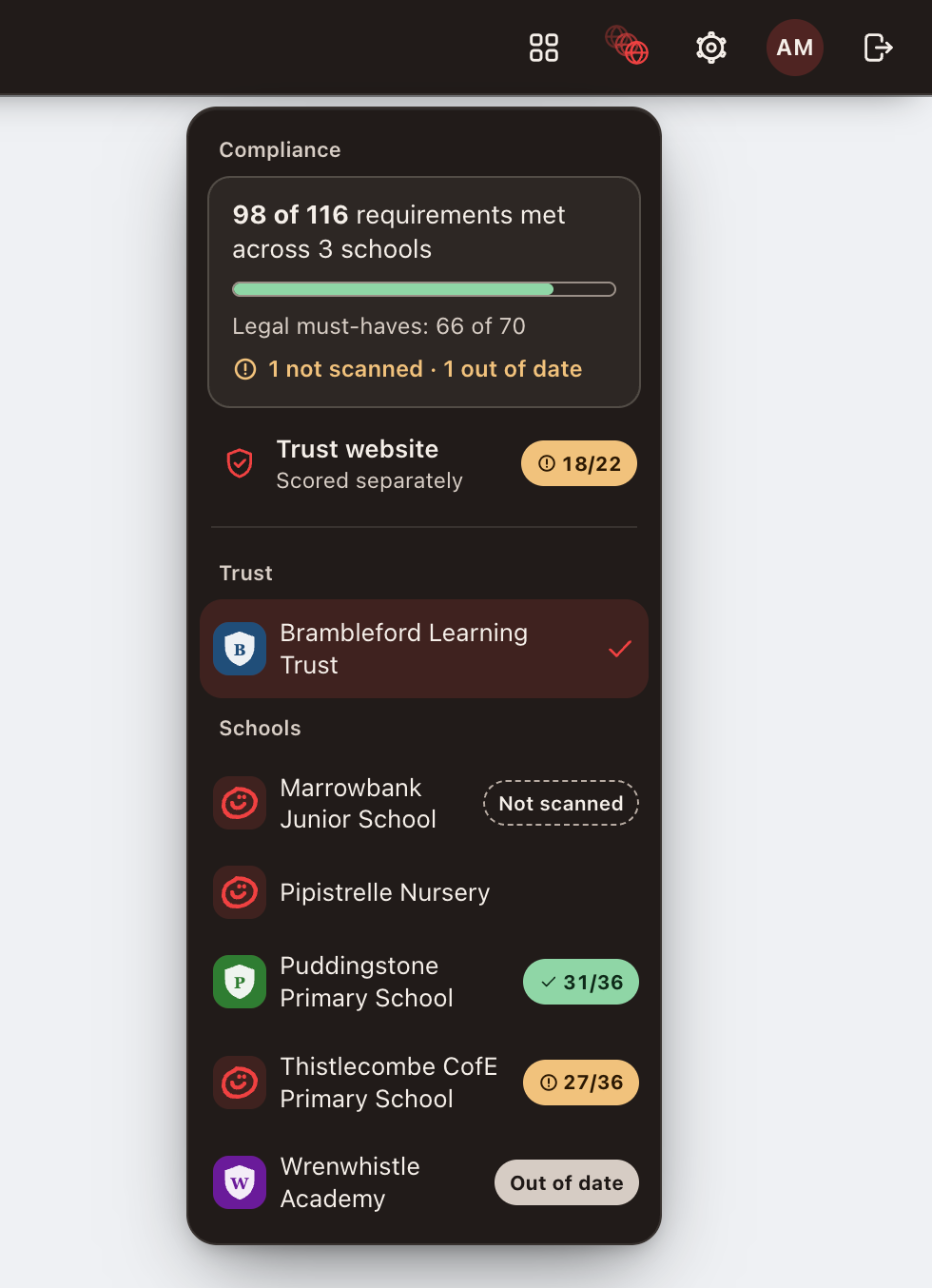
Where the scores come from
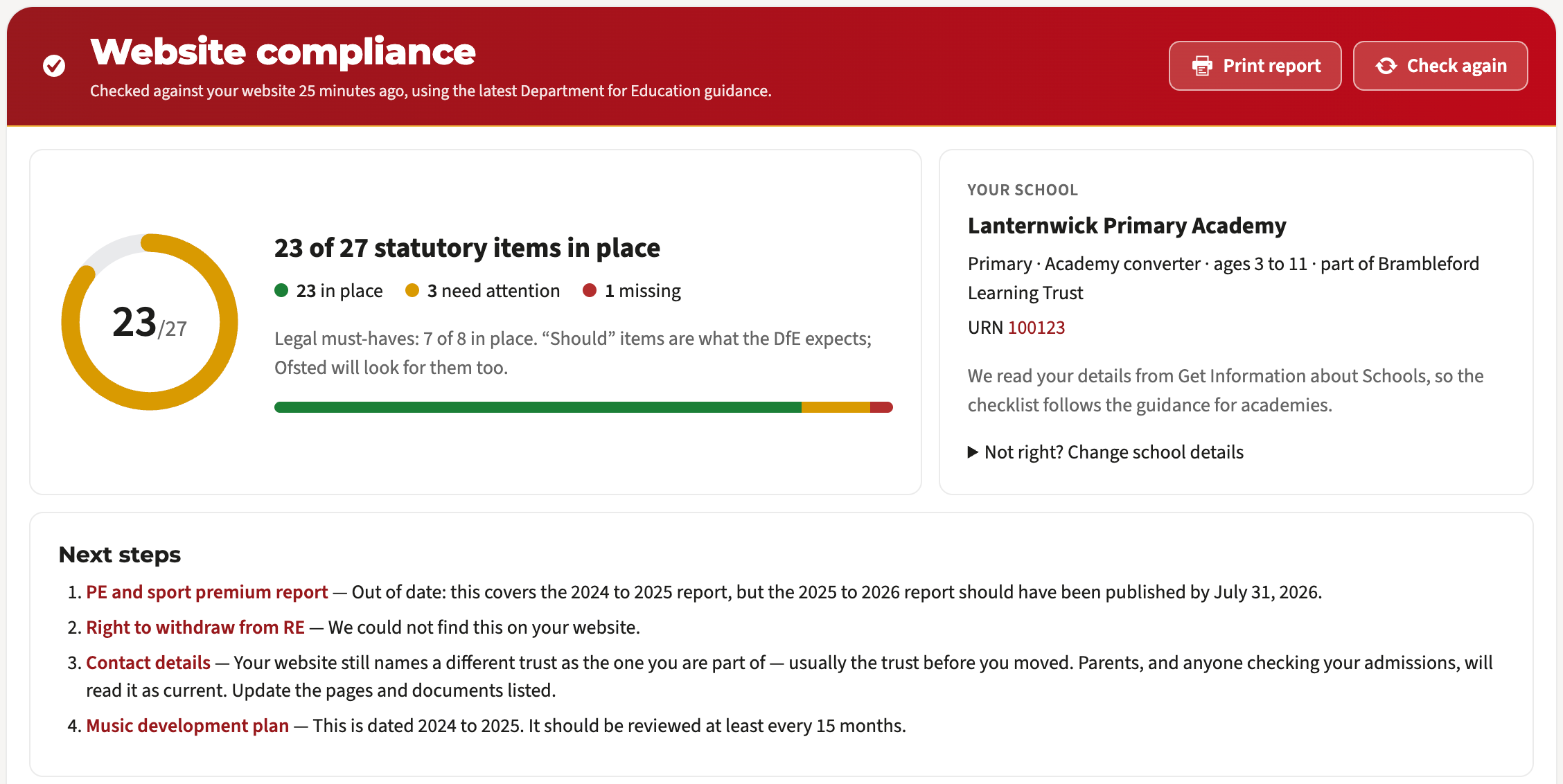
They come from Website compliance, which already runs for each school. It works out the school’s type from the DfE’s own records, checks the site every night against the DfE’s ‘what to publish online’ requirements for that type, flags documents that are out of date, and lets you start a missing page from a template. The summary brings those results together in one place.
It doesn’t write your policies for you, and a strong score isn’t a promise about an inspection. What it does is show you where to look first.
How to get it
The School Switcher is now on every Realsmart school and trust website. The compliance summary is rolling out to trusts this term, starting with a group of pilot trusts. If you’re already with us, contact support at support@realsmart.co.uk and we’ll tell you whether the compliance summary is switched on for your trust. If you’re not yet, book a free demo and we’ll show you a live trust estate.
To see what trusts have to publish, read our guide to school website compliance. For the rest of what a trust website can do, see our MAT features page.
Questions you might have
Who can see the scores?
Trust admins, on the trust’s own website, and Realsmart’s support team when they are helping your trust. An admin at a member school sees their own school and the trust website, but not the other schools’ scores.
How often do they update?
After the nightly checks, so a change you make today will normally show in tomorrow’s figures.
What does “not scanned” mean?
We don’t have a check result for that school’s website yet, so there is no score to show. It can happen with a school that has only just joined. “Out of date” is different: the school has been checked, but its latest result hasn’t been refreshed recently. If either label sticks around, let support know.