
One sign-in, and every app in one place.
Pupils and staff sign in once with Realsmart and land on a Launchpad of every app your school uses, from Google and Microsoft to the subscriptions you pay for. They can make it their own, and you keep the rules.

A Launchpad that’s theirs
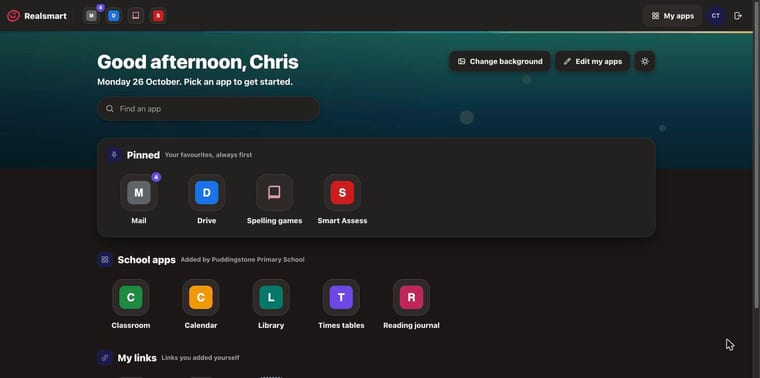
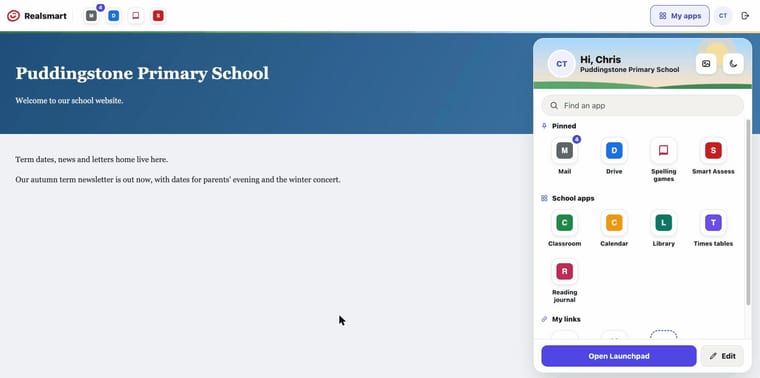
The redesigned Launchpad opens with a greeting, a search box and every app the school has given them, in the bar on every Realsmart page and on your school website.
Make it their own
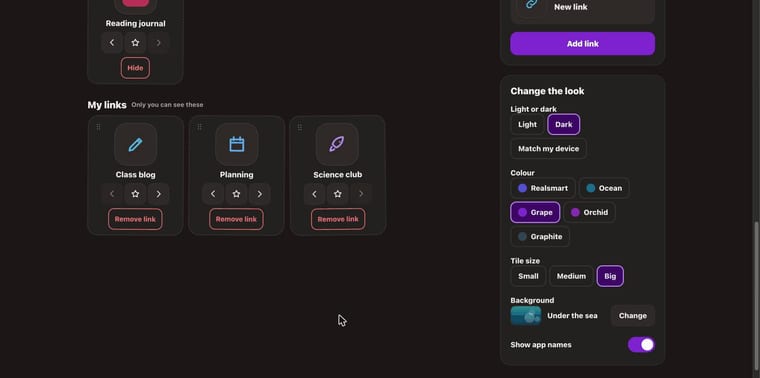
- Drag apps into the order they use them, and pin favourites to the bar
- Add their own links, with a picture and colour
- Choose a background, and light or dark
- Find any app by typing its name
You decide what’s there
- Choose which apps students, staff, governors, observers and Ofsted each see
- Set the school’s own order, and reset to it at any time
- Add your own apps and links for everyone
- Show the Launchpad on your school website with the Launchpad block
Set it once for every school
- Trust-wide app defaults for every school
- One app order applied across the trust
- Keep the orders schools have set themselves, or replace them
- Shared apps published once to every school

Their own profile, and the notices that matter
Profile area
People change their own password and photo on the sign-in site, within the rules your school sets. The school decides who can change what.
Notification bell
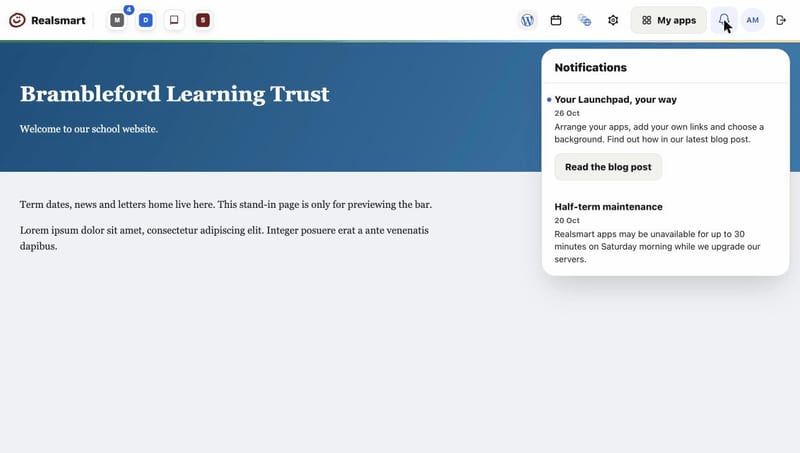
Important notices from Realsmart appear in the bar for the people they’re meant for, students, staff or admins, with a link to find out more.
Holiday pauses
List your holiday dates once and pupils’ Realsmart, Google and Microsoft sign-in switches off for the break and back on afterwards.
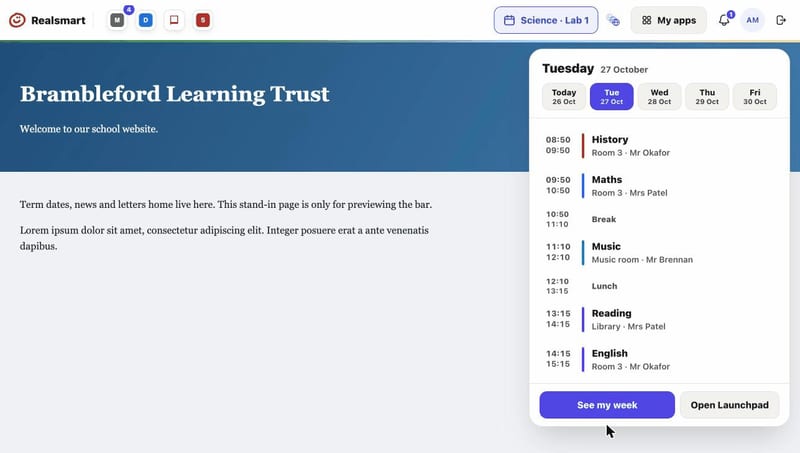
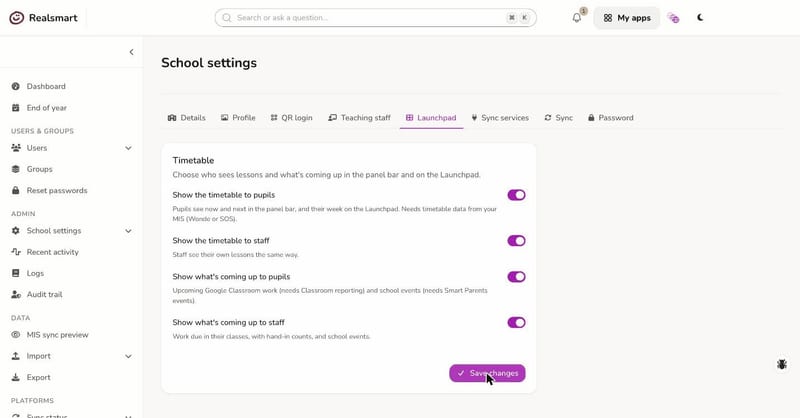
Today’s timetable
What’s now and next in the bar, today’s lessons on the Launchpad, a week view, and what’s coming up from Google Classroom and school events.
Easy for a five-year-old, safe for an admin
Sign-in that suits every age
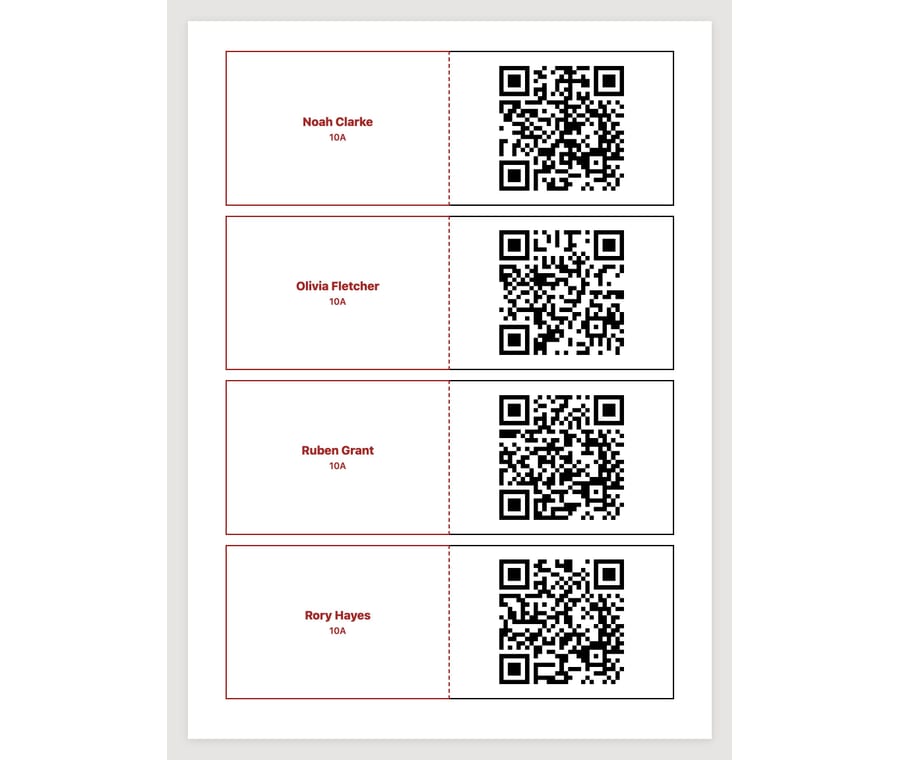
- QR code sign-in: hold a card up to the camera, including on Chromebooks
- Cards printed by registration group, each group on a new sheet
- Word passwords young pupils can type
- Single sign-on to Google Workspace, Microsoft 365 and other apps
Protection where it counts
- Two-factor sign-in for every admin, at every school
- The DfE cyber security password standard, for schools that switch it on
- Session limits, and pupils signed out at the end of the school day
- An acceptable use policy accepted at sign-in, if you want one
See the Launchpad with your school’s apps
Book a demo and we’ll show you the Launchpad, QR code sign-in and the profile area the way your pupils and staff would see them.
Call us on 01302 361132 or email realsmart@realsmart.co.uk. Already with us and need help? Email support@realsmart.co.uk.