
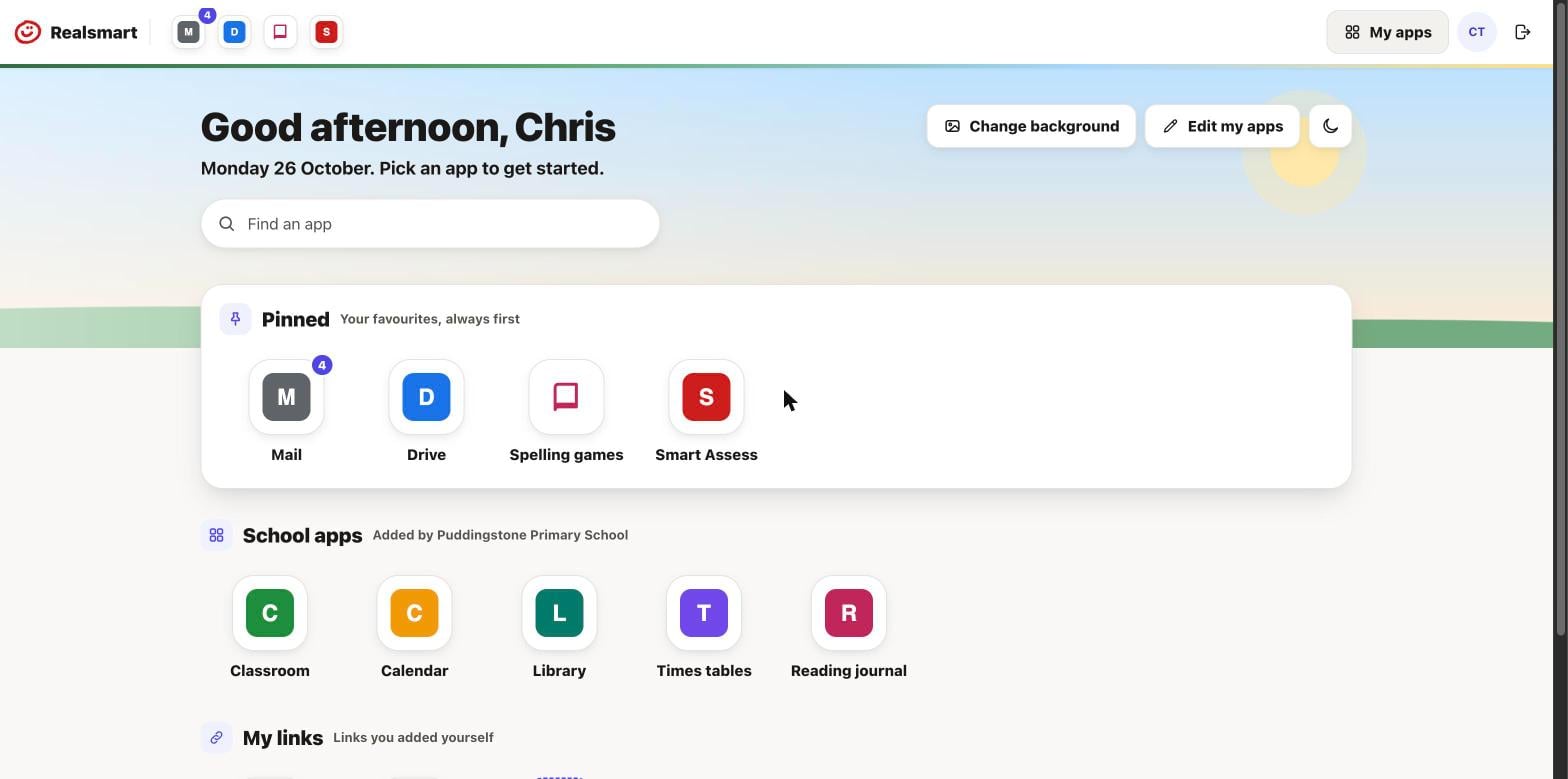
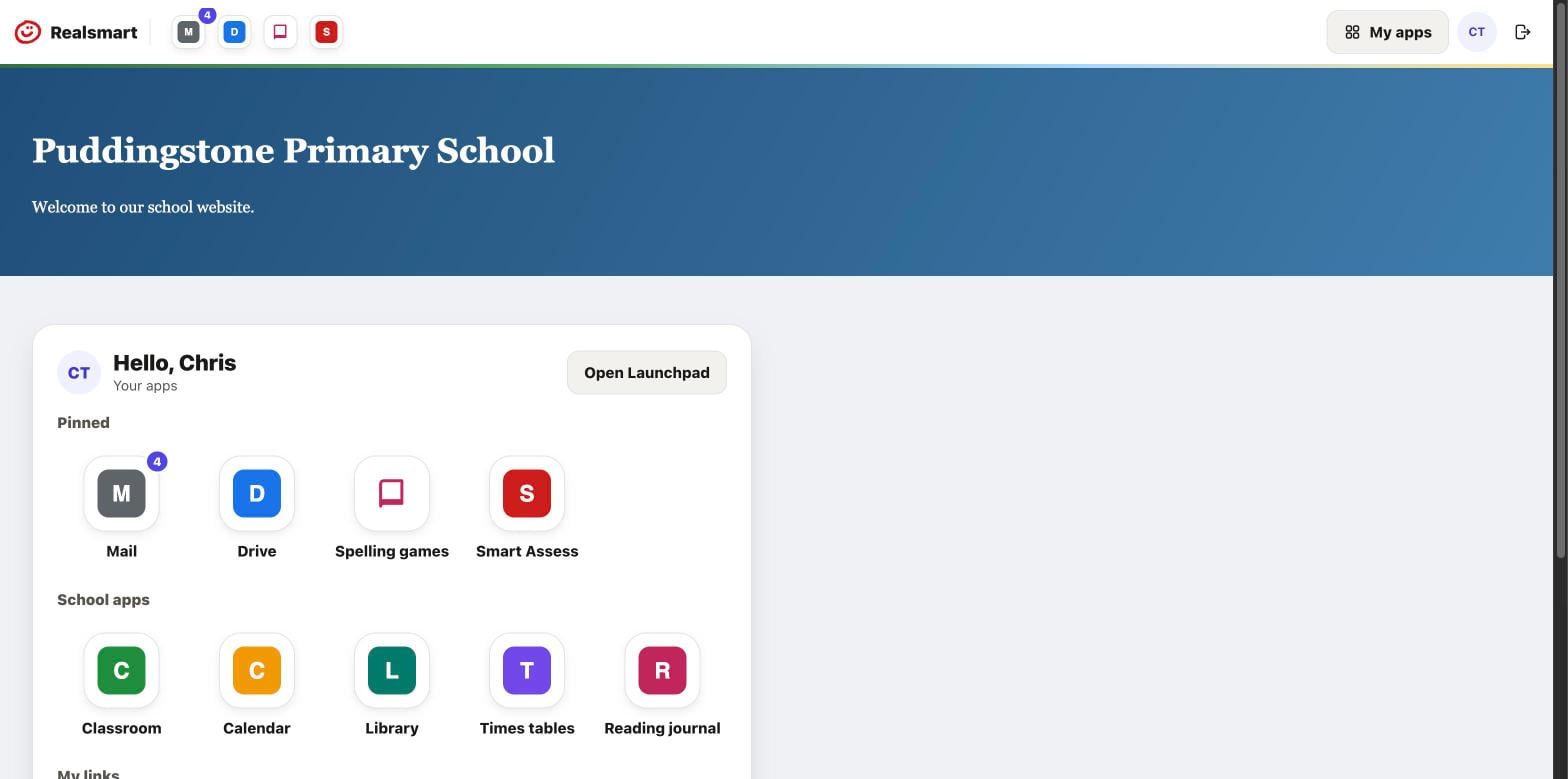
The Launchpad is the page of apps everyone sees when they sign in with Realsmart, and the same apps sit in the bar along the top of your school website. Until now the school chose the apps and their order, and everyone saw the same thing. From today, every pupil and member of staff can make the Launchpad their own: move apps around, pin favourites, add their own links and choose how it looks. It is switched on for every school, and nothing changes about which apps your school makes available.
One Launchpad, everywhere you sign in
The Launchpad now looks and behaves the same wherever you meet it: on the Launchpad page itself, and in the My apps menu in the bar on your school website. Your pinned apps sit in the bar, so the apps you use most are always one click away. Change something in one place and it is changed everywhere.
Arrange your apps
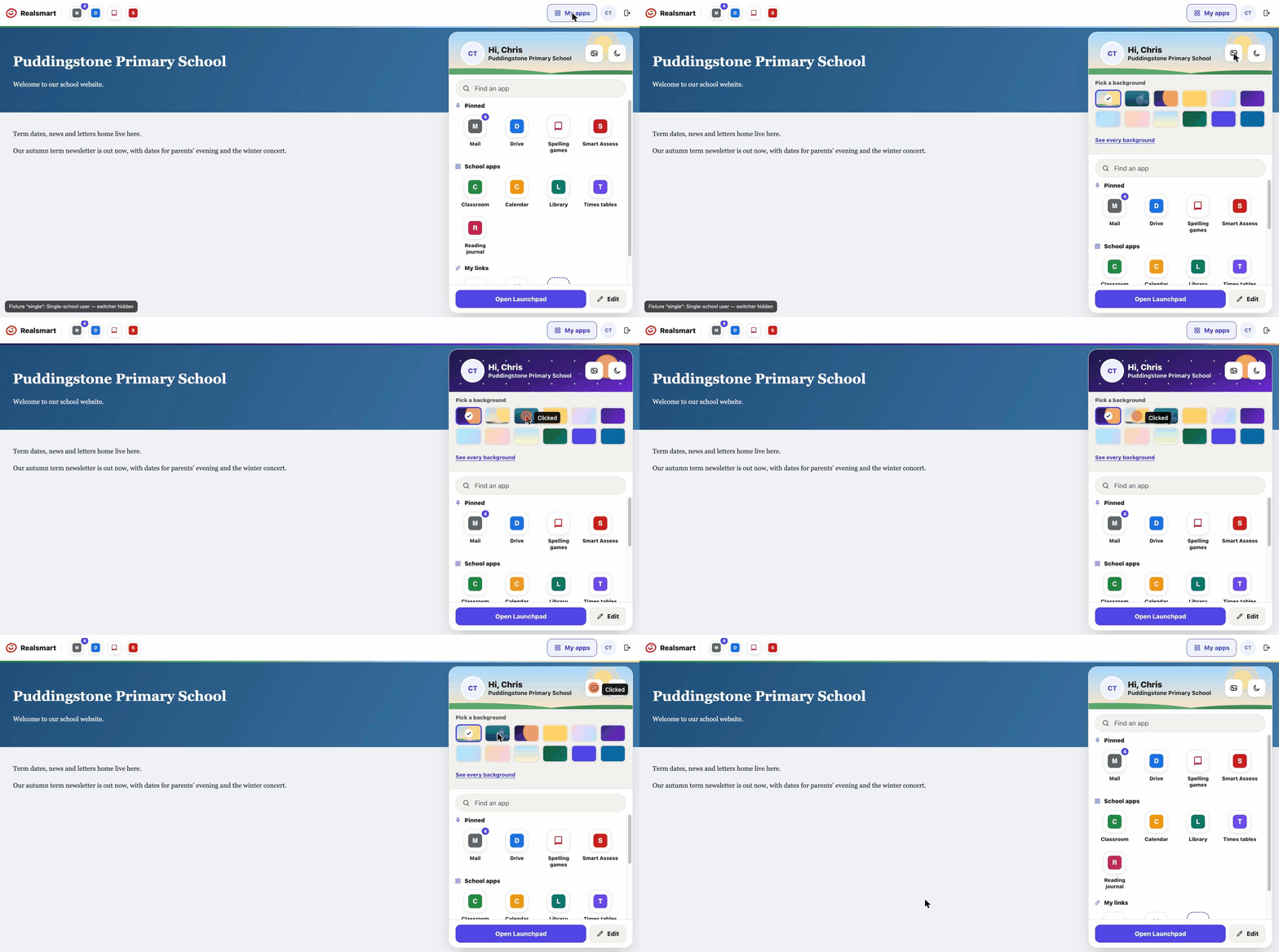
Choose Edit my apps to move apps around. Drag them, or use the arrow buttons if dragging is fiddly. Tap the star to pin an app so it sits at the front and in the bar on your school website. Tap Done when you have finished; there is nothing else to save.
Staff can also hide apps they never use, and bring them back at any time from Hidden apps. Pupils can unpin and reorder, but they cannot hide the apps their school has chosen for them, unless the school allows it. Nobody can ever see an app the school has not made available to them.
Add your own links
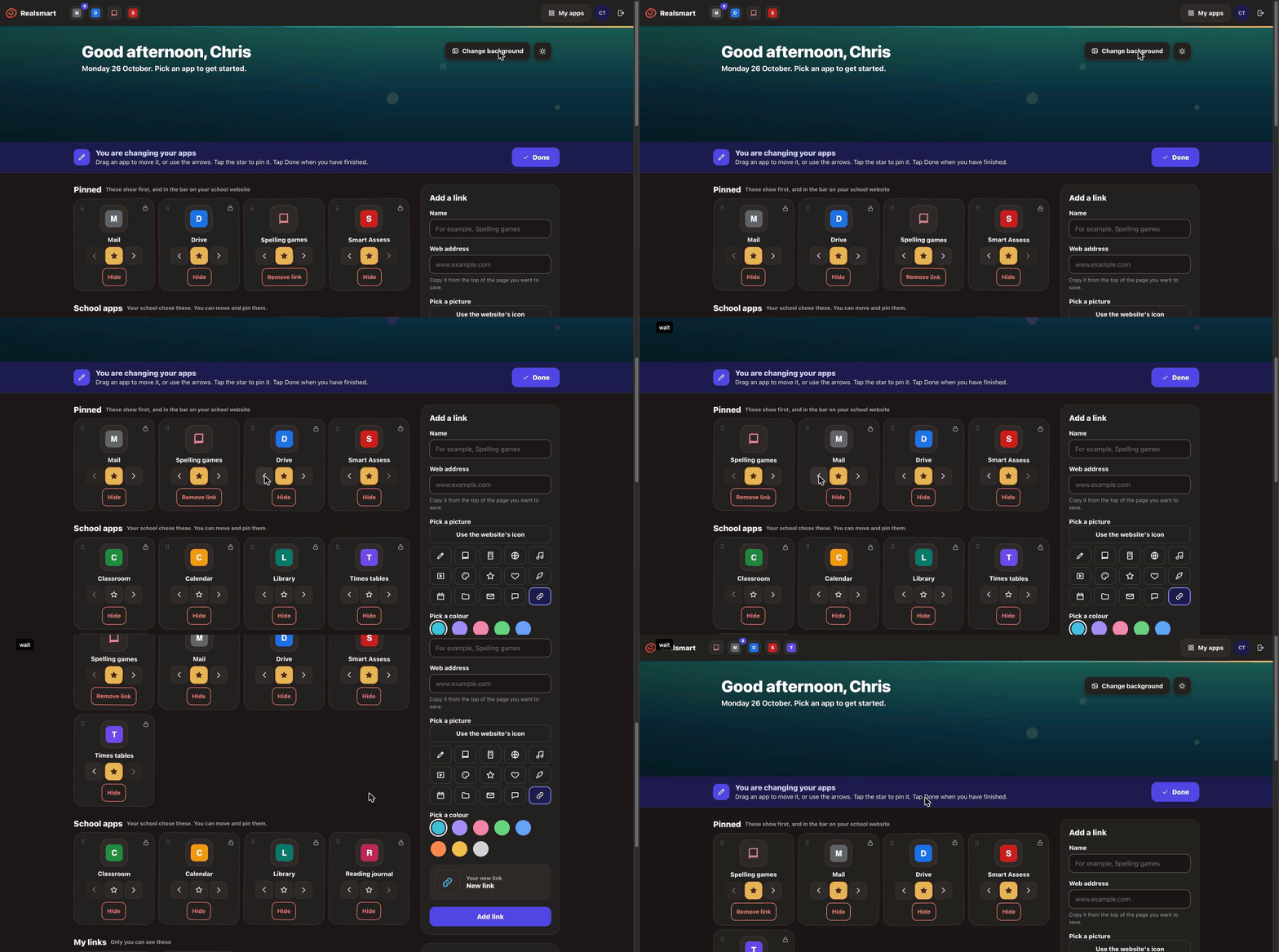
Everyone can add up to 30 links of their own, such as a club page, a planning document or a favourite revision site. Give the link a name, paste in the web address, and pick a picture and a colour for its tile, or use the website’s own icon. Your links appear under My links, and only you can see them.
Choose a background
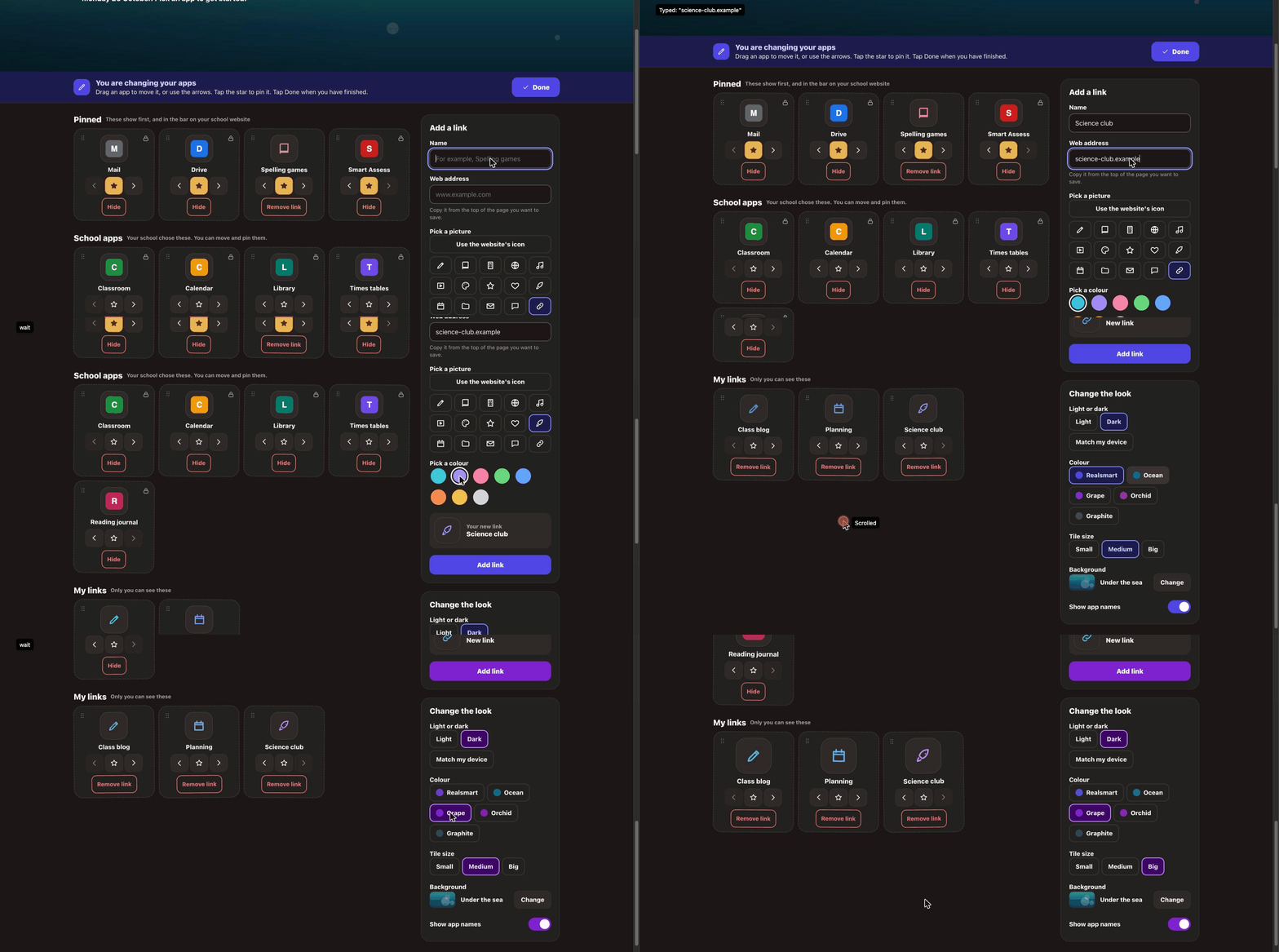
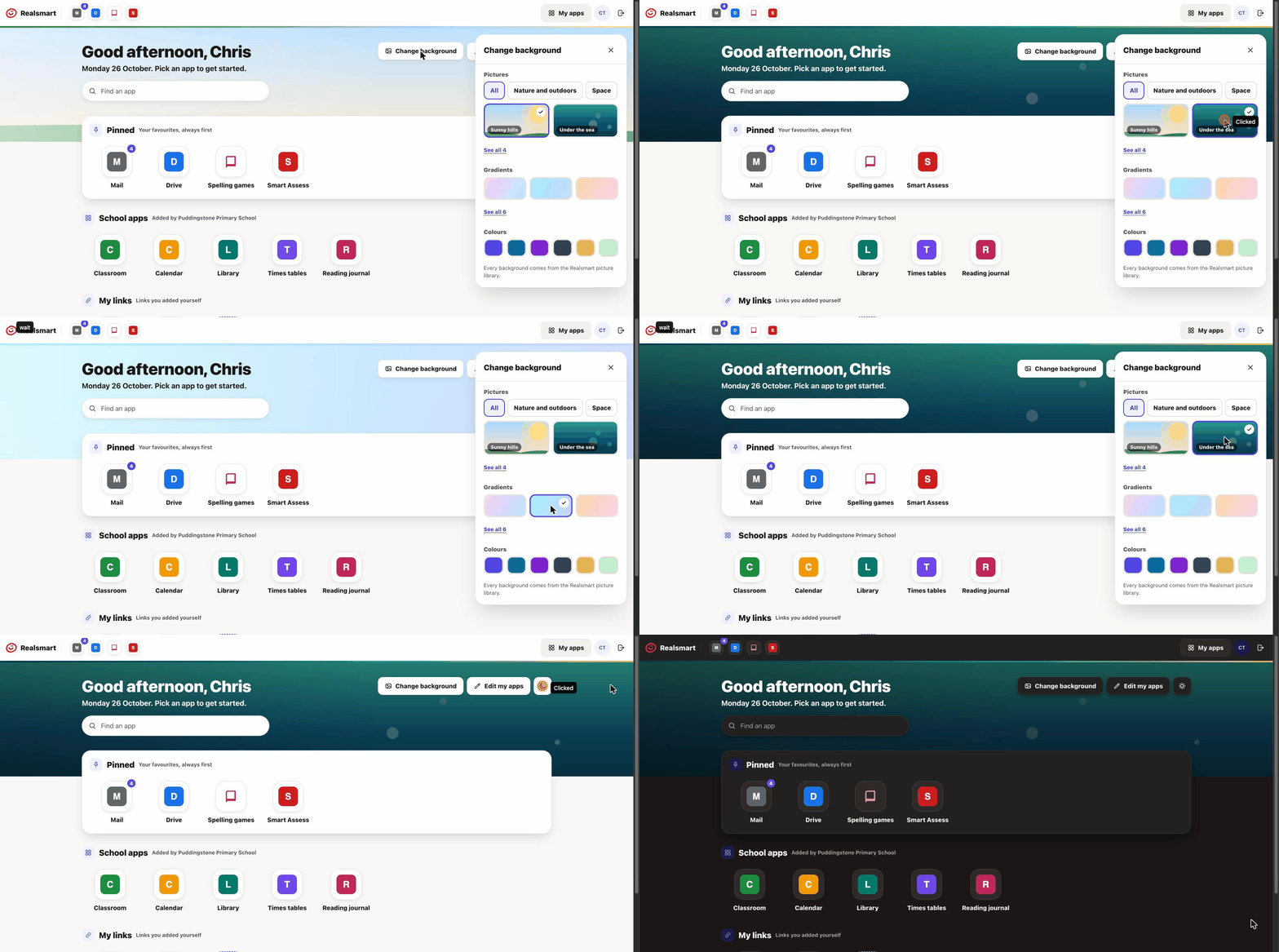
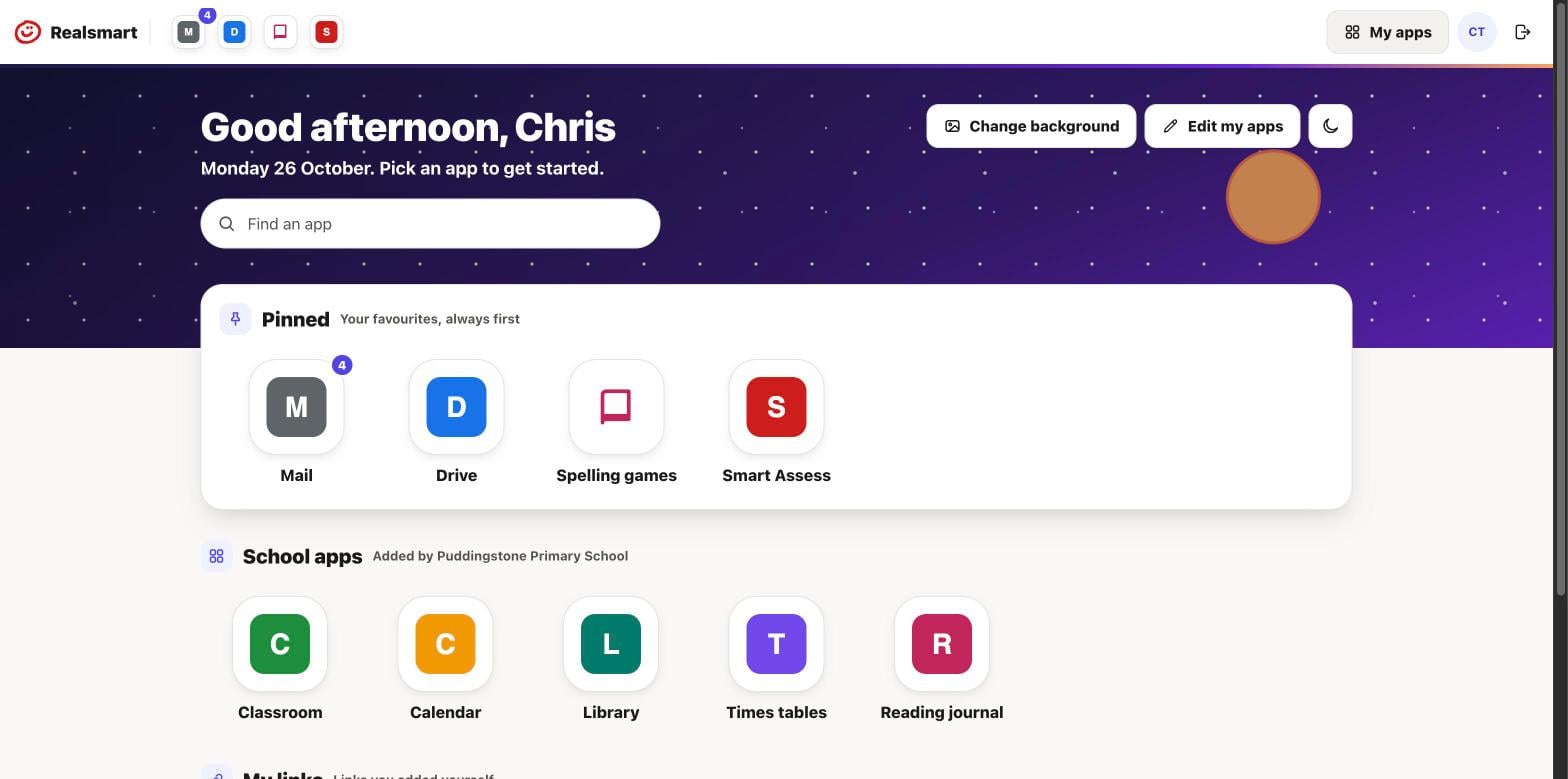
The top of the Launchpad, and of the My apps menu, can now have a background: sunny hills, under the sea, starry space, soft gradients or a plain colour. Choose Change background and pick one. Every background comes from the Realsmart picture library, chosen with schools in mind, so pupils can make the Launchpad feel like theirs without anyone uploading pictures. We will keep adding to the library.
Light, dark, colour and size
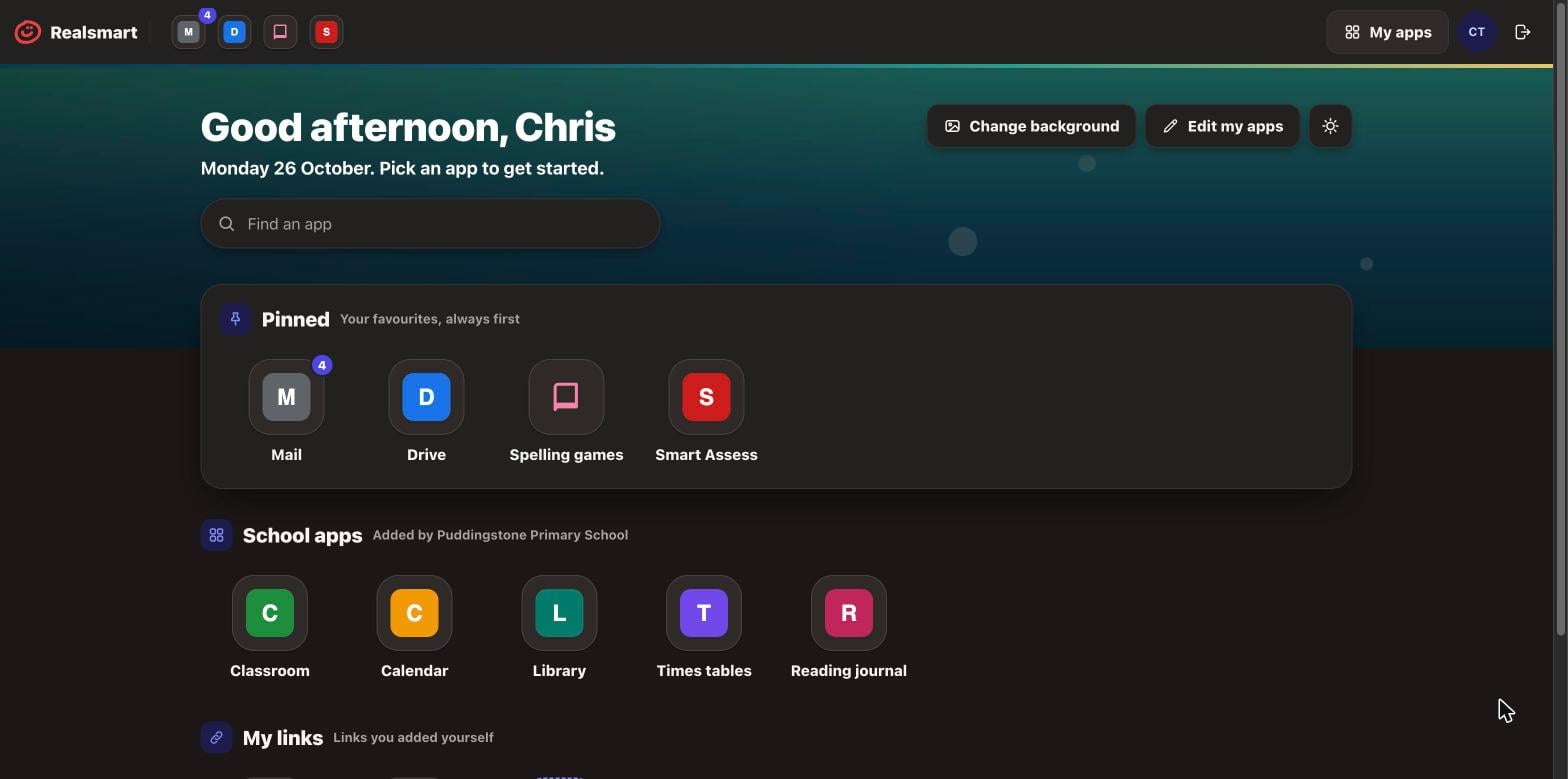
In Change the look you can pick light, dark or match your device, one of five colour themes, and small, medium or big tiles. You can also turn app names off if you prefer just the pictures. Pupils in primary schools start with big tiles, which are easier to spot and to tap, and anyone can change their own size.
For school admins
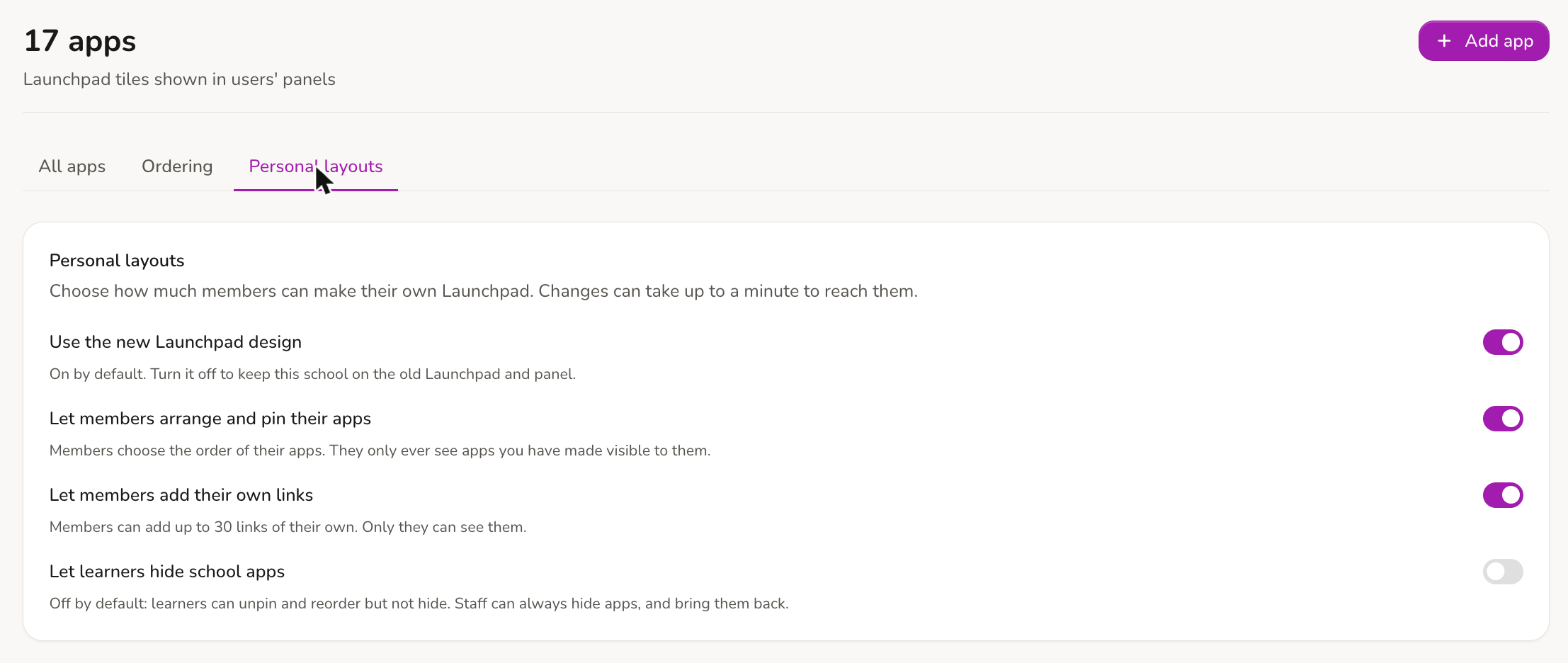
In ADAdmin, go to Apps and open the new Personal layouts tab. There you can choose whether people can arrange and pin their apps, whether they can add their own links, and whether learners can hide school apps. You can also switch the new Launchpad off for your school if you need more time. Changes reach everyone within a minute.
If someone gets in a muddle, open their account under Users and go to the Launchpad tab. You can see exactly how their Launchpad is arranged, and Reset their layout puts it back to your school’s order. Their own links are kept.
Coming soon: the Launchpad on your school website
Lots of schools build a pupil or staff dashboard page on their website. Soon you will be able to drop the Launchpad straight onto any page with a new Realsmart Launchpad block. Whoever is signed in sees their own apps, in their own order, and visitors who are not signed in see a button to sign in.
Tell us what you think
There is a new help guide, Let people arrange their own Launchpad, in the Help section of ADAdmin. If you have ideas for new backgrounds, or something does not work the way you expect, ask us through Beacon. As ever, most of what is here came from schools asking for it.