
Your timetable is now in the Realsmart bar, at the top of your school website and every Realsmart app. Your Launchpad shows today’s lessons, your week and a Coming up list of Classroom work and school events. Here’s a quick tour for staff.
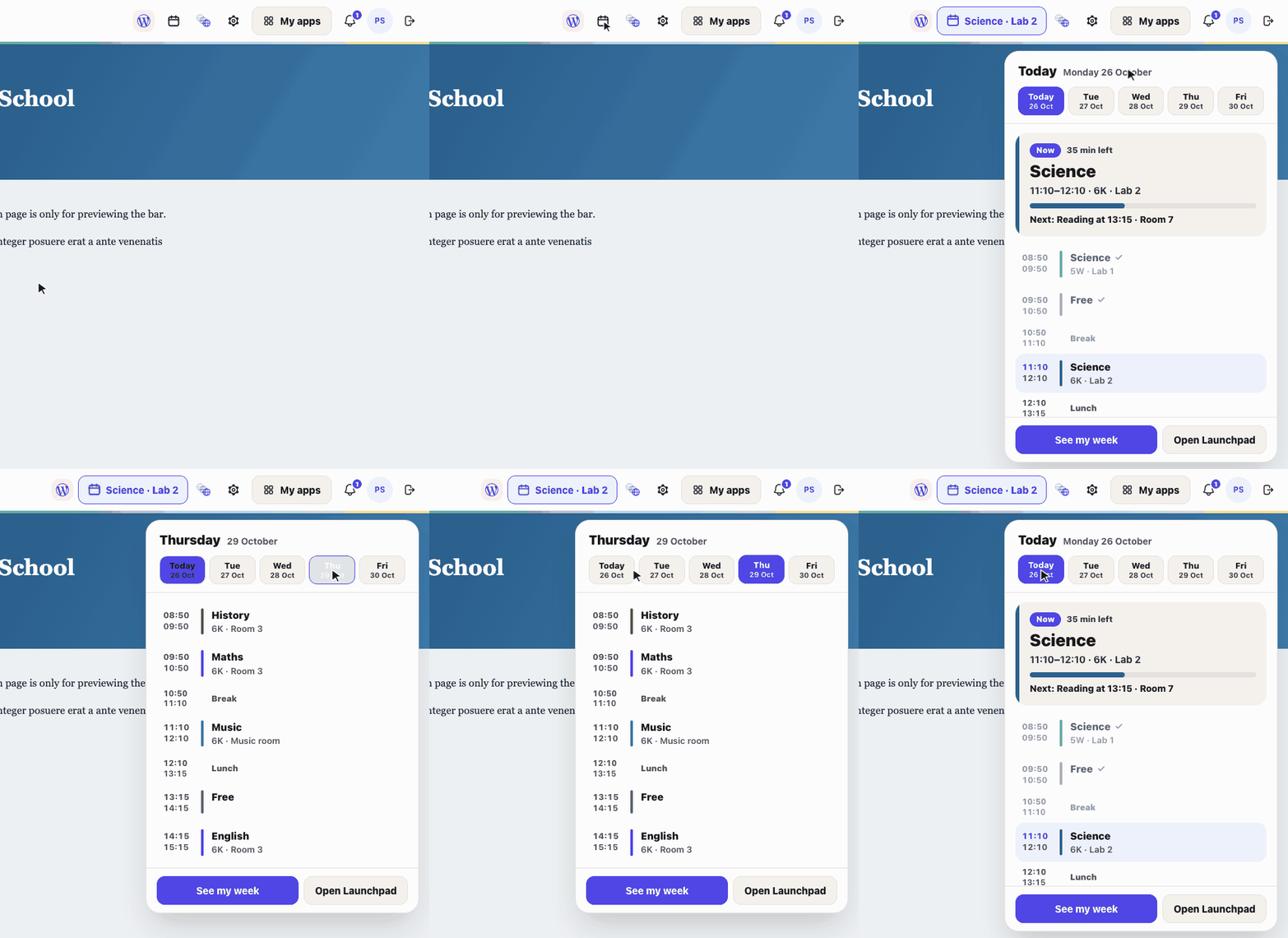
Now and next, from any page
The lesson button in the bar shows the lesson you’re teaching now, or your next one, with the class code and room. Tap it to see the whole day, with how long is left of this lesson and what’s next. Tap a day to look ahead. A gap of 50 minutes or more that isn’t lunch shows as Free.
Today and your week on the Launchpad
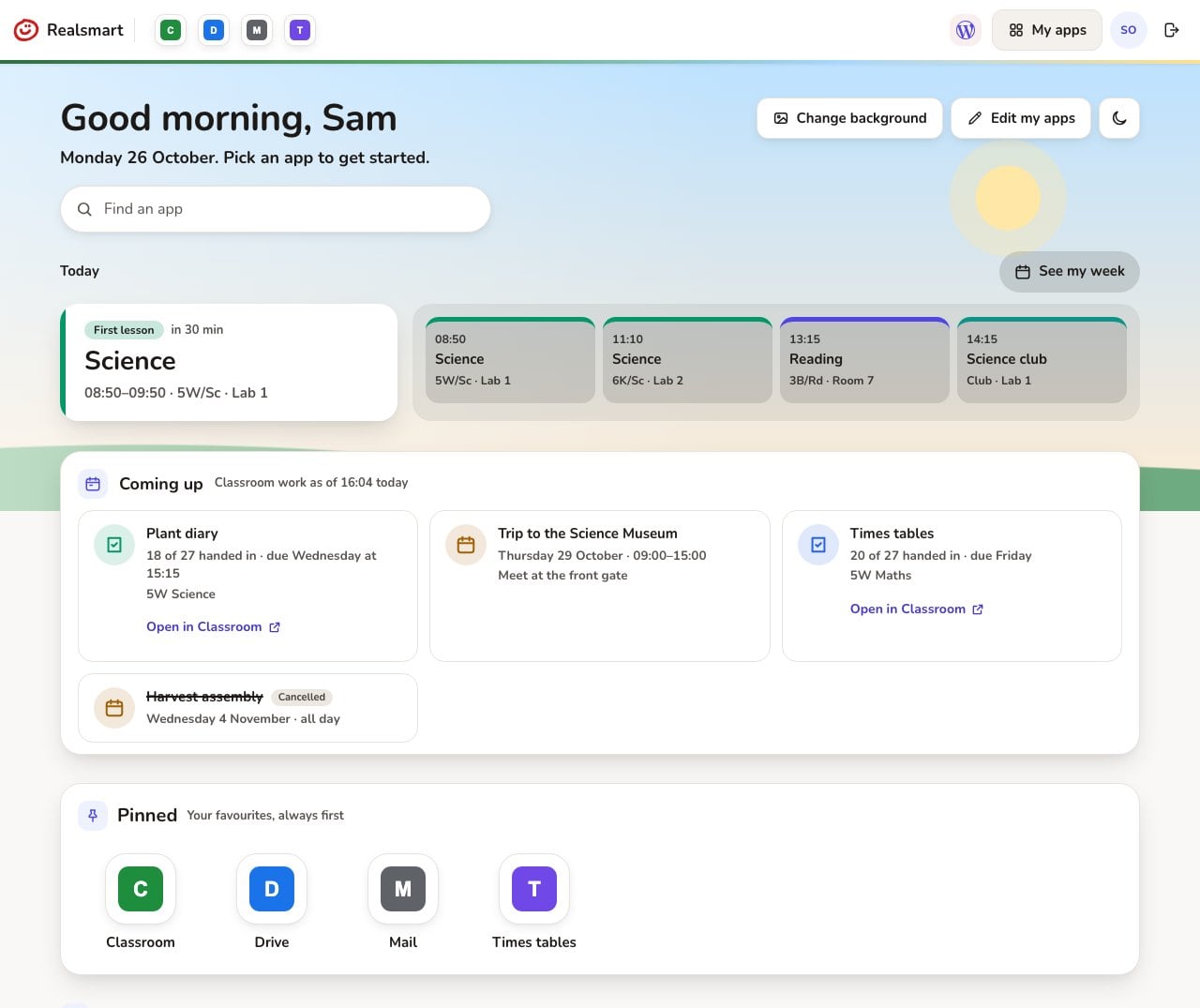
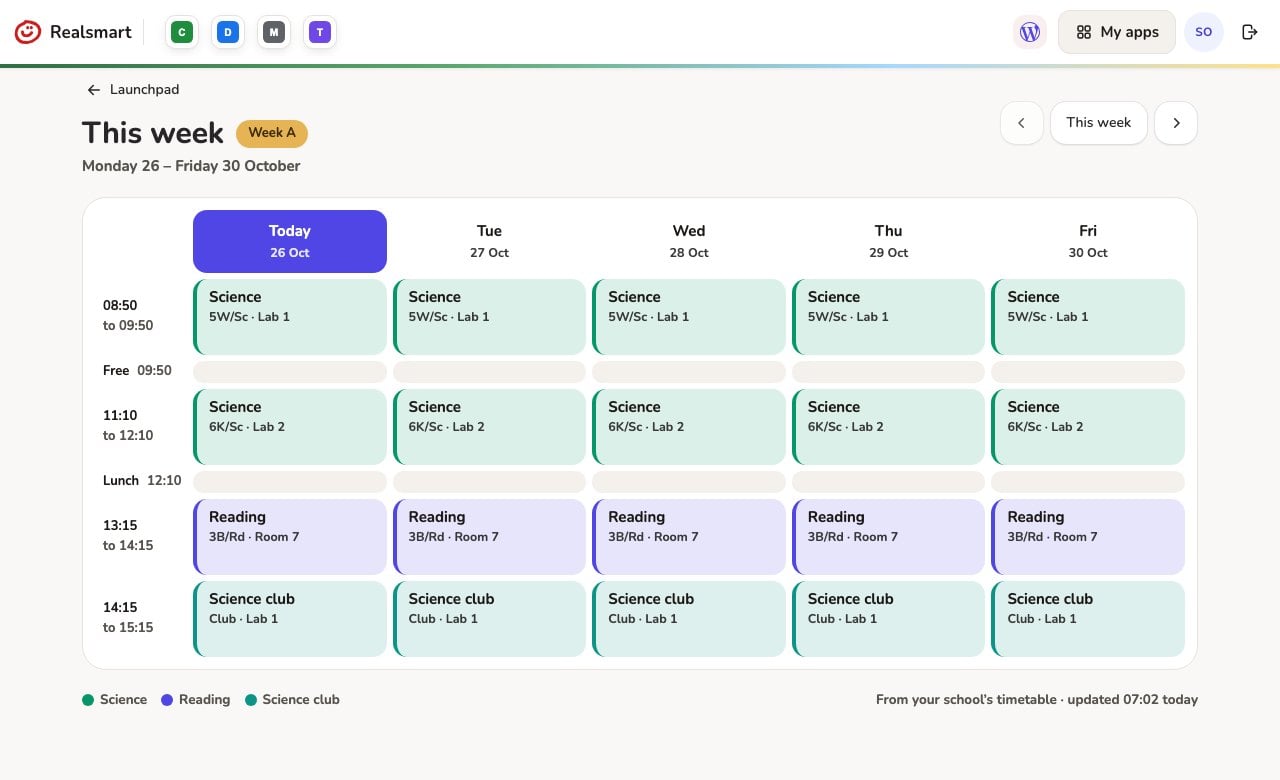
Your Launchpad opens with your next lesson and today’s classes in a row. See my week shows Monday to Friday on one page, with a Week A or Week B label if your school uses them, and arrows to look at next week.
Coming up: Classroom work and events
Coming up lists Google Classroom work due in your classes over the next 7 days, with how many pupils have handed in so far, so you can see at a glance who to chase. It also lists school events from the Smart Parents app for the next two weeks. Cancelled events stay on the list, marked Cancelled, until the date passes.
Classroom figures refresh once a day, at 16:00.
Pin apps and add your own links
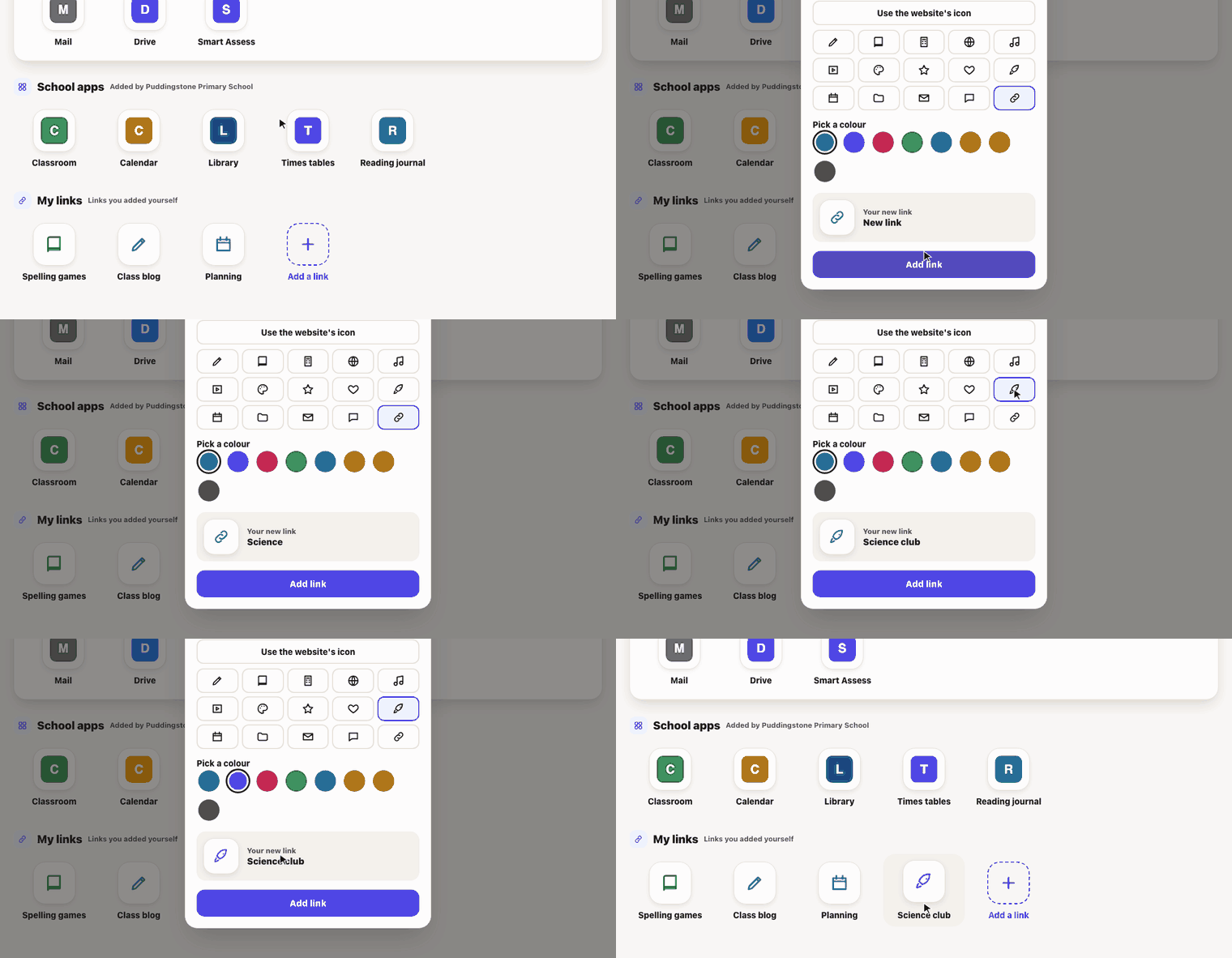
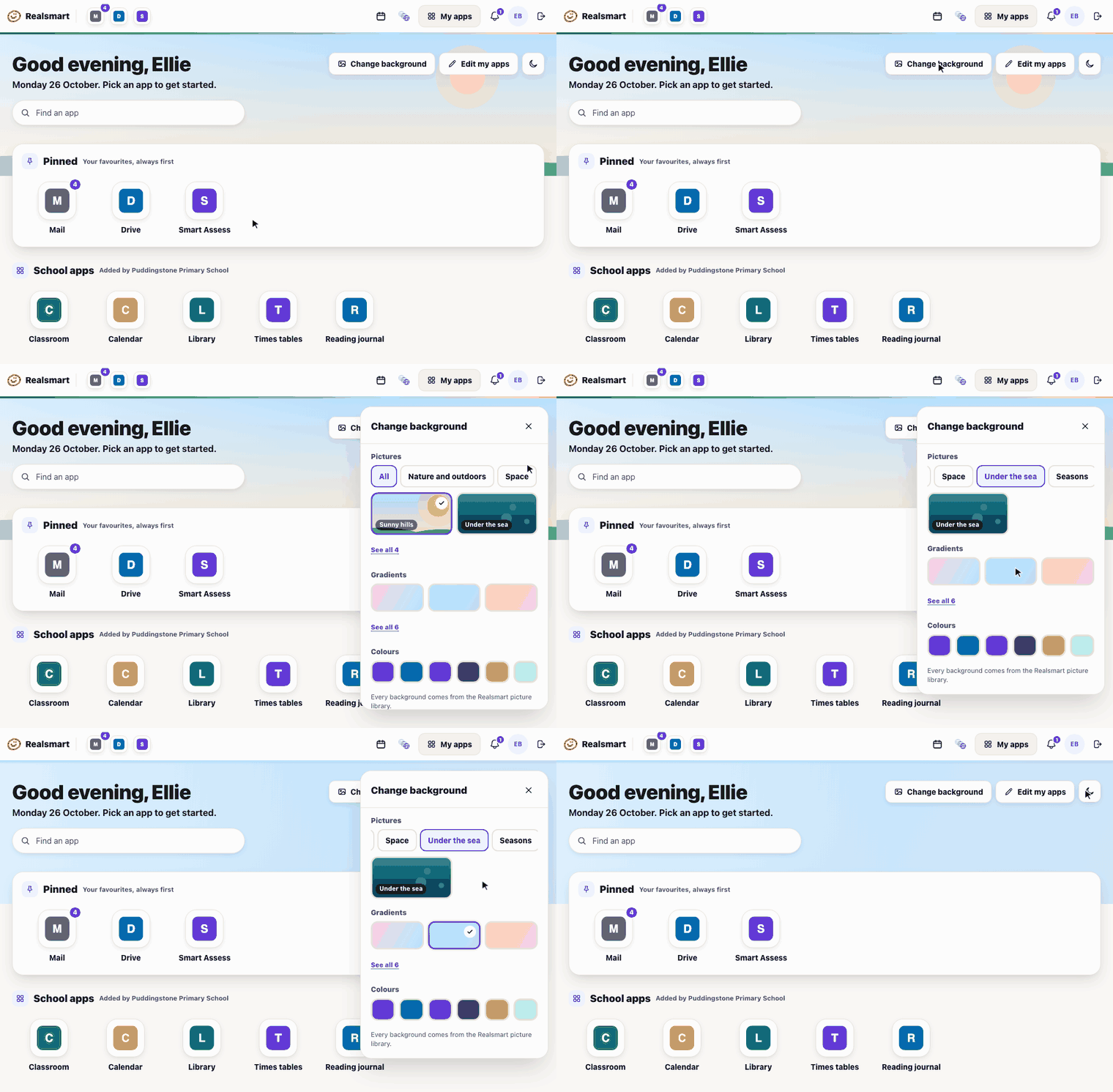
Tap Edit my apps to put your apps in your own order and pin the ones you use every day. They also appear first in the bar. Add your own links too, such as a planning folder or a booking page, each with its own picture and colour. Only you see them.
Tap Change background to pick a picture, gradient or colour, and use the moon button for dark mode.
My apps in the admin
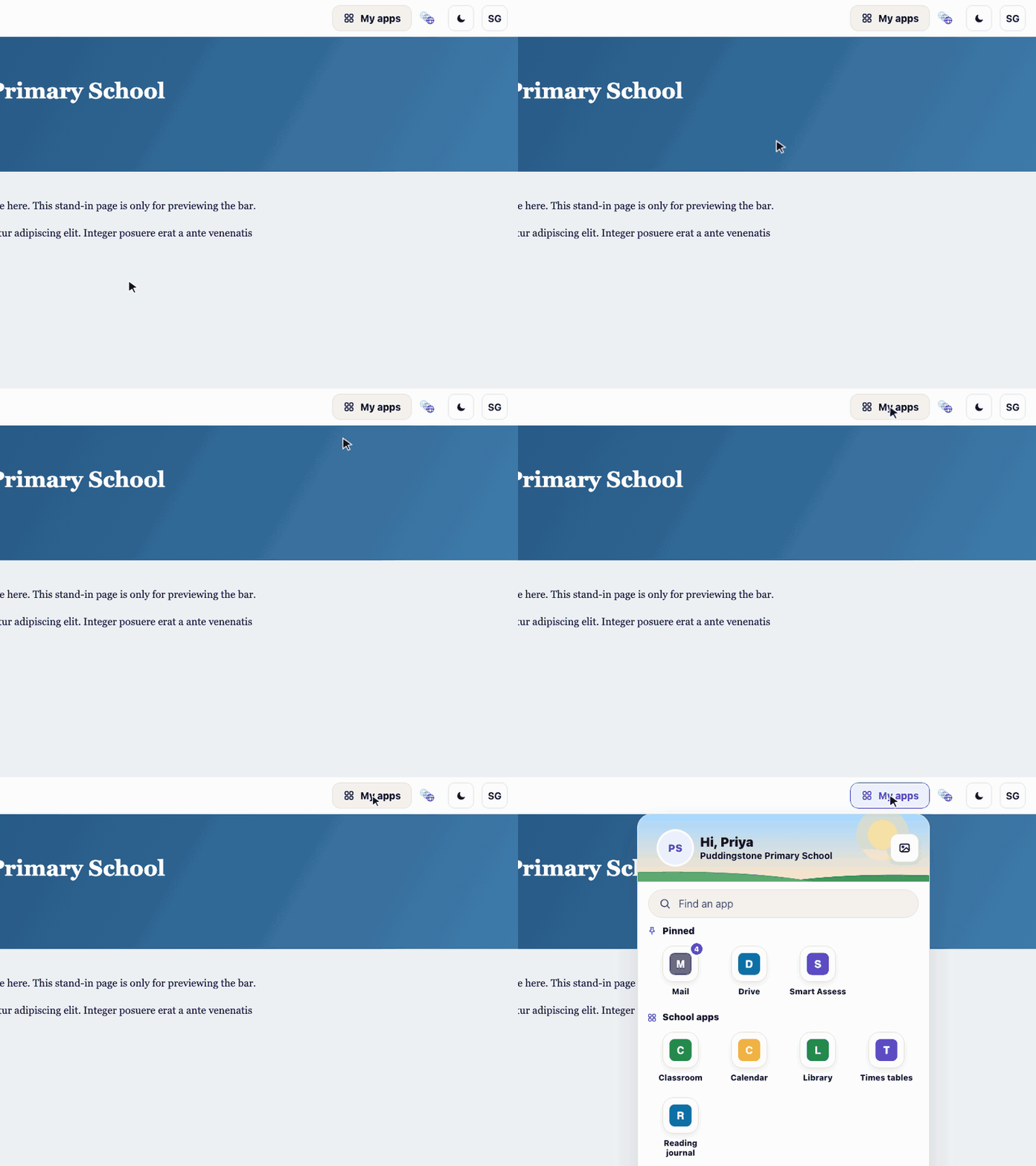
If you use the Realsmart admin, the My apps button in its top bar now opens your own Launchpad apps, in your order and with your own links.
Profile: password, photo and look
Tap your picture in the bar and choose Profile to change your password and photo, and to pick light or dark, an accent colour, tile size and background. Your school’s password rules apply, and the page shows them as you type.
The bell
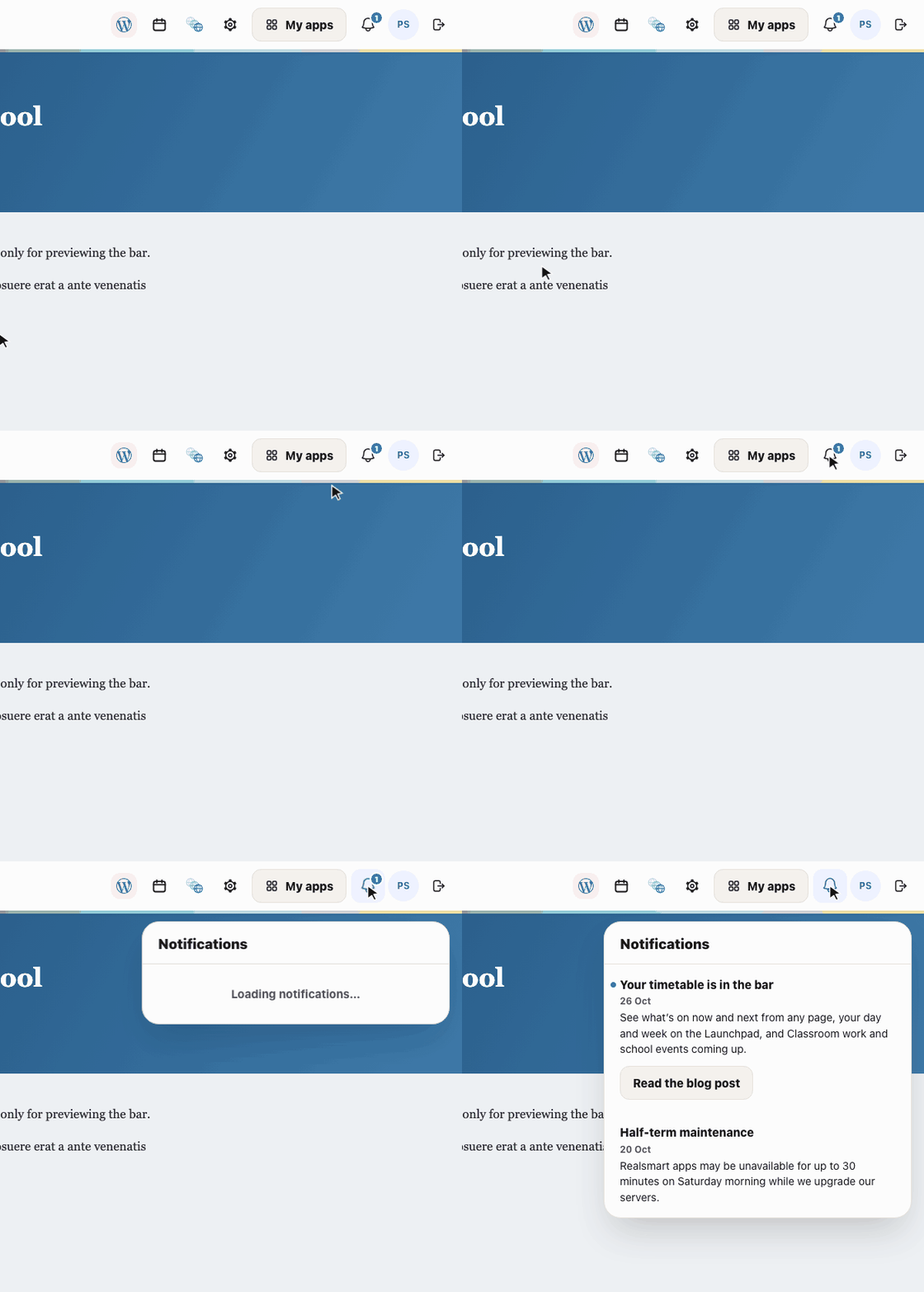
The bell in the bar is where Realsmart tells you about new features. We keep it short, and each notice links to a guide like this one.
Find out more
- Arrange your own Launchpad (help guide)
- Timetable and Coming up on the Launchpad (help guide)
- Make the Launchpad your own
Need a hand? Email support@realsmart.co.uk.