
Today’s Launchpad update puts each pupil’s and teacher’s timetable in the Realsmart bar, shows their day and week on the Launchpad, and adds a Coming up list of Google Classroom work and school events. Most of it works on its own. This guide covers the few settings that decide what your school sees, and how to get the most from it.
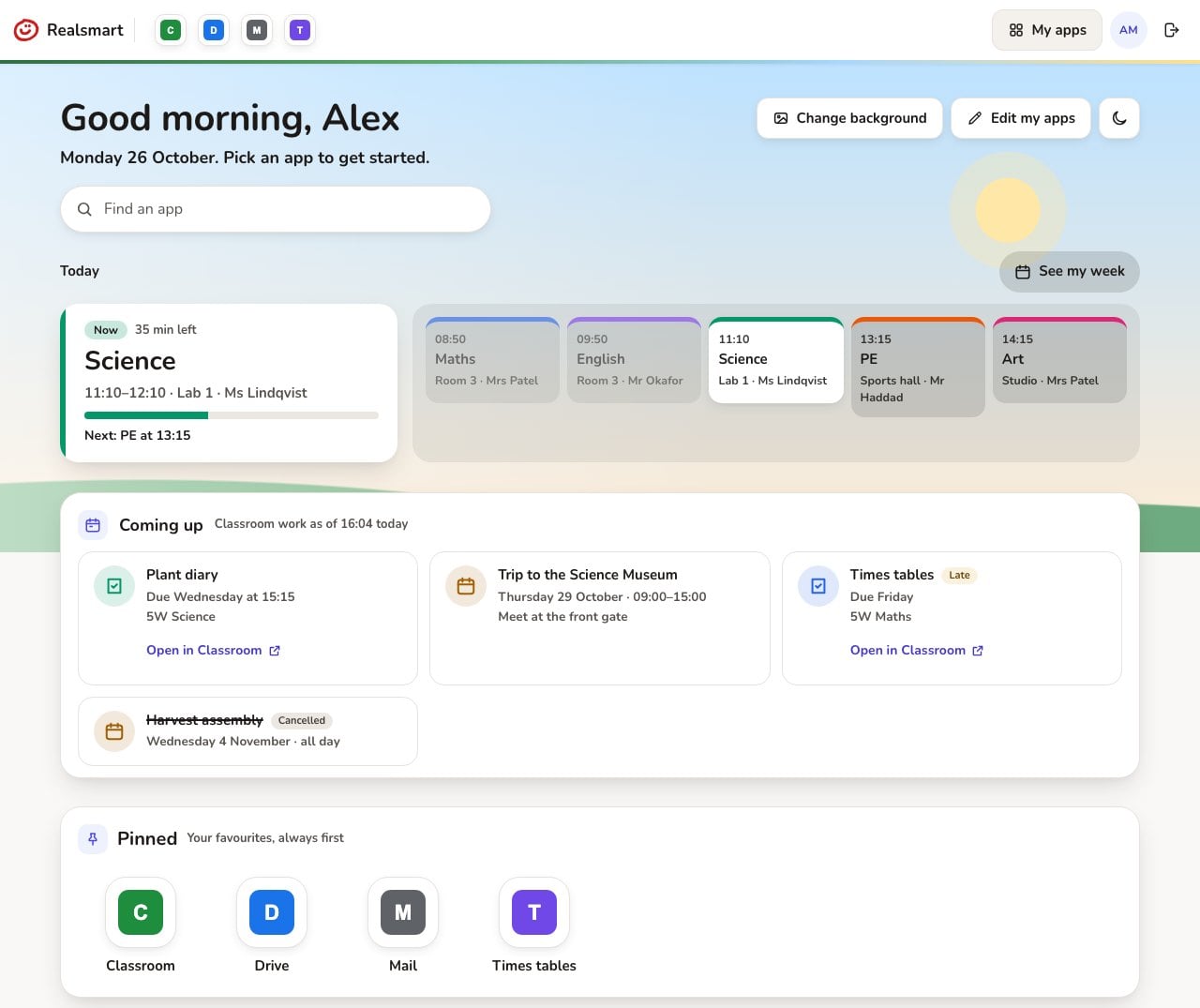
1. Make sure your timetable reaches Realsmart
The timetable comes from your MIS through Wonde, or straight from SOS if your school uses it. For Wonde schools, check that:
- your school is connected to Wonde and has approved Realsmart’s access, including timetable (lessons and classes) data;
- pupils and staff are matched to your MIS in Realsmart, so they have Wonde ids.
Anyone without timetable data sees “Your timetable isn’t available yet” instead of an empty day, so nothing looks broken while you sort it out. SOS schools are supported in the same way.
2. Choose who sees the timetable and Coming up
In ADAdmin, open School settings and select the Launchpad tab. Four switches let you show the timetable and Coming up to pupils and to staff separately. Everything is on until you switch it off, and changes reach people within about an hour.
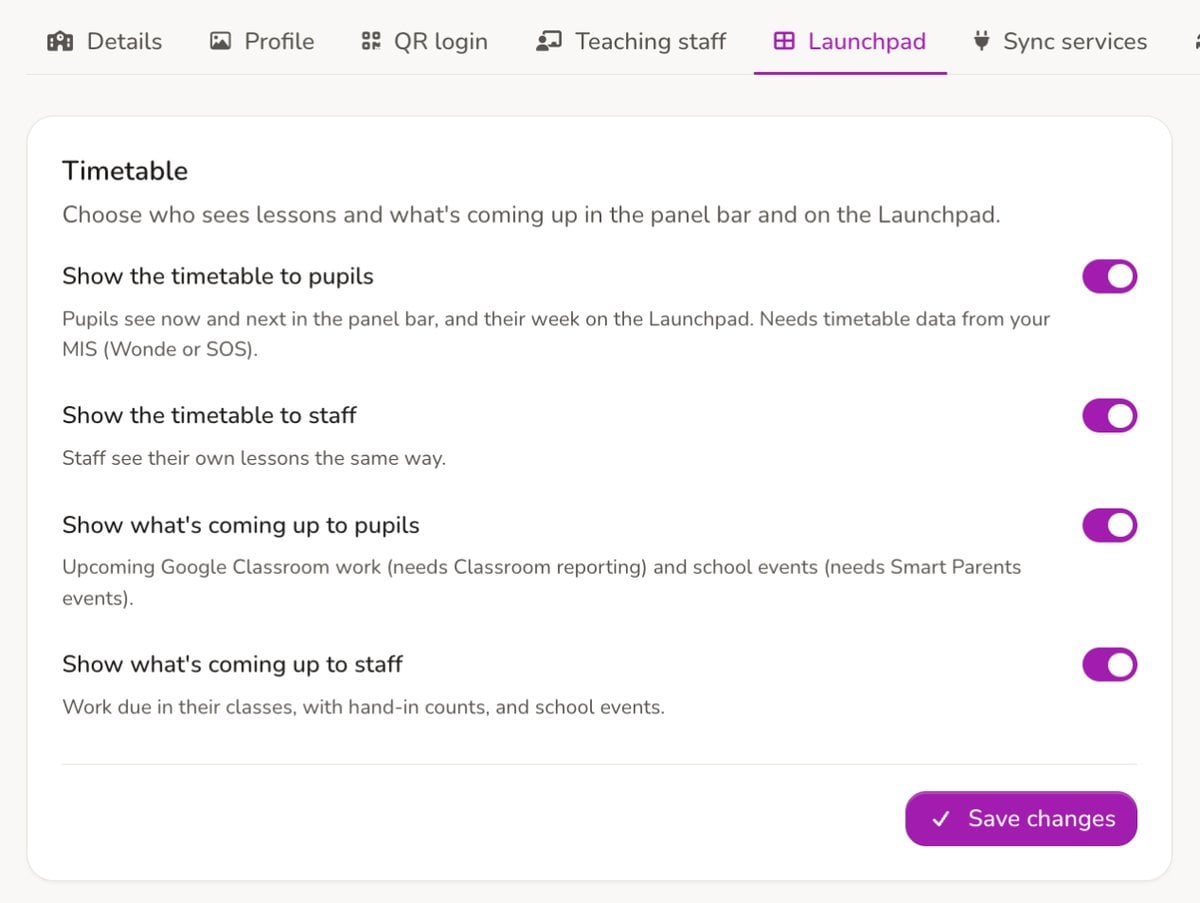
If your school has neither Classroom reporting nor Smart Parents events, the two Coming up switches are greyed out. The next two steps switch those on.
3. Switch on Google Classroom reporting
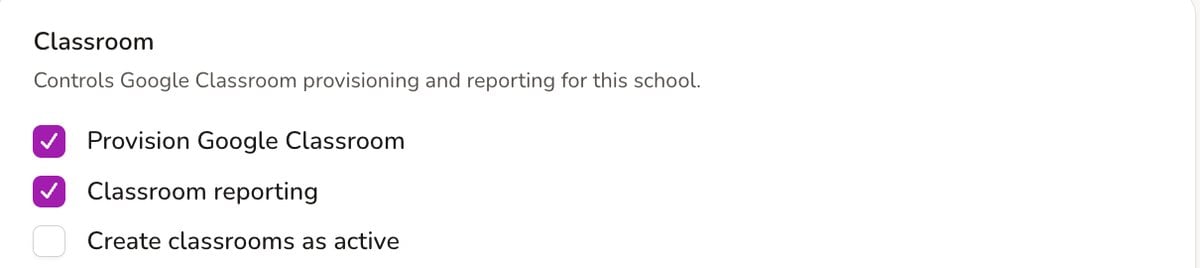
Go to Google Workspace → Classroom and tick Classroom reporting. Coming up then shows pupils the work due in the next 7 days that they haven’t handed in, with a button to open it in Classroom, and shows teachers how many in each class have handed in. The reporting data refreshes once a day at 16:00.
4. Put school events in Coming up with Smart Parents
Events you create in the Smart Parents app appear in Coming up for pupils and staff as well as for parents.
- Open Smart Parents. On the Settings tab, make sure the app is enabled.
- Set Calendar source to Events created here and save. A school uses one source or the other: events created here can take sign-ups; a Google Calendar is read only.
- On the Events tab, select New event, add the date, time and place, and publish it.
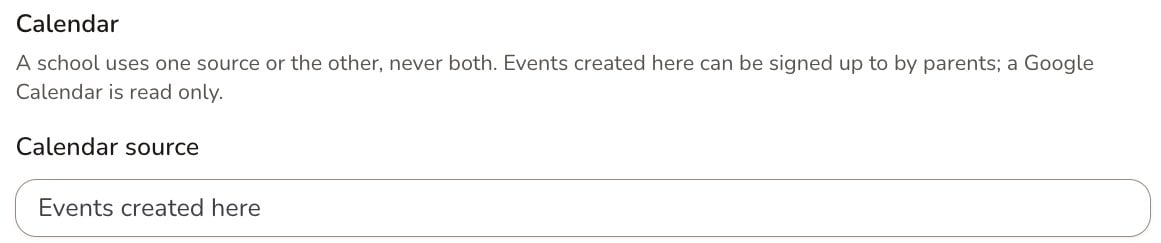
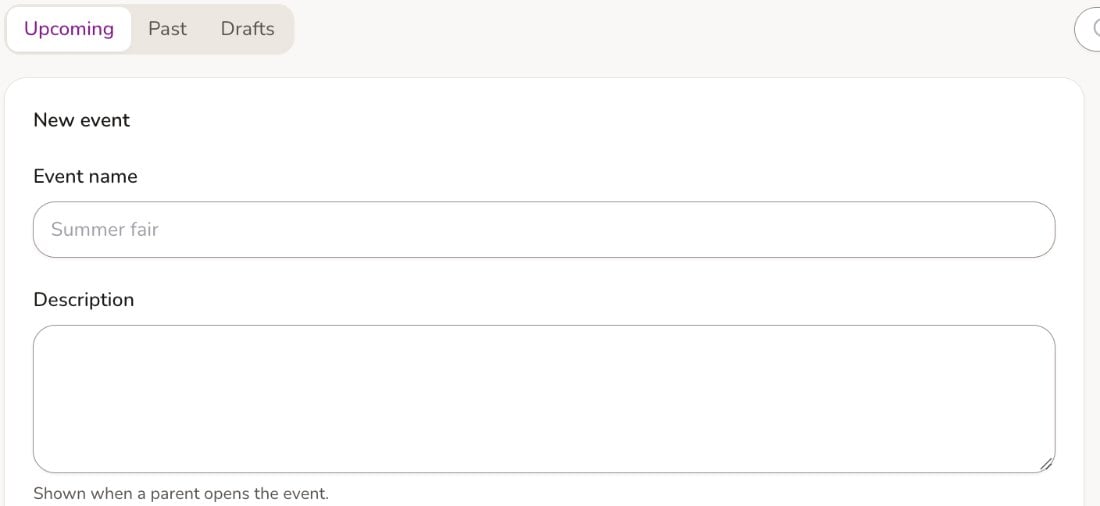
Coming up shows events in the next 14 days. If you cancel one, it stays on the list marked Cancelled until the date passes, so nobody turns up by mistake.
5. Set your school’s Launchpad: order, pins and backgrounds
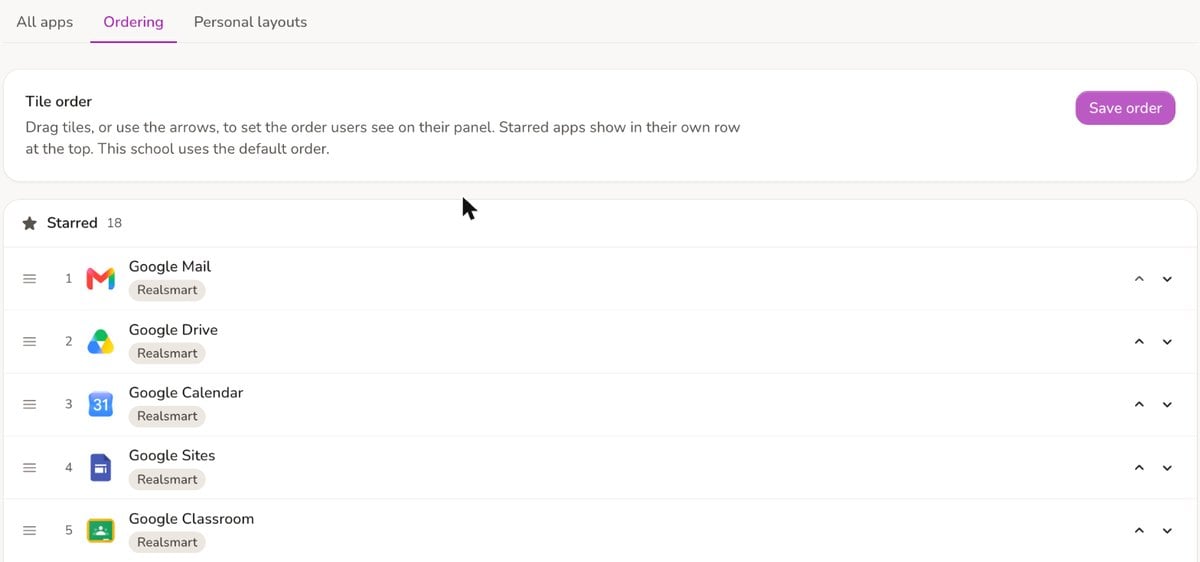
Your school’s app order is everyone’s starting point. Go to Apps → Ordering to choose which apps are starred and the order they appear in. Pupils and staff start from that order and can then pin, move and add their own.
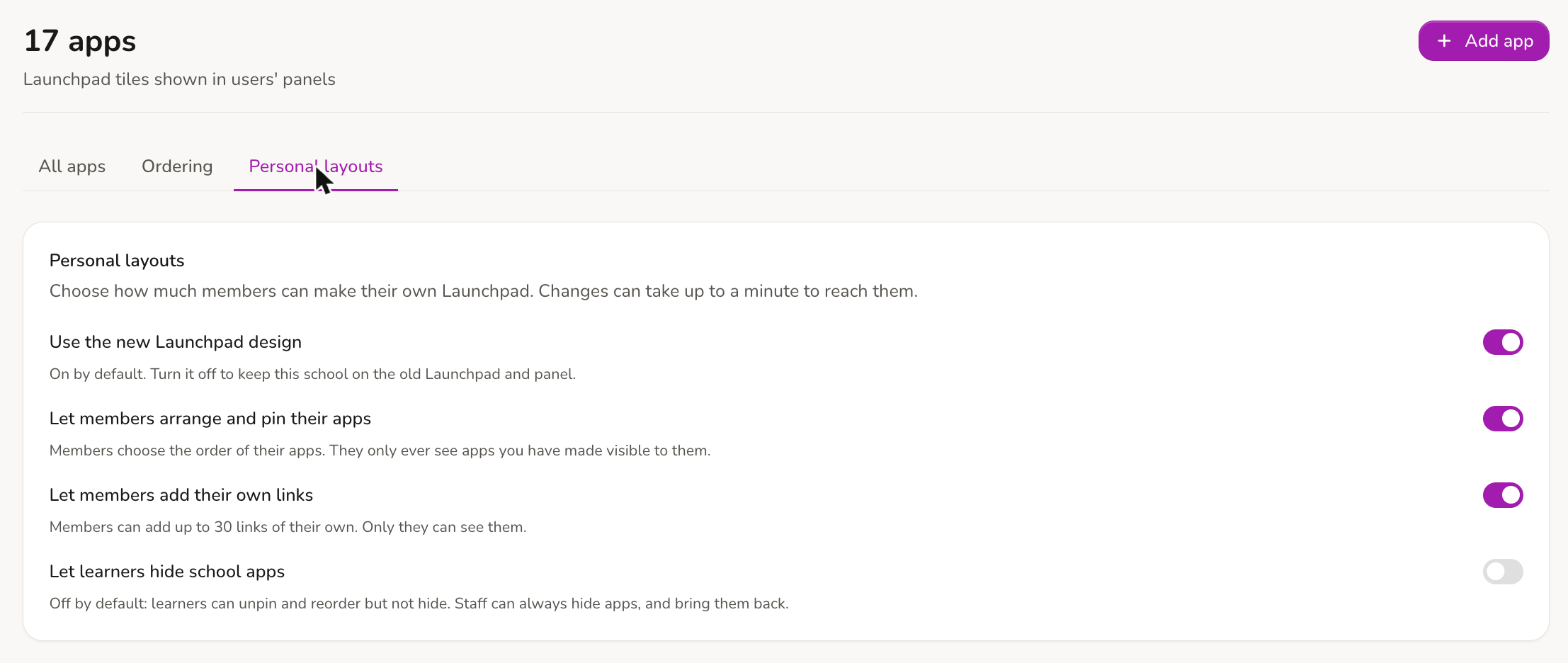
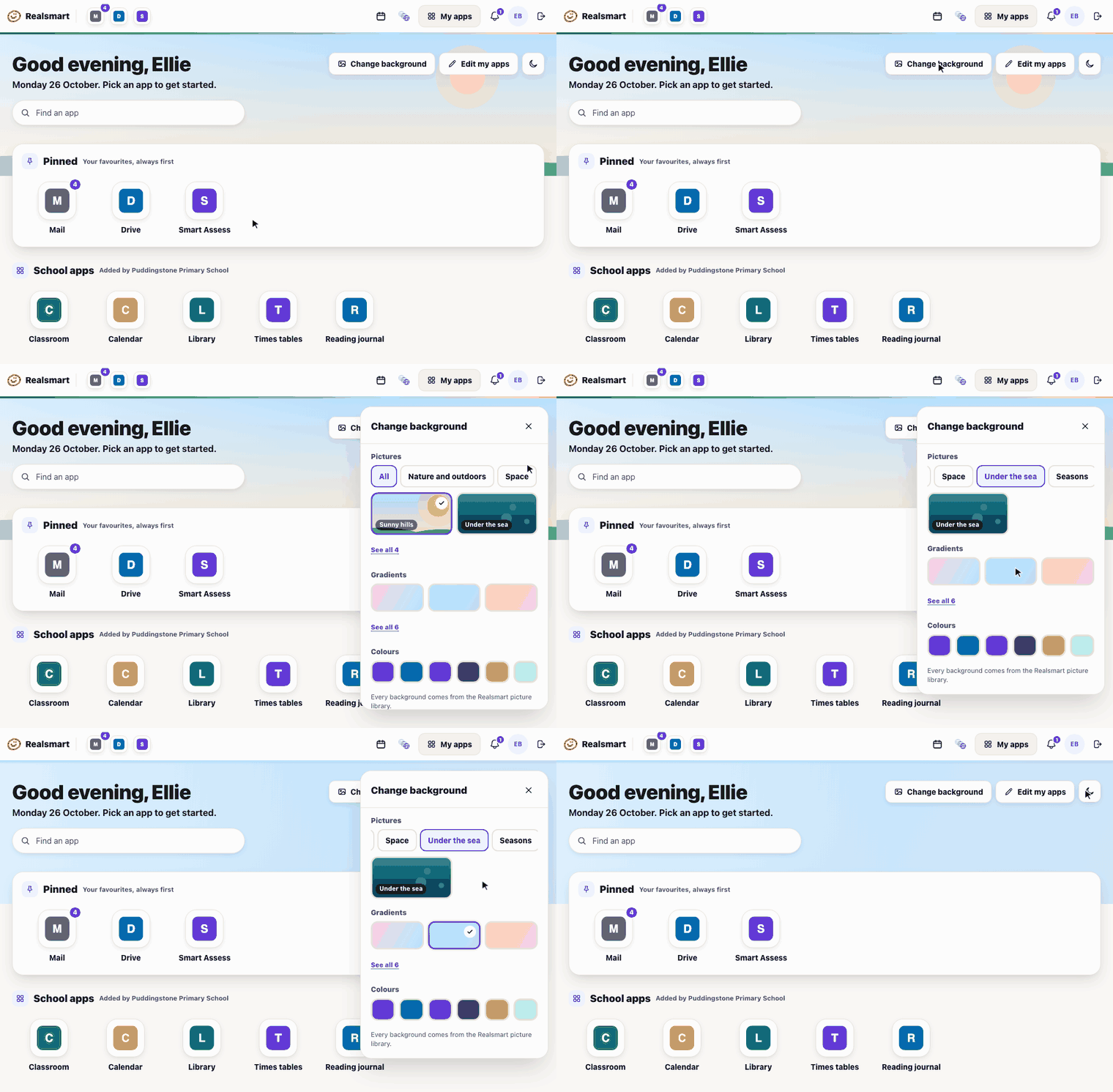
Apps → Personal layouts decides how much people can change: arranging and pinning apps, adding their own links, and whether pupils can hide school apps. It’s also where you can keep the old Launchpad design for now. Backgrounds are each person’s own choice, from the Realsmart picture library, gradients and colours.
If someone’s Launchpad gets in a muddle, open them under Users, go to the Launchpad tab and select Reset their layout.
6. Check your password and picture rules
Everyone now has a Profile page, opened from their picture in the Realsmart bar, where they change their own password and photo and choose their look. Profile follows your school’s rules:
- School settings → Password: the password policy (including the DfE standard), minimum lengths and complexity. Disable student passwords stops pupils changing their own password; you can also do this for chosen year groups, or for one pupil from their record. Staff can always change their own.
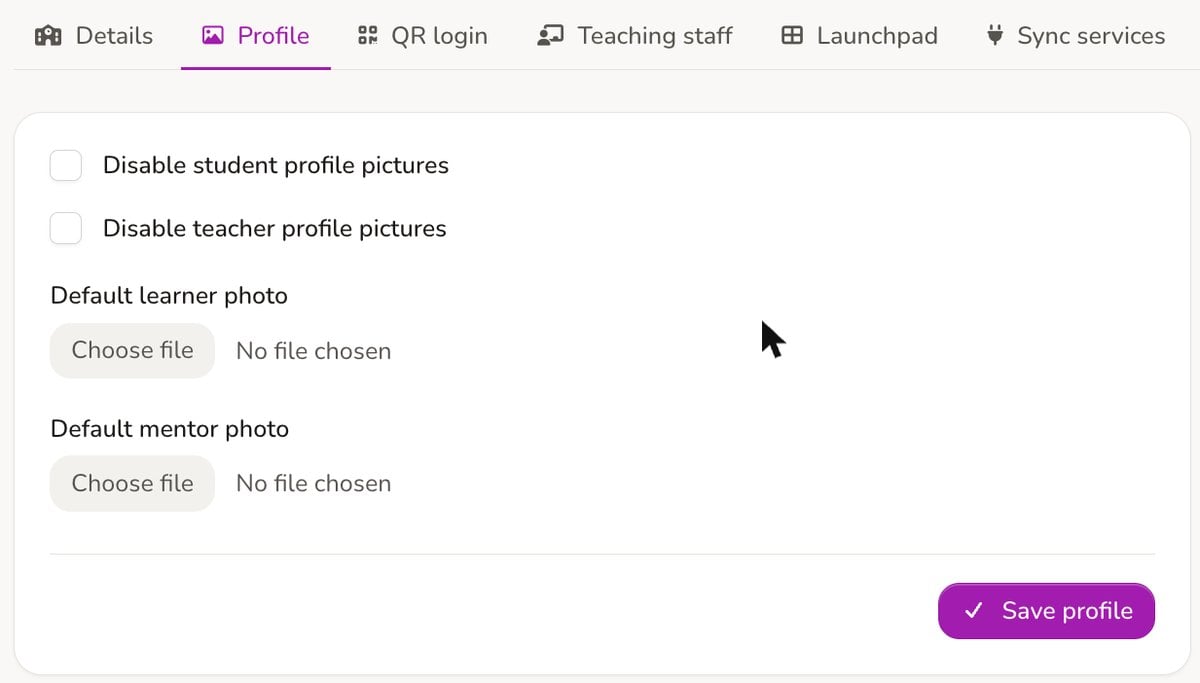
- School settings → Profile: Disable student profile pictures and Disable teacher profile pictures stop pupils or staff changing their own photo.
7. Put the Launchpad on your school website
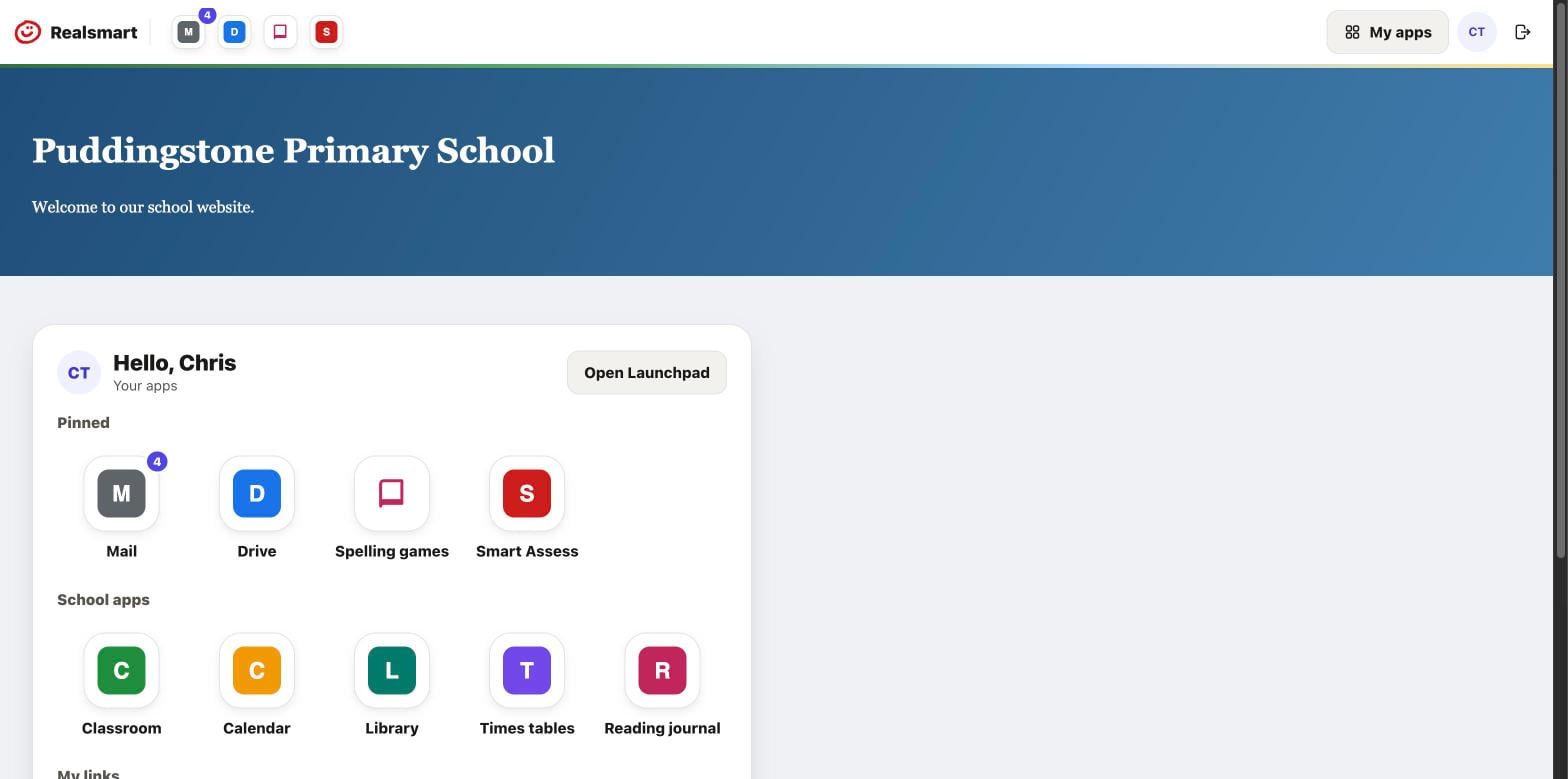
If your website runs on Realsmart, add the Realsmart Launchpad block to any page, such as a pupil or staff dashboard. Signed-in visitors see their own apps and links; everyone else sees a Sign in with Realsmart button.
Help guides
- Timetable and Coming up on the Launchpad
- Google Classroom settings
- Smart Parents settings
- Smart Parents events and sign-ups
- Order the apps on your school’s panel
- Let people arrange their own Launchpad
- Password settings
- View your profile
For pupils and staff, share What’s in your Launchpad and Your Launchpad and timetable.
Need a hand? Email support@realsmart.co.uk.