
Some groups are really several groups put together. “Year 11 Revision” is everyone in 11A, 11B and 11C. “All support staff” is the TAs, the office team and the site team. Keeping a group like that up to date by hand, every time someone joins or leaves, is a job nobody wants.
In ADAdmin you can now put groups inside groups, and the sync keeps them in step for you.
Adding a group to a group
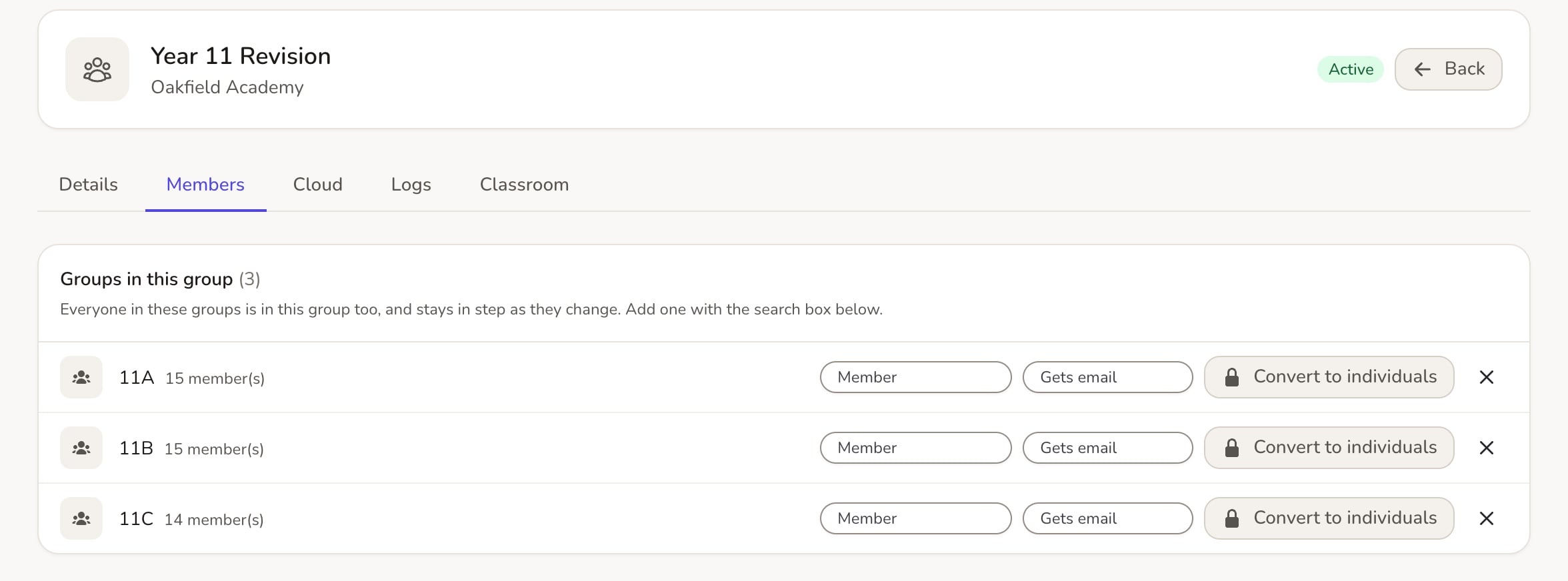
- Open the group in Groups and go to its Members tab.
- Under Groups in this group, search with Add a member or group…. Groups are labelled Group.
- Add the groups you want.
It’s a live link. When your MIS moves a pupil into 11B, they join Year 11 Revision too, with nothing for you to do.
What happens in Google and Microsoft 365
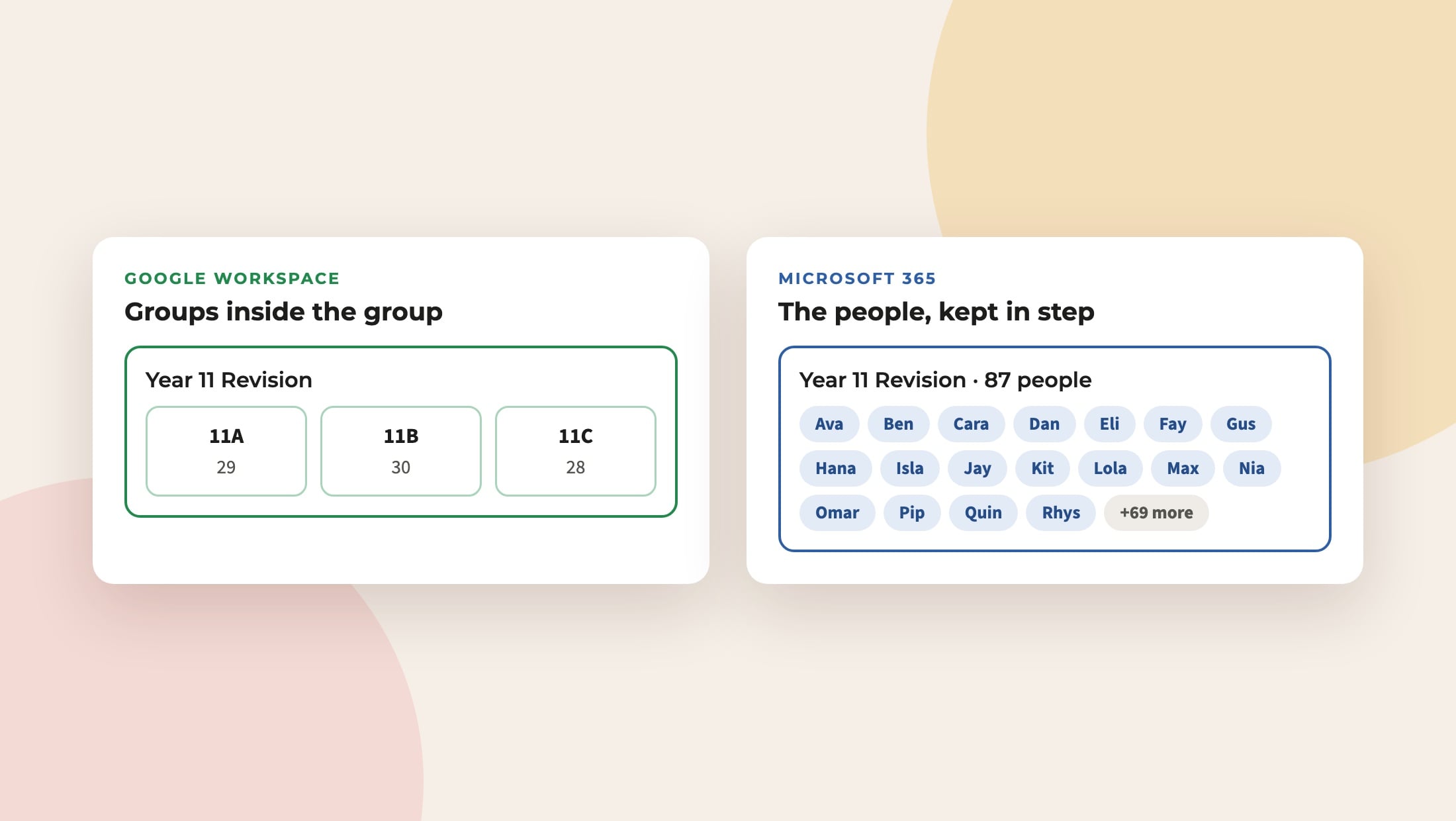
- Google Workspace supports groups inside groups, so the inner group becomes a member of the outer one. You can choose its Google role: Group default, Member, Owner or Manager.
- Microsoft 365 groups can’t contain other groups, so the sync adds the inner group’s people directly, and keeps that list up to date as they change.
The group’s Cloud tab shows who has actually arrived in Google or Microsoft 365, so you can check at a glance.
Changing your mind
- Convert to individuals copies the current members in as fixed members and breaks the link.
- ✕ simply removes the link.
Both groups need to be in the same school. Questions? Email support@realsmart.co.uk.