
For younger pupils, a QR code is the easiest way to sign in: hold up a card to the camera and you are in. September is when schools print hundreds of new cards, so this term we have made every part of that easier, from printing to scanning.
Cards that print in class order
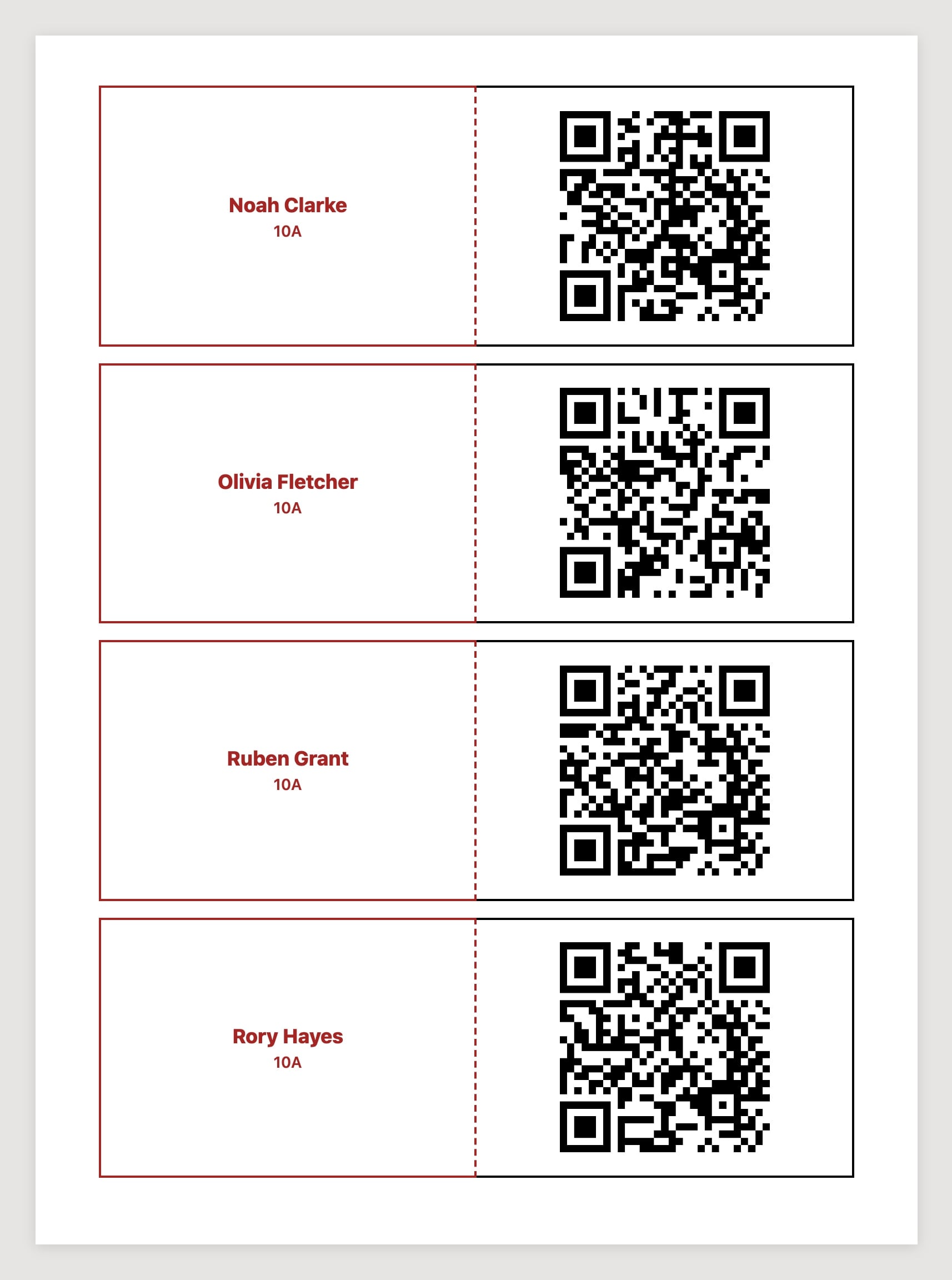
Print QR codes now sorts cards by registration group, then by surname, with each group starting on a new page. Print the whole school, cut along the lines and hand each form tutor their own bundle.
Big batches no longer time out either. You can print any number of cards, up to the whole school, with a progress bar while they are made. If a run is interrupted, start it again and it carries on where it left off.
Teachers can replace a lost card
Cards go missing. Teachers whom your school allows to reset passwords now have a QR codes menu on the Reset passwords page, with Print, Generate, Delete & regenerate and Delete. Delete & regenerate makes the old card stop working and prints a new one, so a lost card can’t be used by anyone else. This works for pupils’ cards only.
Login sheets, one page per form
Admins can now go to Data → Export and choose Student logins by registration group. Pick the groups you want, then Download CSV for a mail merge, or Print sheets for one A4 page per group, listing each pupil’s name and username. Passwords are never printed.
A smarter scanner
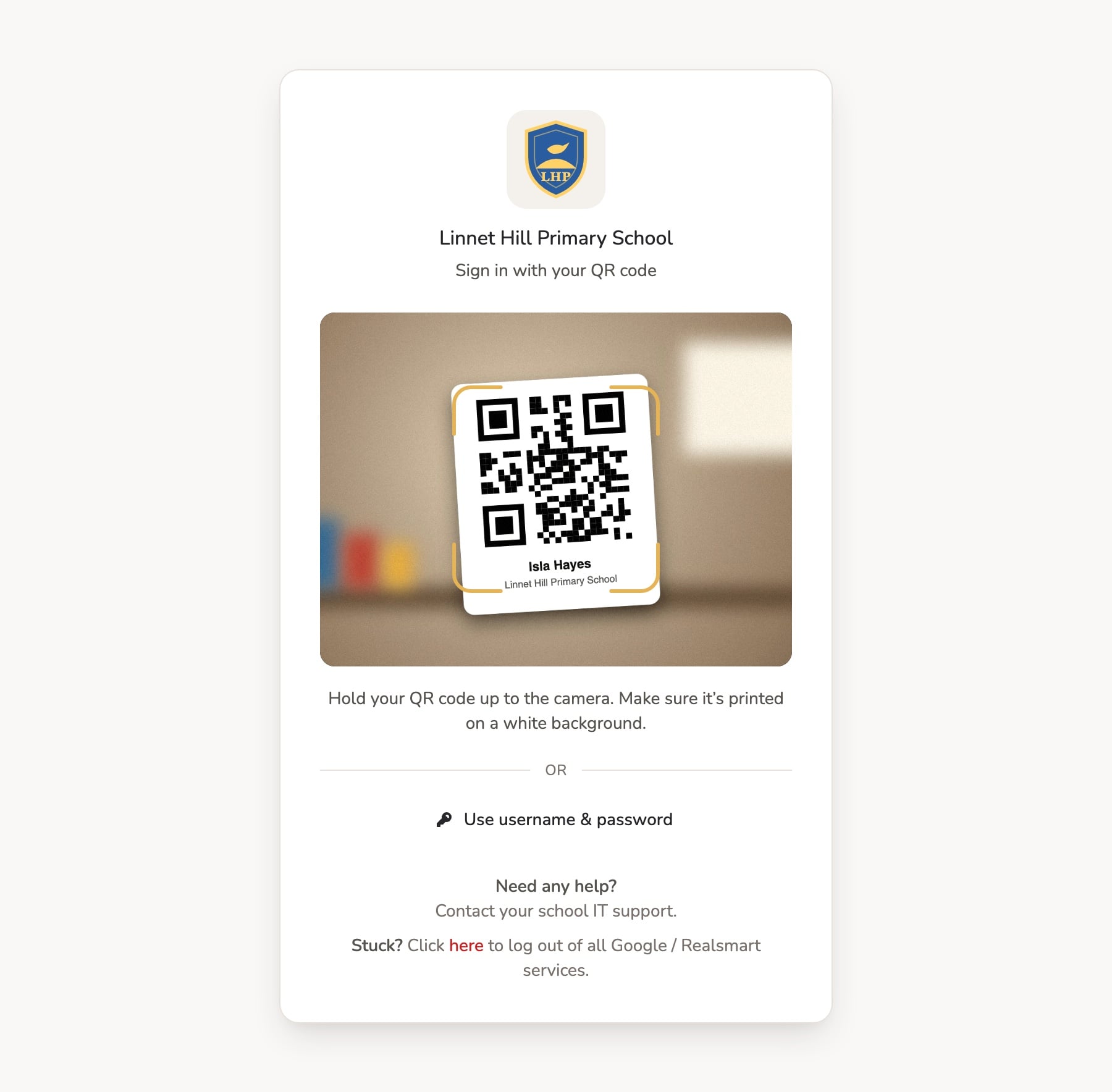
The QR sign-in page has been rebuilt:
- It reads cards held close, far or off to one side, so small hands don’t need to line it up perfectly.
- Switch camera moves between front and back cameras, and Try again restarts the camera.
- Plain messages when something is wrong, such as “Camera access is blocked”, “No camera found” or “Your camera is busy”, so a teacher can fix it in seconds.
- Faster on Chromebooks, which no longer pause before signing in.
Getting started
QR sign-in needs to be switched on for your school, under School settings → QR login → Enable QR code login. If you would like a hand getting your new cards ready for September, email support@realsmart.co.uk.