
Your Launchpad has had a big update. It’s the page of apps you see when you sign in with Realsmart, and now it shows your lessons too. Here’s what’s new and how to use it.
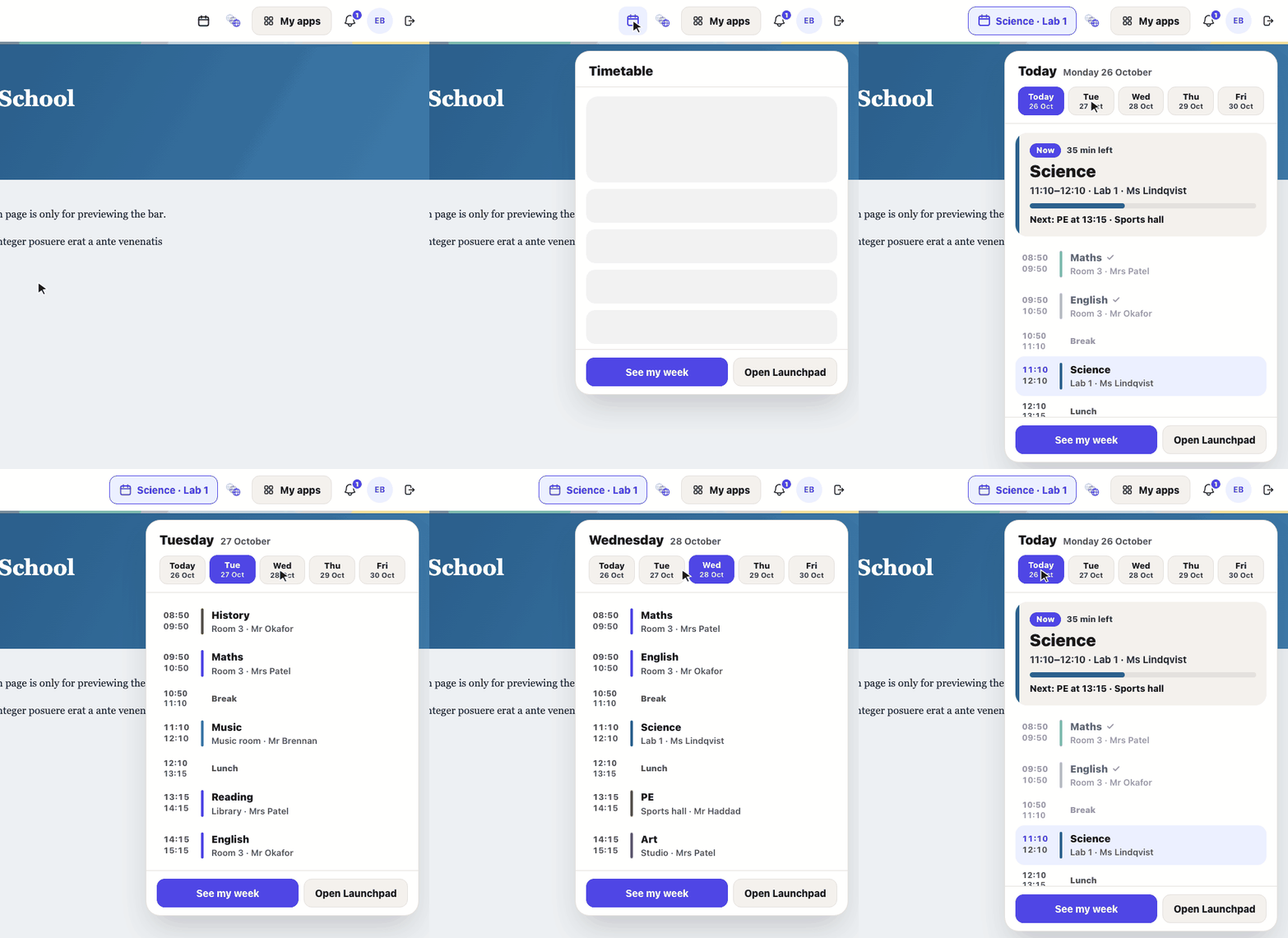
See what lesson you have now
Look at the bar along the top of the page. The lesson button tells you what’s on now, or what’s next, and which room it’s in. Tap it to see your whole day, with a bar showing how long is left. Tap a day, such as Tue, to see that day’s lessons.
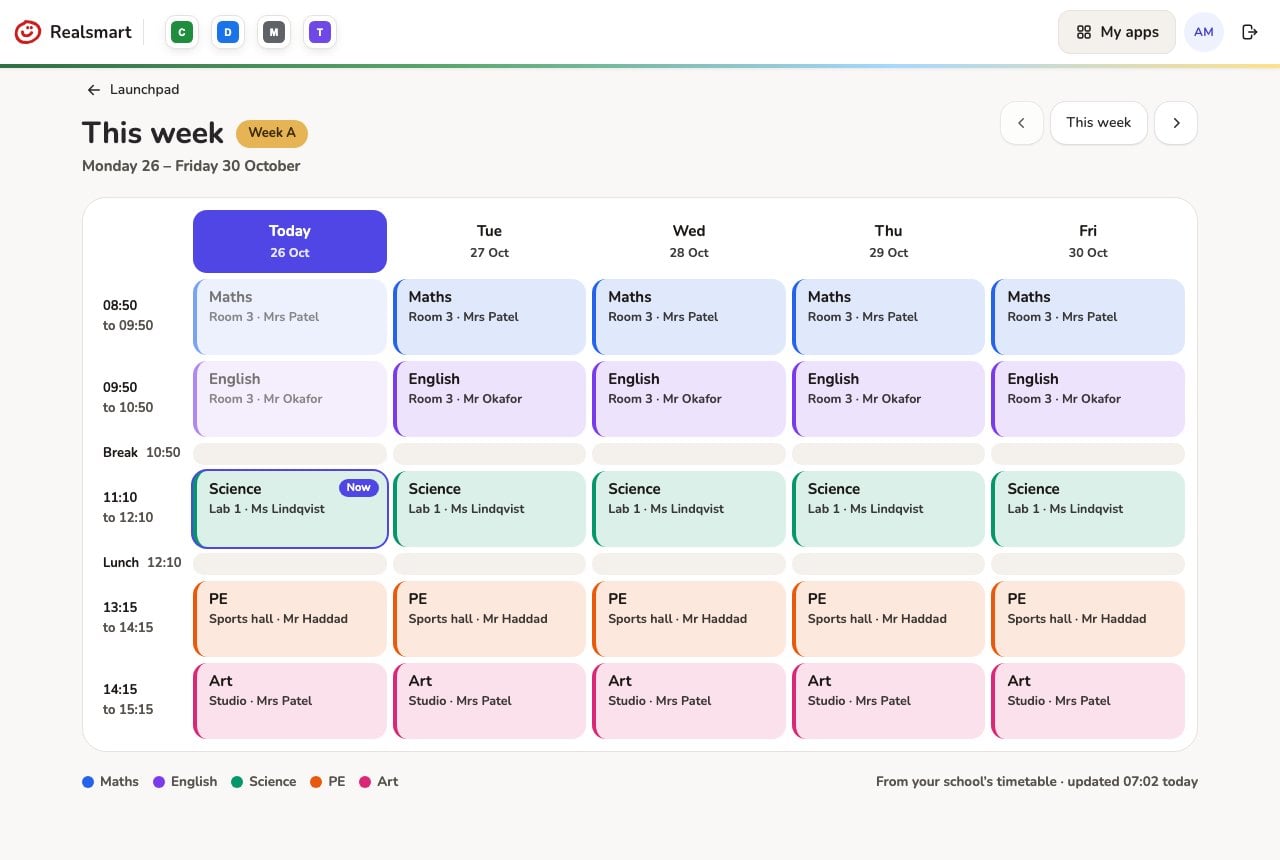
See your week
Tap See my week to see Monday to Friday on one page. Each subject has its own colour, and today is picked out. Use the arrows to look at next week.
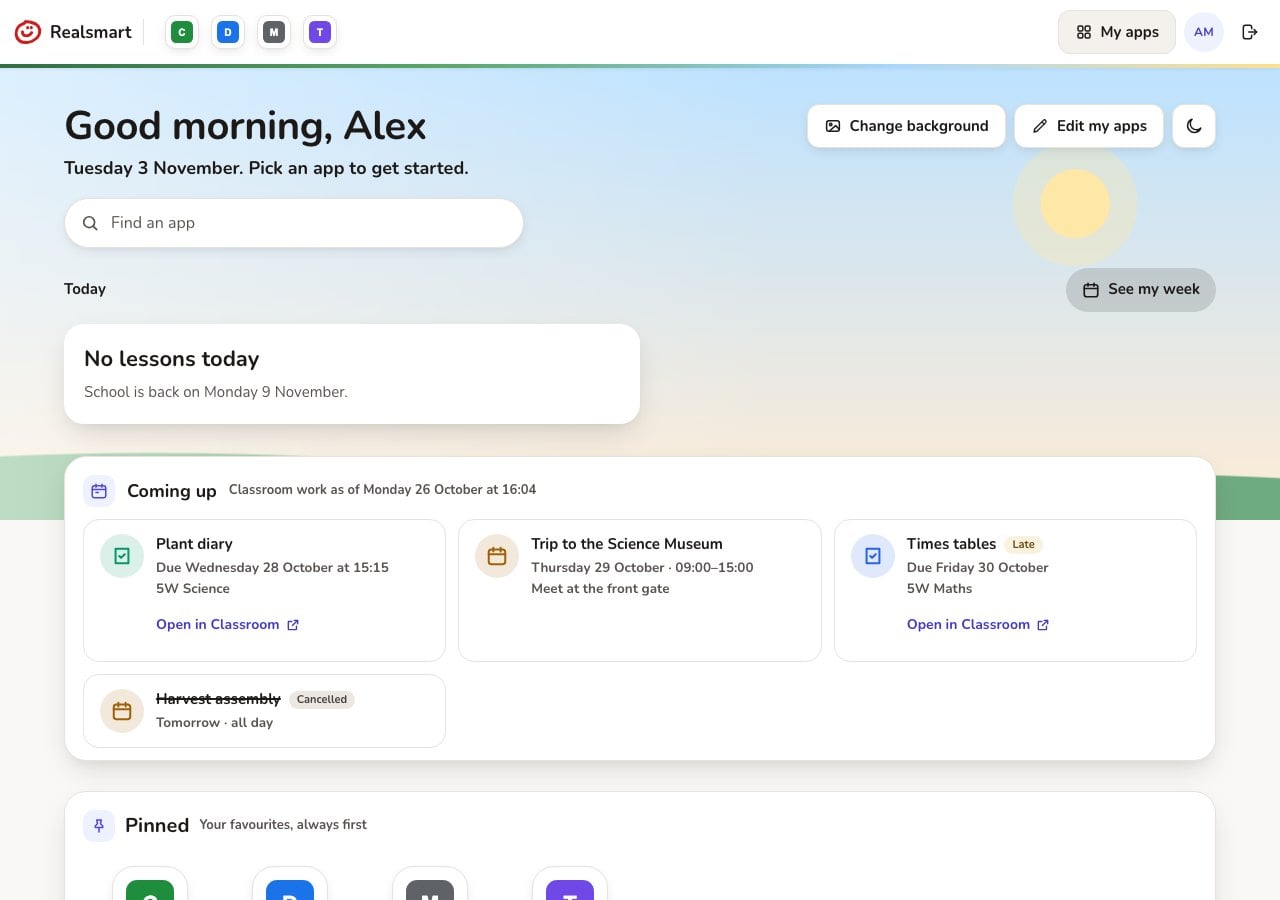
On a day off, such as half term, your Launchpad tells you when school is back.
Work that’s due and school events
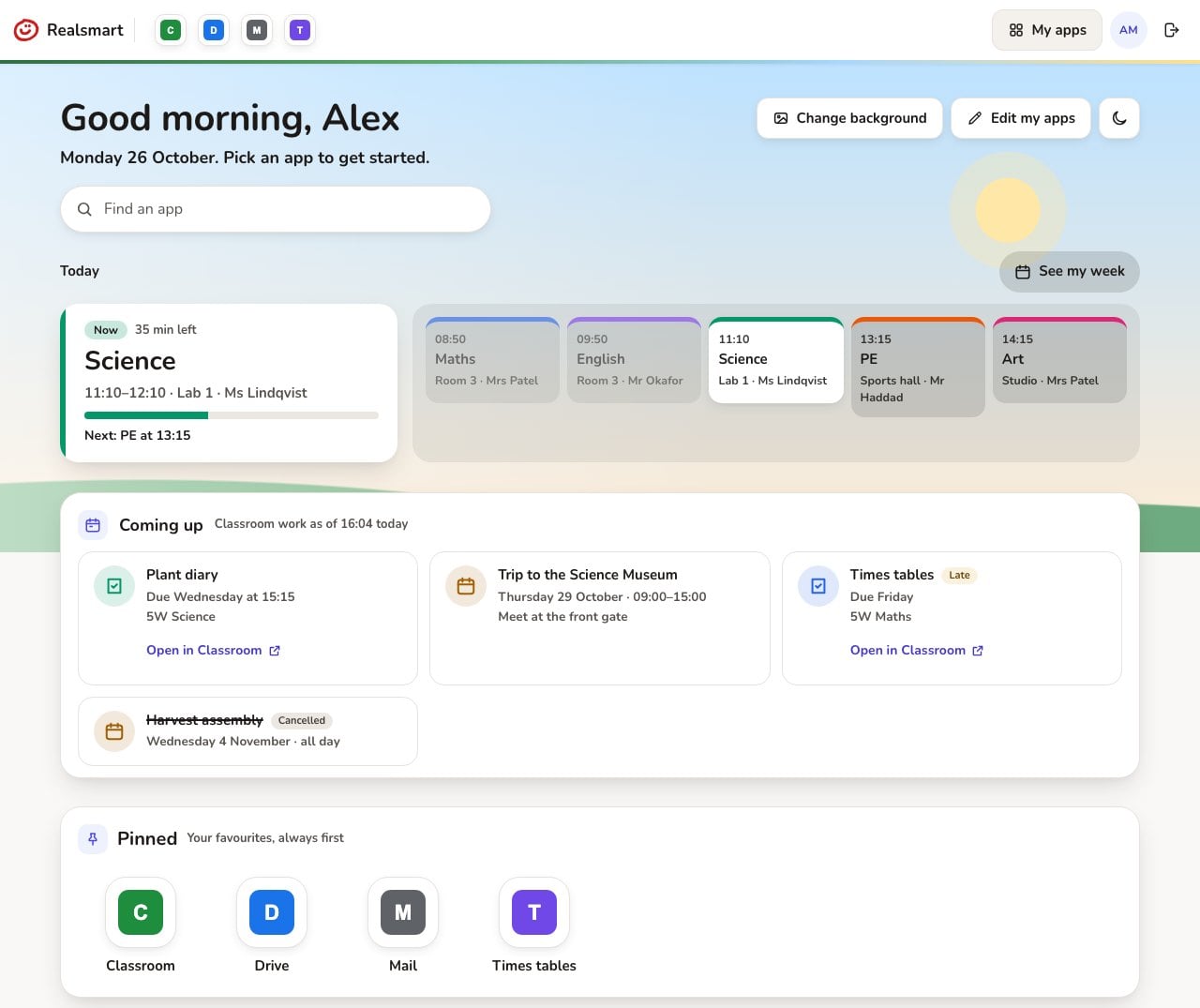
Coming up shows Google Classroom work due in the next week that you haven’t handed in yet, with a button to open it in Classroom. It also shows school events, such as trips and assemblies. If an event is cancelled, it says Cancelled.
Classroom work updates once a day, after school. If you hand something in during the day, it may still show until the next morning.
Make the Launchpad your own
Tap Edit my apps, then tap the star on an app to pin it to the top. Tap Done when you have finished.
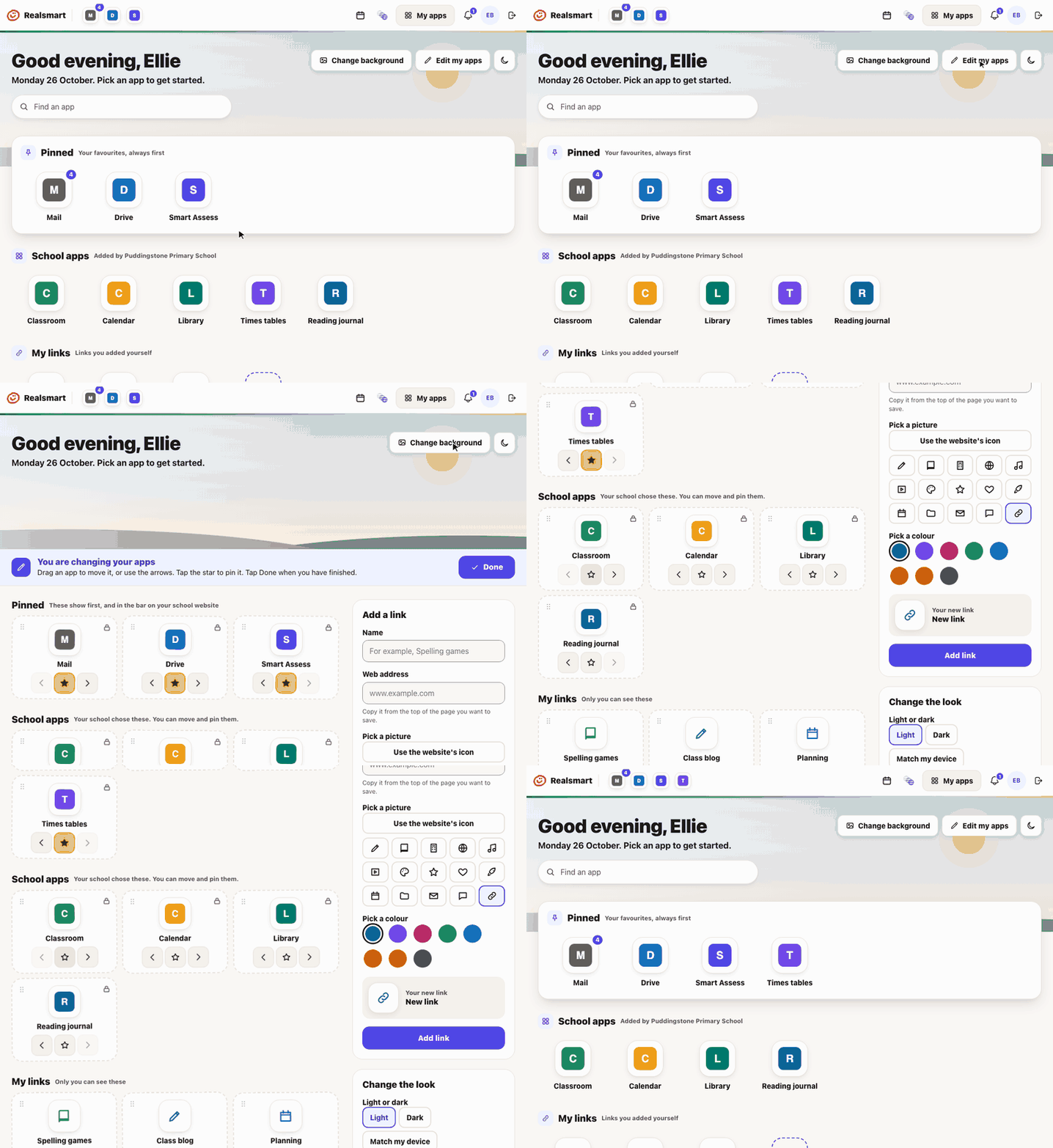
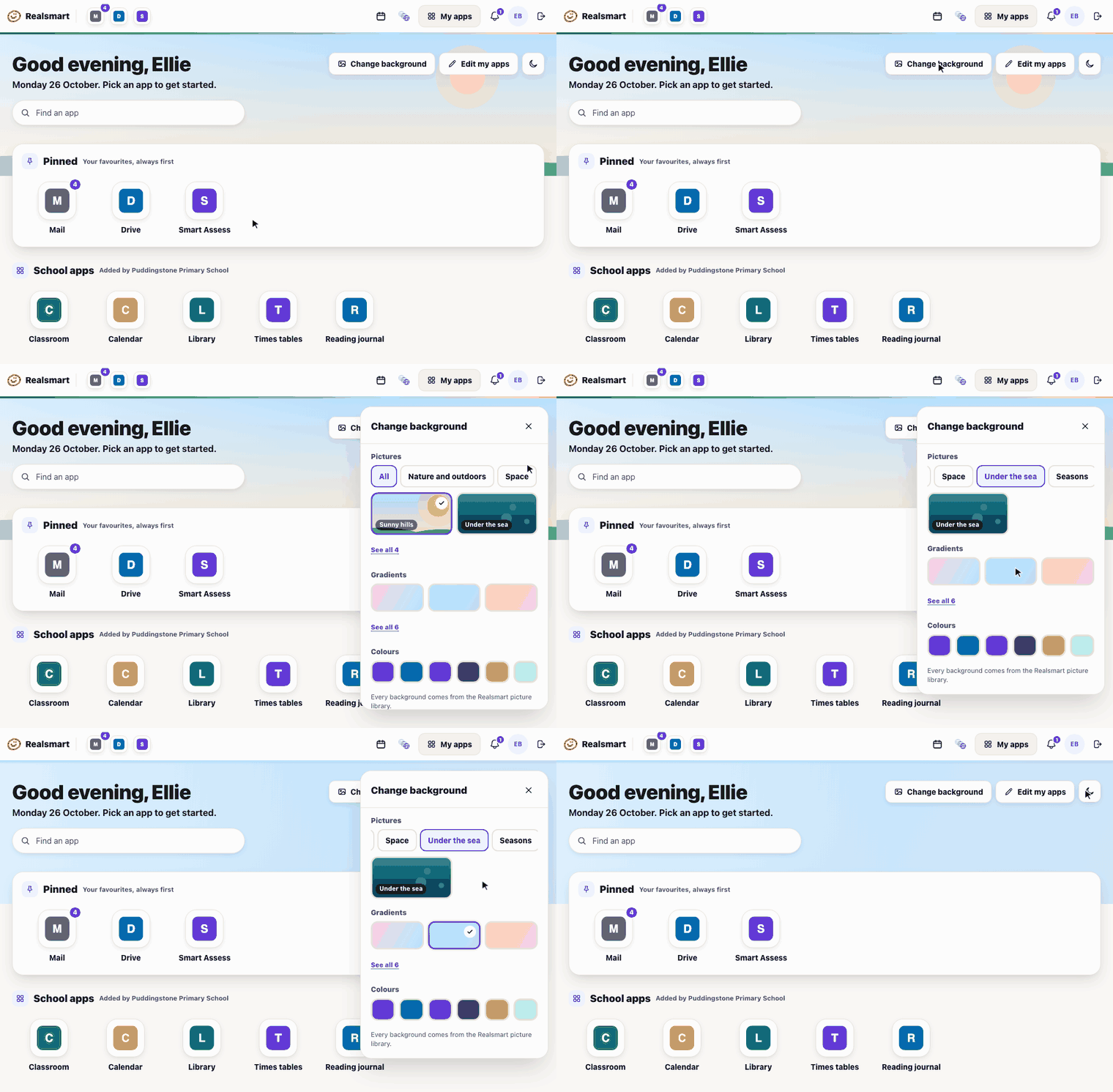
Tap Change background to pick a picture, a gradient or a colour.
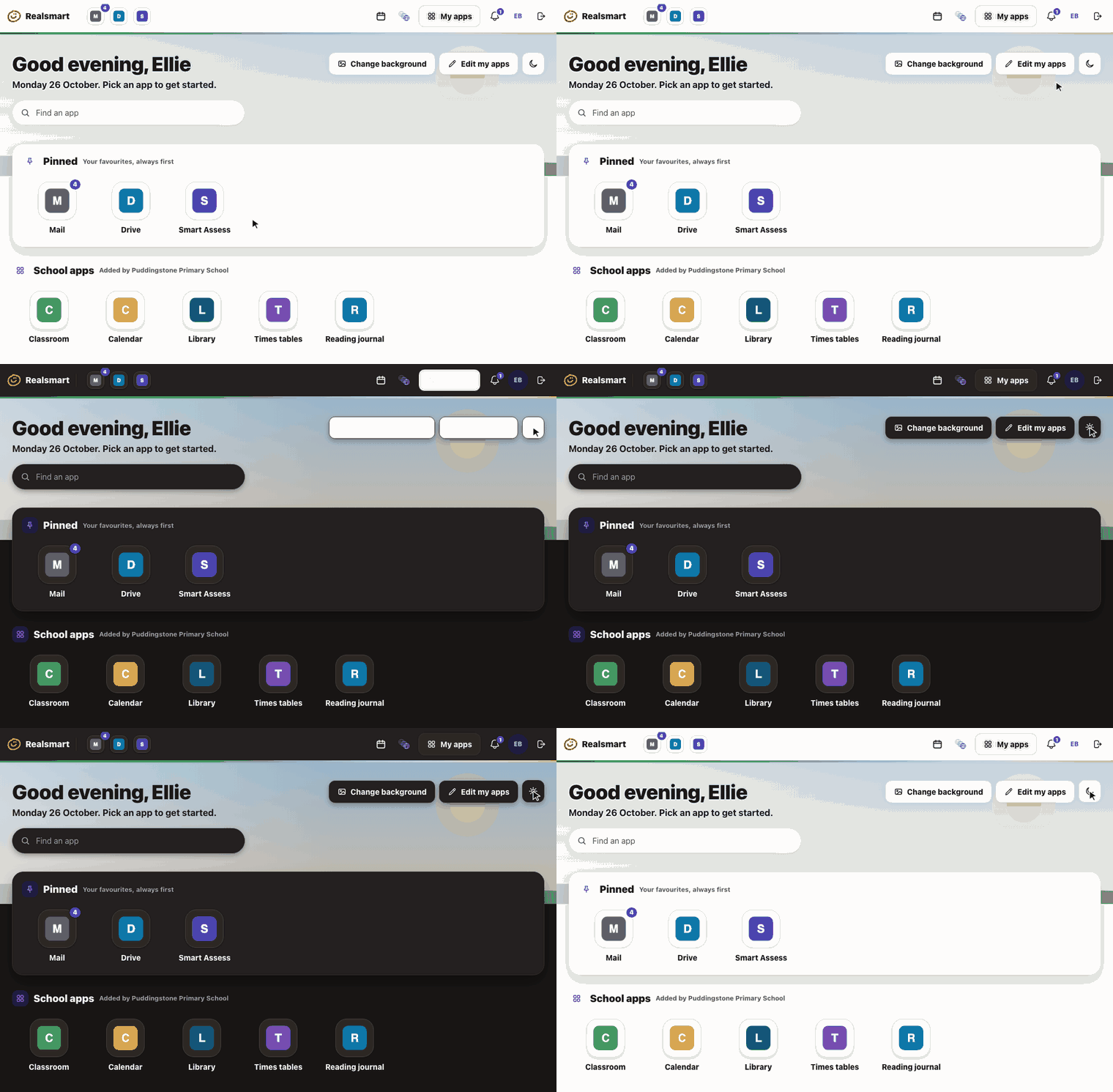
The moon button switches between light and dark.
Change your password and photo
Tap your picture in the bar and choose Profile. There you can change your password, change your photo and choose how your Launchpad looks. Your school chooses the rules, so you might not be able to change everything.
- Pick a password you can remember but nobody can guess. Three random words work well.
- Never tell anyone your password, even a friend.
- If you forget it, ask your teacher.
The bell
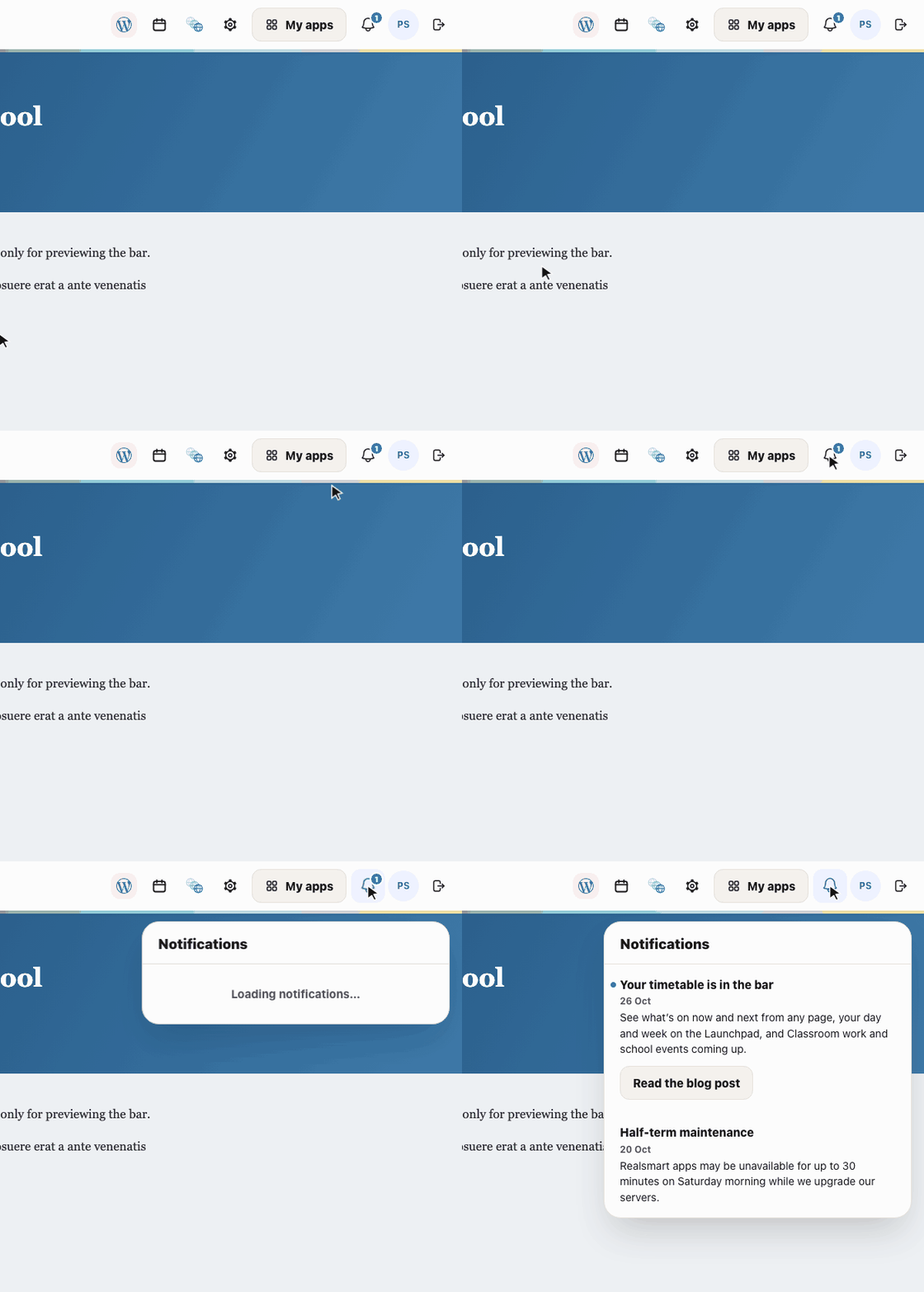
The bell in the bar shows notices from Realsmart about new things to try. A dot means there’s something you haven’t read yet.
Want to know more?
Read Make the Launchpad your own for more ways to arrange your apps, or ask your teacher.
Need a hand? Email support@realsmart.co.uk.