
Realsmart Sync keeps your MIS, Google Workspace, Microsoft 365, Active Directory and Apple School Manager in step, and ADAdmin is where you manage it. Here is everything we have added since September. Most of it came straight from schools and trusts asking for it.
Microsoft 365 and Entra
- Licences assigned for you. Under Entra settings → Licences, choose a Microsoft 365 licence for students and one for staff. The sync gives each new person the right licence, and can take it back from people who leave. The list shows the licences your tenant owns and how many are free.
- Licence rules. Need a different licence for one group, such as the sixth form or the SLT? Add a rule for that group or person. A Who gets which licence page shows everyone, the licence they will get, and why.
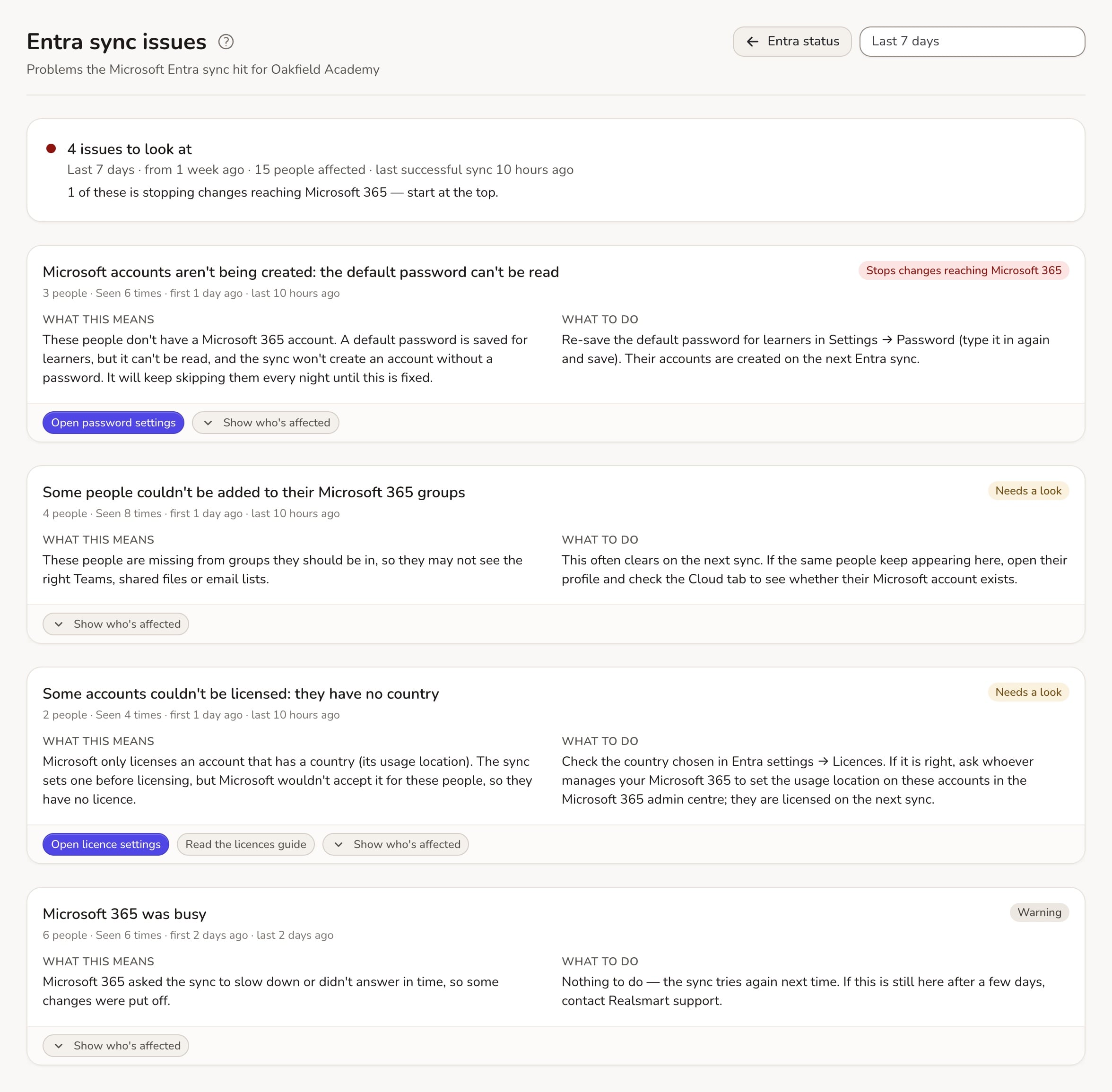
- See what went wrong, and how to fix it. A new Issues page under Entra sync groups problems into one line each, says in plain English what is wrong, lists who it affects and links to the fix. Each person’s page also shows their last Entra sync result.
- Group email addresses on your own domain. Schools that want Microsoft 365 group email addresses on their own domain can now set this up themselves under Entra settings → Group email addresses, with no need to send files to us.
Google Workspace and Classroom
- Classrooms ready from day one. Google normally creates classrooms as “Provisioned”, invisible to pupils until the teacher accepts them. Tick Create classrooms as active and they are ready straight away. The Classroom tab also shows each class’s status, with a Make active button.
- Classroom parents, faster. Filter the guardian list, approve every matching guardian in one action, and see plainly what “Couldn’t check” means.
- A display name for one person. Change how one person’s name appears in Gmail, Classroom and Chat without changing the school-wide setting.
- Groups without an email address. Nested groups can now be created in Google without an email address of their own.
Passwords and logins
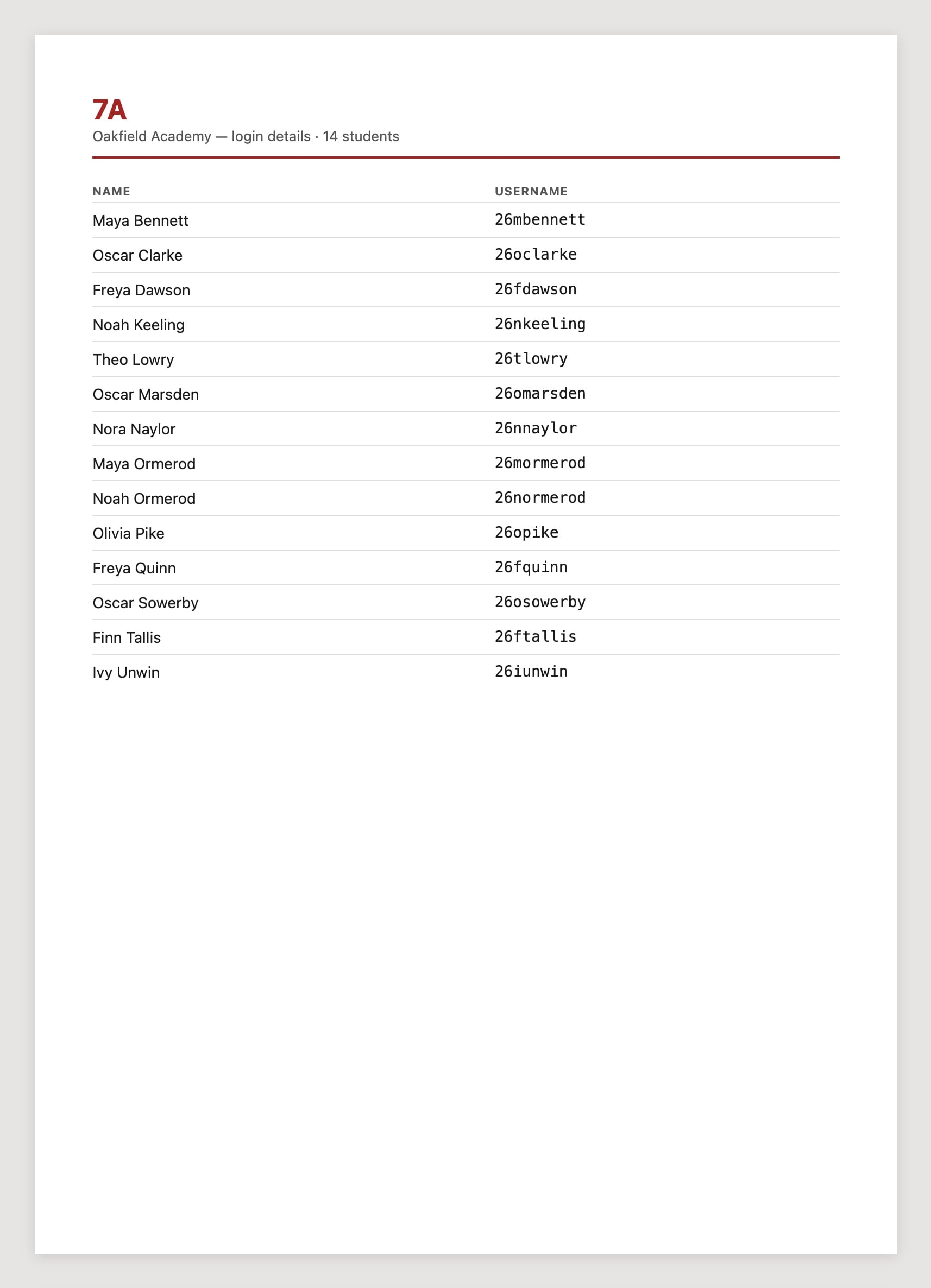
- Login sheets by form group. On the Export page, pick registration groups and download a CSV, or print one A4 sheet per group with each pupil’s name and username, ready to hand to form tutors. Printed QR login codes are grouped by registration group too.
- Choose which mentors can reset passwords. Instead of all mentors or none, name the few who should be able to.
- Stop one account signing in with a Don’t allow login option, without suspending it.
For trusts
- Add people from across the trust to a group. Trust admins can now add staff from the trust’s other schools to a group themselves.
- Launchpad tiles in the order you want. Drag tiles into order for your school, or set one order for the whole trust and apply it to every school.
- Faster trust pages. The trust overview pages now load quickly even for large trusts, and Quick run works properly for Google, Active Directory and Apple across a trust.
Timetables and calendars
- Co-taught lessons, your choice. Some MIS systems list heads of department and teaching assistants on every lesson they oversee. A new Include co-taught lessons setting decides whether those lessons appear in staff timetable calendars.
- SOS timetables, coming soon. Schools on SOS, our school MIS, will soon get lessons, periods and rooms in their calendars, straight from SOS’s timetable.
And a little colour
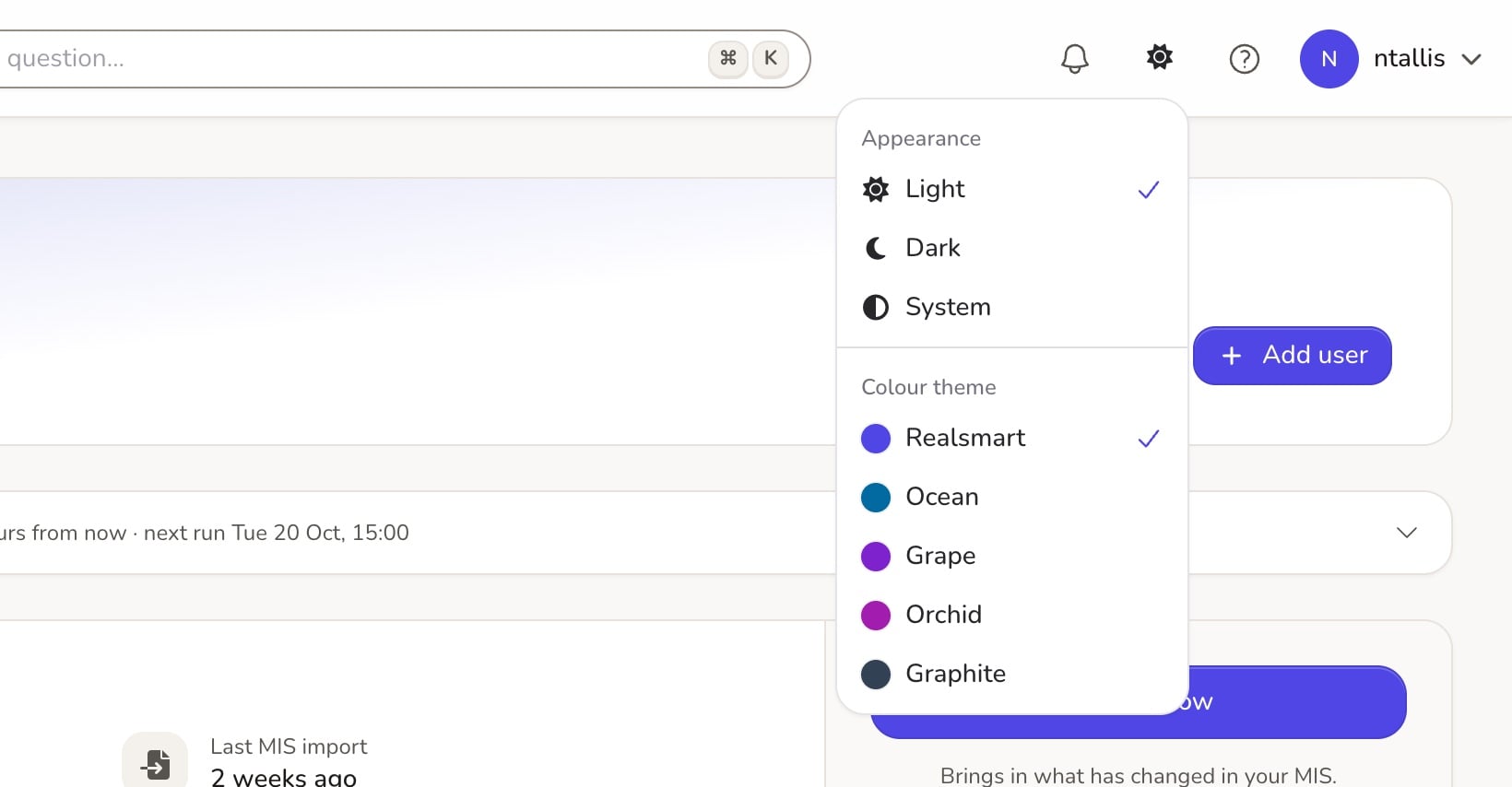
Everyone can now choose a colour theme for ADAdmin: Realsmart, Ocean, Grape, Orchid or Graphite, in light or dark mode. Find it in the top-bar appearance menu or under My profile → Appearance.
Help guides for all of this are in ADAdmin’s Help. If you want a hand setting anything up, email support@realsmart.co.uk.