
Here’s what reached schools and trusts in the week of 9 November. Most of it is in ADAdmin, where you manage Realsmart Sync, and there’s plenty for school websites and Trust Hub too. The screenshots come from our own test and demo schools, so the schools and people in them are made up.
See what tonight’s Microsoft 365 sync would change
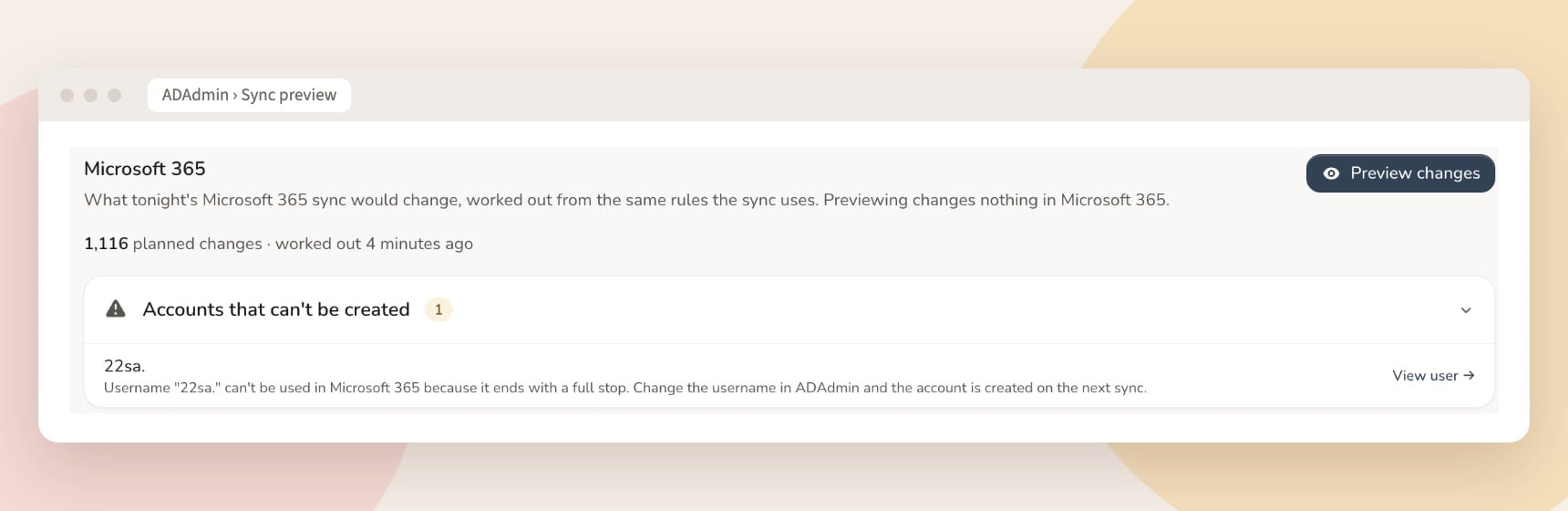
If your school syncs to Microsoft 365, you can now look before the sync runs. Open Entra sync → Preview and select Preview changes. A few minutes later the page lists who would get a new account, which existing accounts would be linked rather than duplicated, any usernames Microsoft won’t accept (and why), who would be switched off, and which licences would be assigned, changed or removed. Open any list to see who’s in it, and select View user to check anyone who looks surprising.
Previewing changes nothing in Microsoft 365. It covers accounts and licences; groups, Teams and Exchange aren’t part of the preview.
Make the sign-in lock stricter
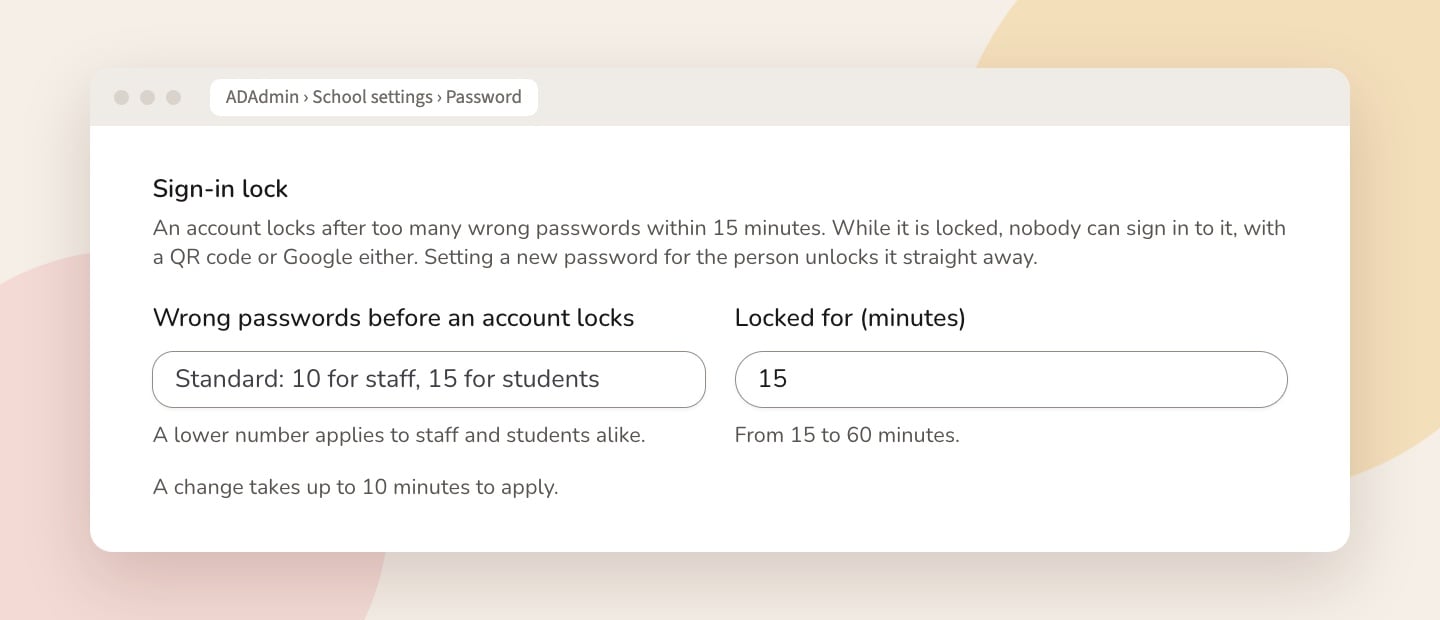
Realsmart sign-in locks an account for 15 minutes after too many wrong passwords: 10 for staff and 15 for pupils. If your school wants it stricter, you can now set that yourself under School settings → Password → Sign-in lock. Choose fewer wrong passwords, anywhere from 9 down to 5 for staff and pupils alike, and keep accounts locked for longer, up to 60 minutes. It can’t be made looser than the standard. A change reaches sign-in within 10 minutes, and setting a new password for someone still unlocks them straight away.
Know when your MIS stops sending data
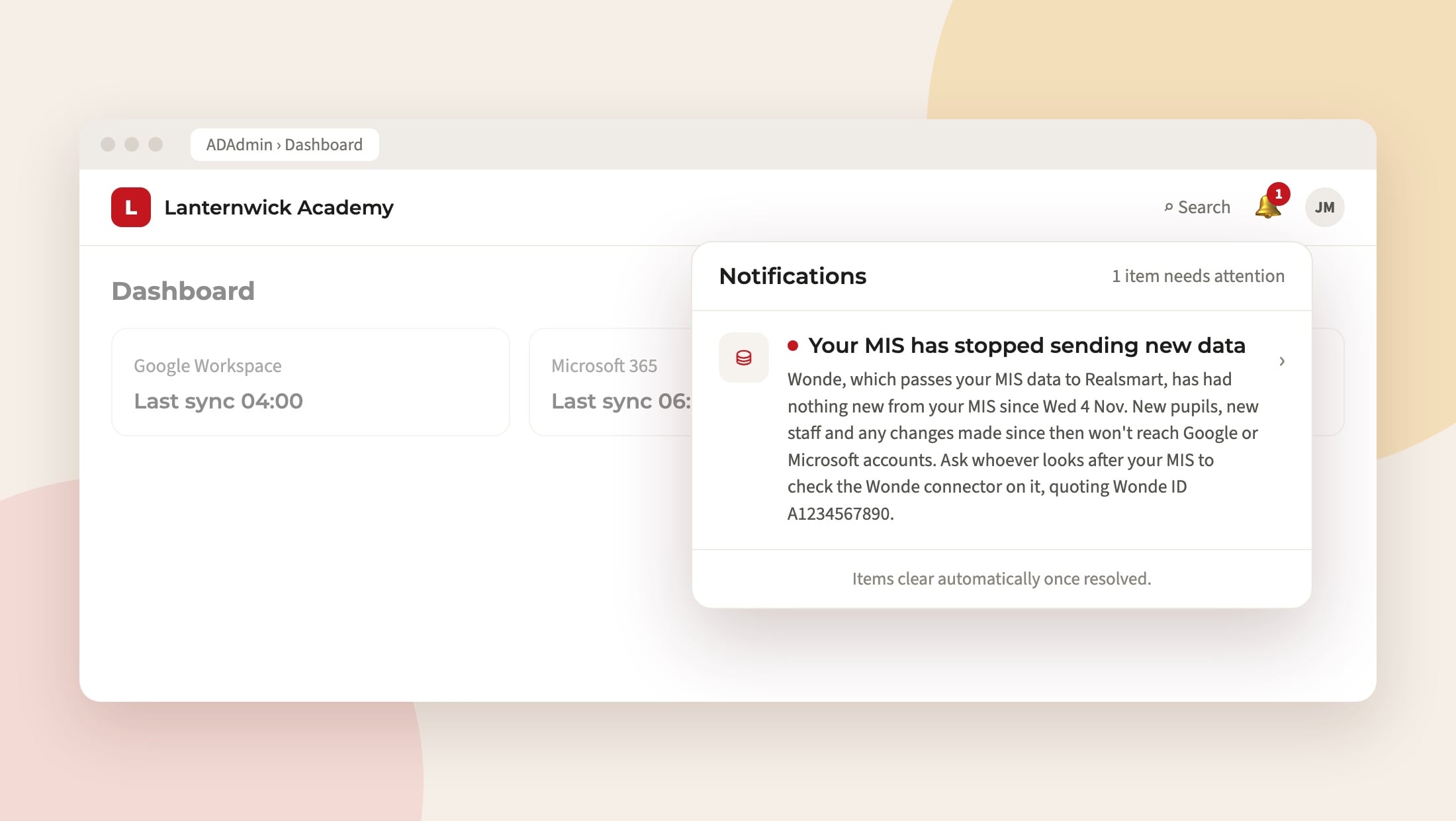
Realsmart Sync gets your MIS data through Wonde. If your MIS stops sending Wonde anything new, Wonde carries on serving the last data it had, so every sync still looks fine while new pupils and staff quietly stop arriving. Now we check every school each weekday morning. If nothing has changed for a couple of school days, the bell at the top of ADAdmin says your MIS may have stopped sending new data, and if it carries on, that it has stopped. Each alert gives the date the data stopped, what that means for your accounts, and who to ask (usually whoever looks after your MIS), with your Wonde ID to quote. If Wonde stops sharing your data with Realsmart altogether, the bell tells you that instead. Days when almost every school is quiet, such as half-term, don’t count.
Help that’s one click away, and knows your school
Every page in ADAdmin now has a How do I…? button at the bottom right. It opens the assistant with a few common tasks to start from, such as Reset a password or Get a class signed in for the first time, so nobody has to wonder what to ask.
The assistant can now answer questions about your own school, too. Ask “Why can’t jsmith sign in?”, “Who is in 7x-ma1?”, “Is sync working?” or “Who hasn’t set up 2FA?” and you get the facts from your records, with a link to the page they came from. Those answers are put together by ADAdmin itself, not written by the AI, and your users’ details aren’t sent to it. The assistant is for admins, and it only shows what you could already see in ADAdmin.
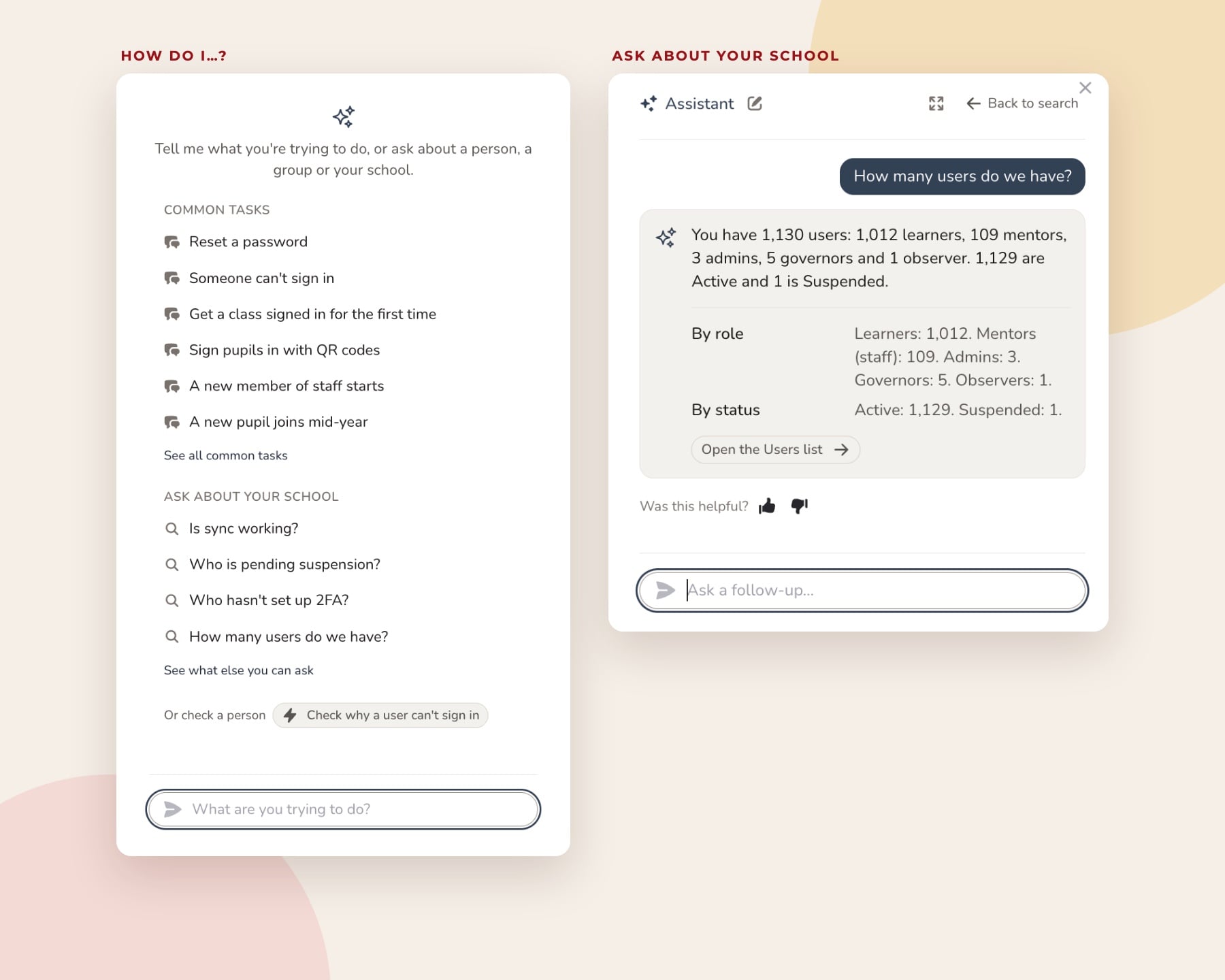
Help itself now starts from everyday jobs. The Help page opens on Common tasks such as Someone can’t sign in, A new member of staff starts and Someone leaves, backed by 12 new step-by-step guides that point you to the right tools, and help search understands everyday wording much better.
Also new in ADAdmin
- Choose staff’s role in Google groups. Under Google Workspace → Groups, the default role for staff in your Google groups is now a choice of Member, Manager or Owner, each explained in a line. Change it and staff already in those groups get the new role at the next nightly sync.
- Moving from Google to Microsoft 365? The Export page has a new Google to Microsoft identity map: each person’s Google address beside their Microsoft 365 sign-in, showing who’s ready to move and why not if they aren’t, plus the two-column file Microsoft’s Migration Manager asks for. Trust admins can download one file for every school they look after.
- Usernames Microsoft won’t accept. If a username can’t be used in Microsoft 365, for example one that ends with a full stop, the Sync status page now says so on a card marked You can fix this, with a Change this username button, and the account is made at the next sync after you change it.
- Let the assistant do it. At every school, the assistant can now reset a password, reset 2FA, force a password change, set a login window or sync someone now. It shows you exactly what it will do and asks you to confirm first. Trust admins can ask it to add a link as an app, hide an app, or change who sees one, at every school in the trust. When more than 10 schools would change, you type APPLY to go ahead.
- Your own icon for trust apps. Under App defaults, trust admins can now upload an image, such as a school crest, as the icon for a custom app, instead of pasting a link to one.
- A clearer sidebar. The page you’re on is easier to spot, the icons are simpler and Help sits at the bottom. The On this page links on School settings and End of year now jump where they should.
- New staff get accounts sooner. Wonde can take a few days to show a new member of staff as current. Now anyone whose start date passed in the last 30 days, with no end date, gets their account at the next sync.
- Active Directory agent 1.0.10. For schools that sync to Active Directory on site: password-only runs now work out the domain for themselves, and home folders on DFS shares no longer show errors. The agent updates itself on its next run.
Trust pop-ups: one message on every school website
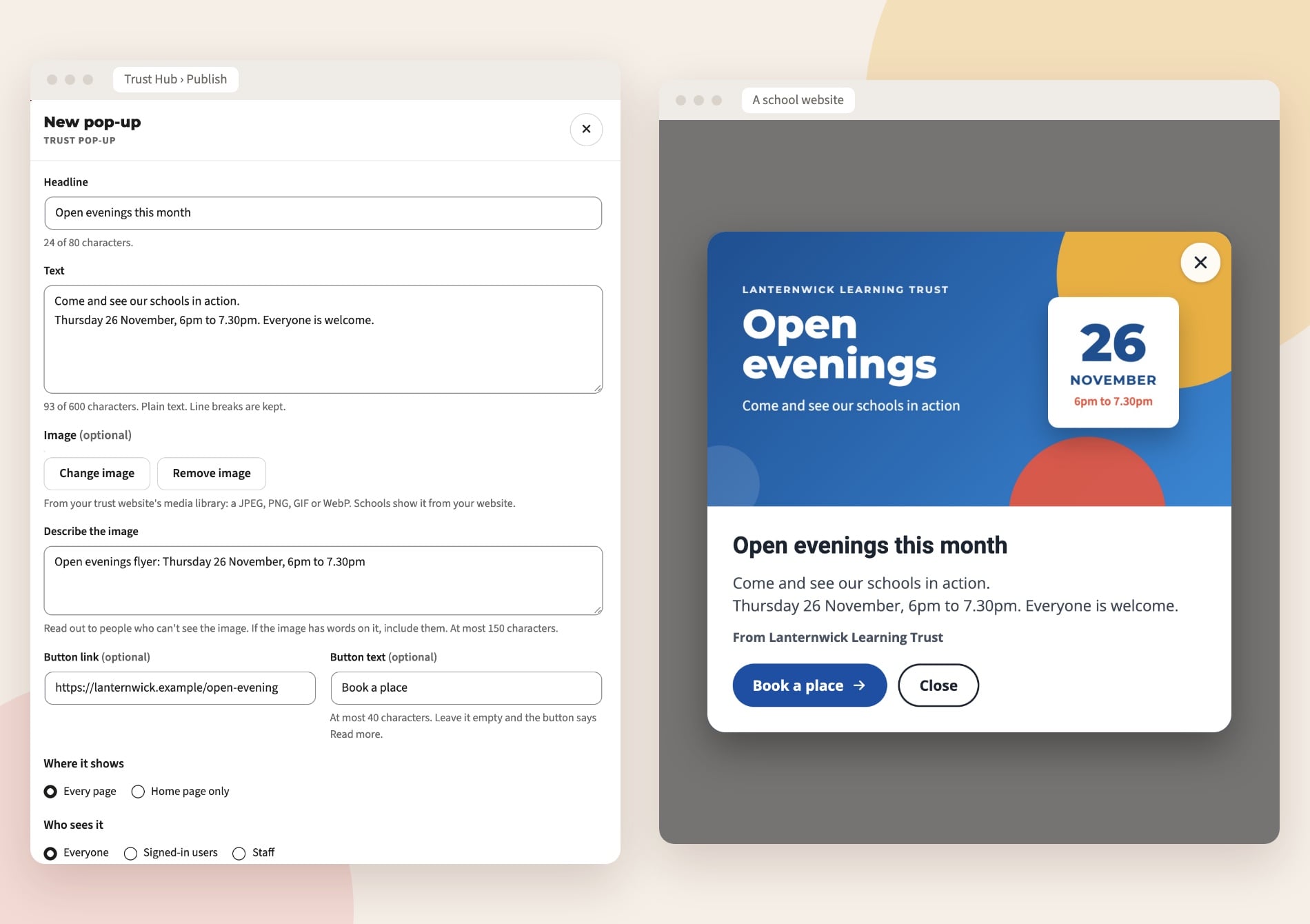
Trust Hub can now put a pop-up on your schools’ websites all at once, for an open evening, a closure or a consultation. In Publish, choose New pop-up, write a headline and a short message, and add a picture and a button if you like. Then choose whether it shows on every page or just the home page, who sees it, which schools, and when it starts and ends (up to 90 days ahead). The preview updates as you type, and the pop-up can appear on the trust’s own website too.
Each visitor sees a pop-up once, and again only if you change it. If a school has its own Smart Popup running, it waits its turn, so nobody gets two at once.
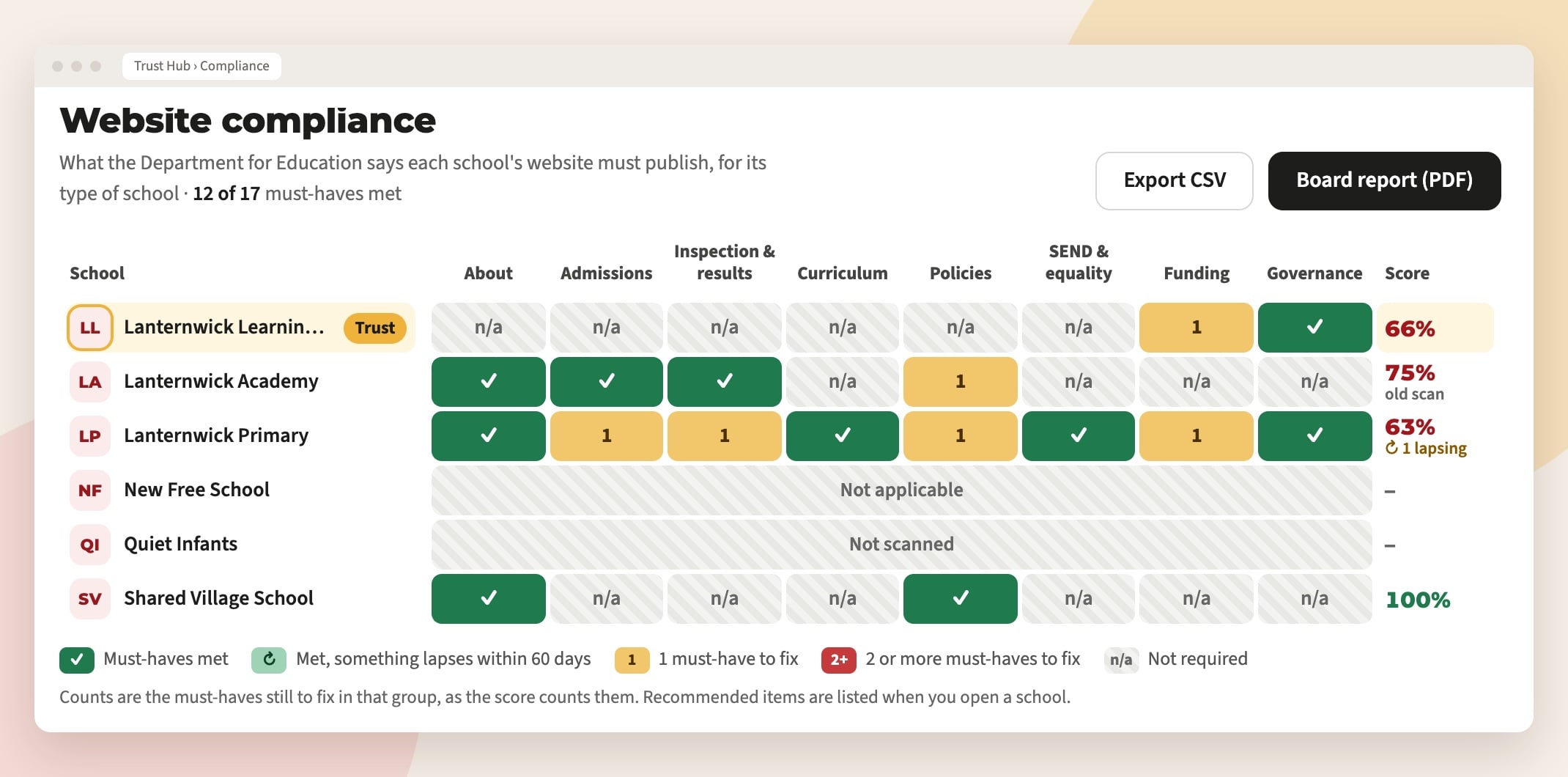
Also in Trust Hub, each cell in the Compliance grid now counts only the must-haves still to fix, the same way the score at the end of the row does, so a school on 100% no longer shows an amber or red cell. Recommended items are named when you hover over a cell, and listed when you open the school.
Find links that now lead somewhere harmful
Over the years a school website collects hundreds of links to other sites. When one of those sites closes, its address can be bought by someone else, and a link that once went to a parenting charity or a sports club can end up on a gambling site or worse. Website compliance now checks for this with a new Online safety requirement, No links to harmful websites. It checks every link a visitor can reach: on your pages, in every news post, in custom menu links, in footer widgets and in approved comments.
Open Website compliance and choose the new Harmful links tab to see each link, why it’s harmful and the pages that carry it. Select Remove link, or Remove all harmful links to take them all out at once. The link goes, the words stay, and you can undo it. A link is only called harmful with proof, for example when the address now shows gambling or adult content, is parked or for sale, or no longer exists. Anything less certain, such as a link that now redirects to a different site, is listed as worth a look so that a person decides, and you can mark a link as fine to keep it off the list.
In Trust Hub, a new Harmful links tab shows which schools have them. Open a school to see its links and the pages they’re on, then remove them at that school or at every school in one go.
Website compliance keeps up with the rules
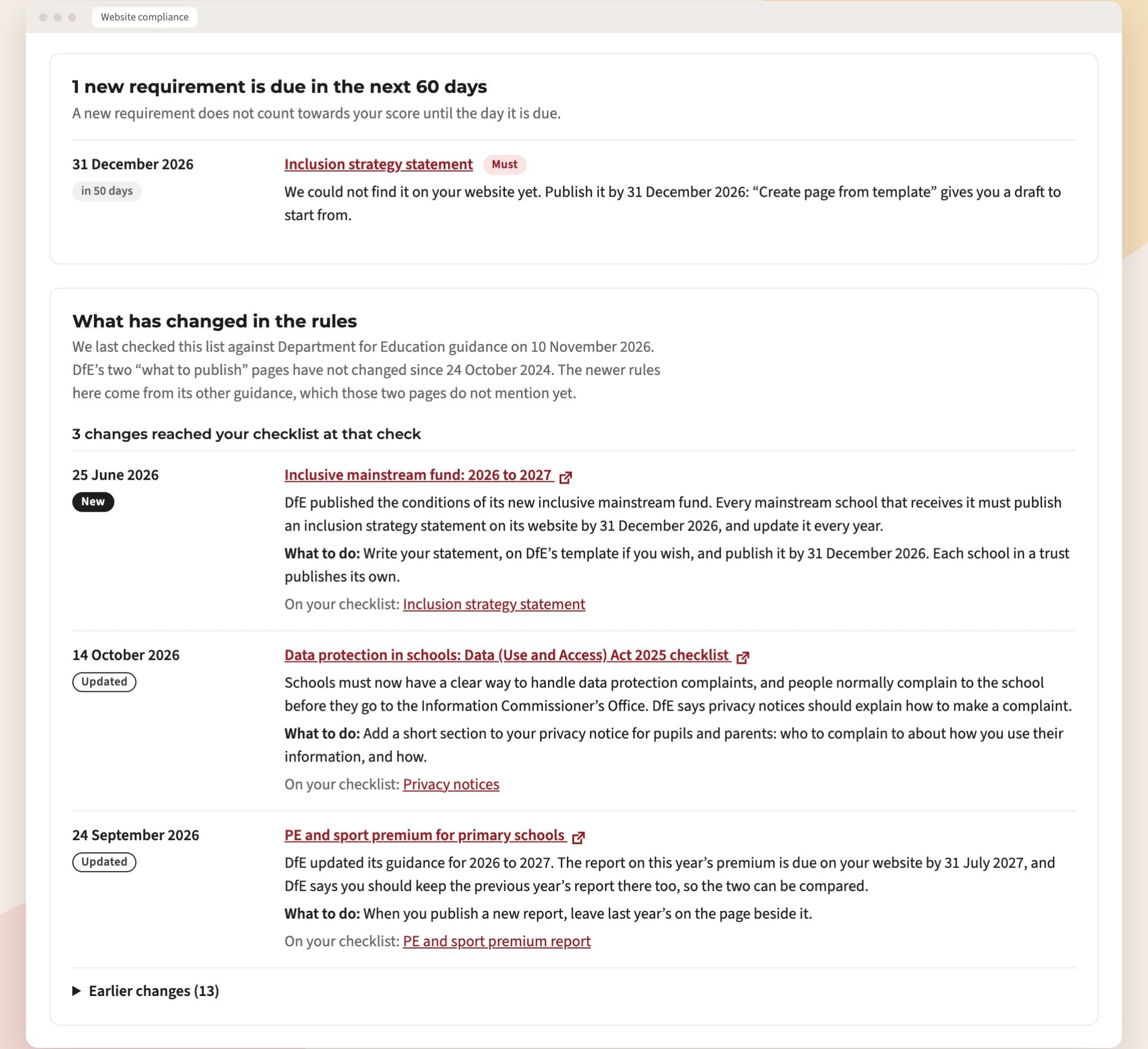
Website compliance now follows the Department for Education’s guidance as it stood on 10 November, including one new requirement: mainstream schools that receive the inclusive mainstream fund must publish an inclusion strategy statement by 31 December 2026, and there’s a template with DfE’s headings to start from. A new What has changed in the rules card lists each change with its date, a link to GOV.UK and what to do, and marks the checklist items it touches as New or Updated. Your Compliance screen and dashboard widget now also show anything due to lapse in the next 60 days, so you can renew it before it goes out of date.
More for your website
- Smart Popup gets scheduling. Give a popup a start and end date so it appears and disappears on its own, choose the pages it shows on (or never shows on), open it straight away, after a few seconds or once a visitor scrolls, and show it on phones only or on computers and tablets only. Find it under Smart Plugins → Smart Popup.
- Smart Subpages. Section menus in your sidebar now come from our own Smart Subpages, with more say over where the list starts, how many levels it shows and which pages to leave out. On phones the list folds away behind a button with the menu’s heading. Existing menus keep their headings and settings.
- Smart Staff List. Our replacement for Simple Staff List keeps all your staff, groups and pages, gives each person one entry even when they have a different job in each group, and lets you drag every group into your own order. Ask us and we’ll switch it on for your school.
- Smart Helper finds the right guide. The Help button in your website’s admin area now opens help.realsmart.info, and the guides it suggests fit the page you’re working on.
- Vacancy lists for every visitor. A MyNewTerm job list added through your website’s analytics code box now shows even for visitors who reject analytics cookies. Real tracking code in the same box still waits for consent.
- Links in flipbooks open. Links inside a PDF shown in the flipbook layout, such as a booking form in a newsletter, now open instead of turning the page, and links to another page of the document jump straight there.
- Smart Newsletters. Put your weekly newsletter or bulletin on the website without editing a page. Add the date, the PDF, and any posters and letters in four short steps, and your chosen page shows each one as a cover that opens in a page-turning reader. Call them newsletters, bulletins or your own word. Switch it on under Smart Plugins.
- New dropdown menu styles. If your main menu has long dropdowns, choose a new style under smartOptions → Header & menu → Menu → Dropdown style: columns, grouped columns with headings, or grouped columns with a picture card. Nothing changes until you pick one.
- Smart Alert fixes. An Emergency alert’s pop-up now opens again on each new visit, not just once. If custom colours would make an alert hard to read, visitors see the alert type’s own colours instead, as the preview shows. Choosing a type now resets the colours to that type’s own.
- New favicons show straight away. A favicon uploaded in smartOptions now appears at once.
Coming soon for Microsoft 365 schools
These are built, and we’re testing them with our pilot trust before offering them more widely. If you’d like to be one of the first schools to use them, let us know.
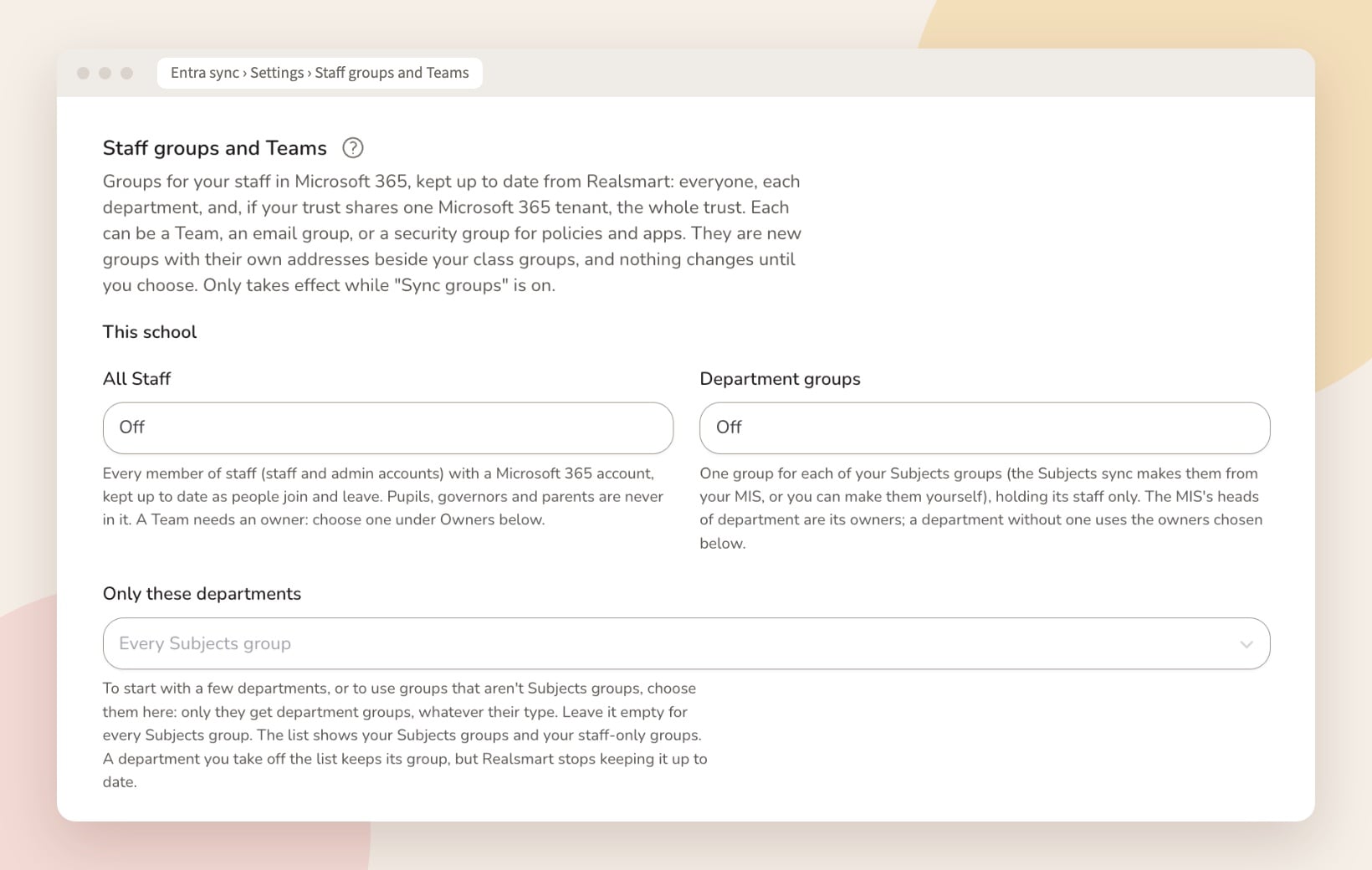
- Staff groups and Teams. An All Staff group and one group per department, owned by your heads of department and kept up to date as staff join and leave. Trusts whose schools share one Microsoft 365 tenant can have trust-wide staff and department groups too. Each can be a Team, an email group, or a security group for licences and policies.
- Student work folders. In each class Team, every pupil gets a private folder that only they and their teachers can open.
- School calendars, a tidier address book and old Google addresses. Up to five shared calendar mailboxes, such as a whole-school calendar or sports fixtures, with the staff who can add events; pupil groups hidden from the Outlook address book; and, for schools moving from Google, each person’s old Google address kept as an extra address on their mailbox.
On the Launchpad, a searchable staff directory from Google Workspace or Microsoft 365 is on its way too, and pupils at our pilot school can now see their own behaviour, attendance and reward points on their Launchpad.
Guides for everything here are in ADAdmin’s Help. If you’d like a hand with any of it, or want to try something from the coming-soon list, email support@realsmart.co.uk.