
A school asked us a good question this term. Before running adverts for their open evening, they wanted to know whether their cookie banner was doing its job. It was not doing enough, and it was not the only one. So we rebuilt it.
Why it matters
In the UK, a website has to ask before it sets cookies for analytics or advertising, and saying no has to be as easy as saying yes. A banner with a single “Got it!” button does not do that, especially when the tracking code has already run before the visitor has read it.
That matters more for schools than most. Your visitors include children, and families expect their school to look after their information.
What visitors see now
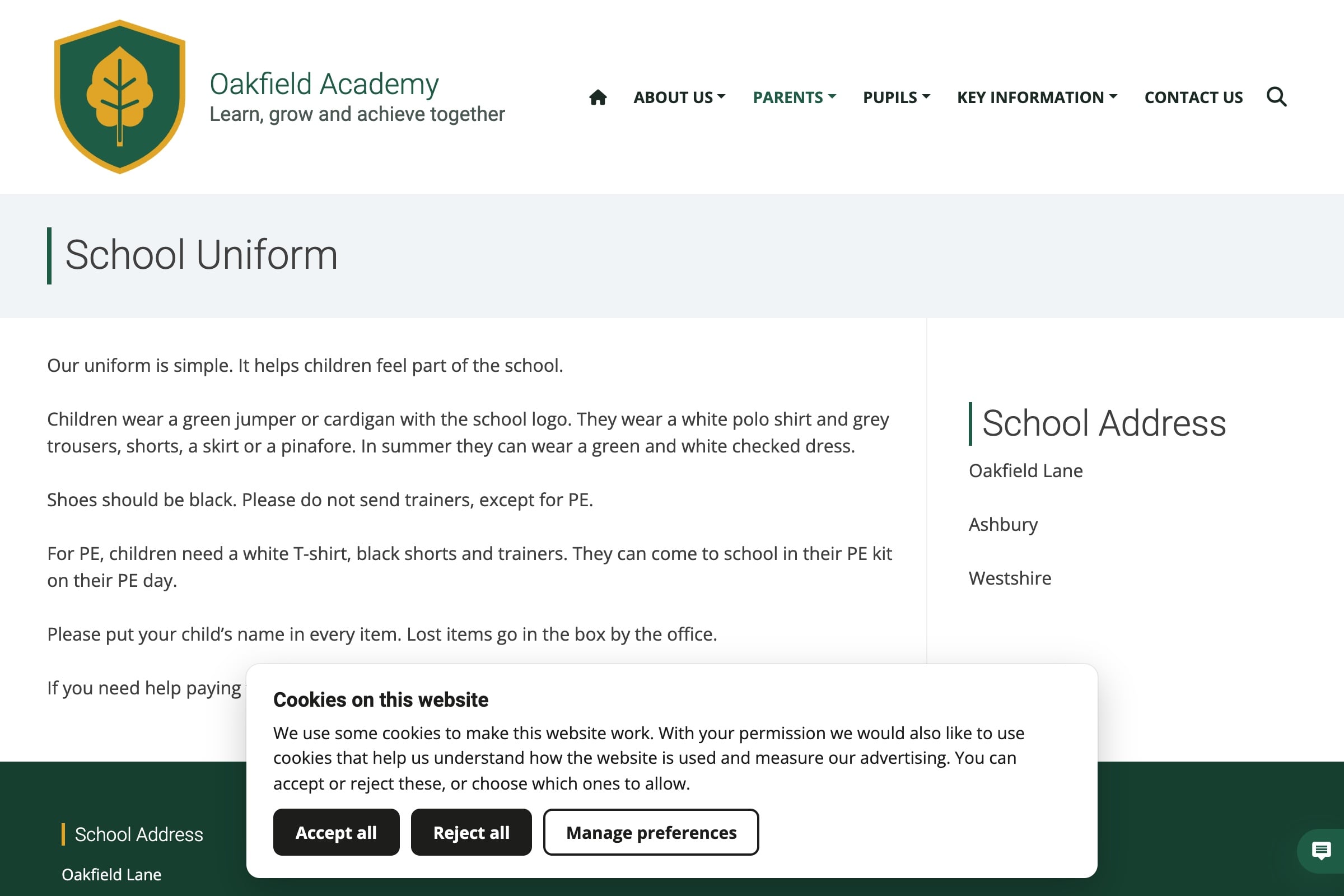
With Smart Cookies switched on, visitors get three clear options:
- Accept all and Reject all, side by side and the same size, so neither is the “easy” one.
- Manage preferences, to choose analytics and marketing cookies separately. Both start switched off.
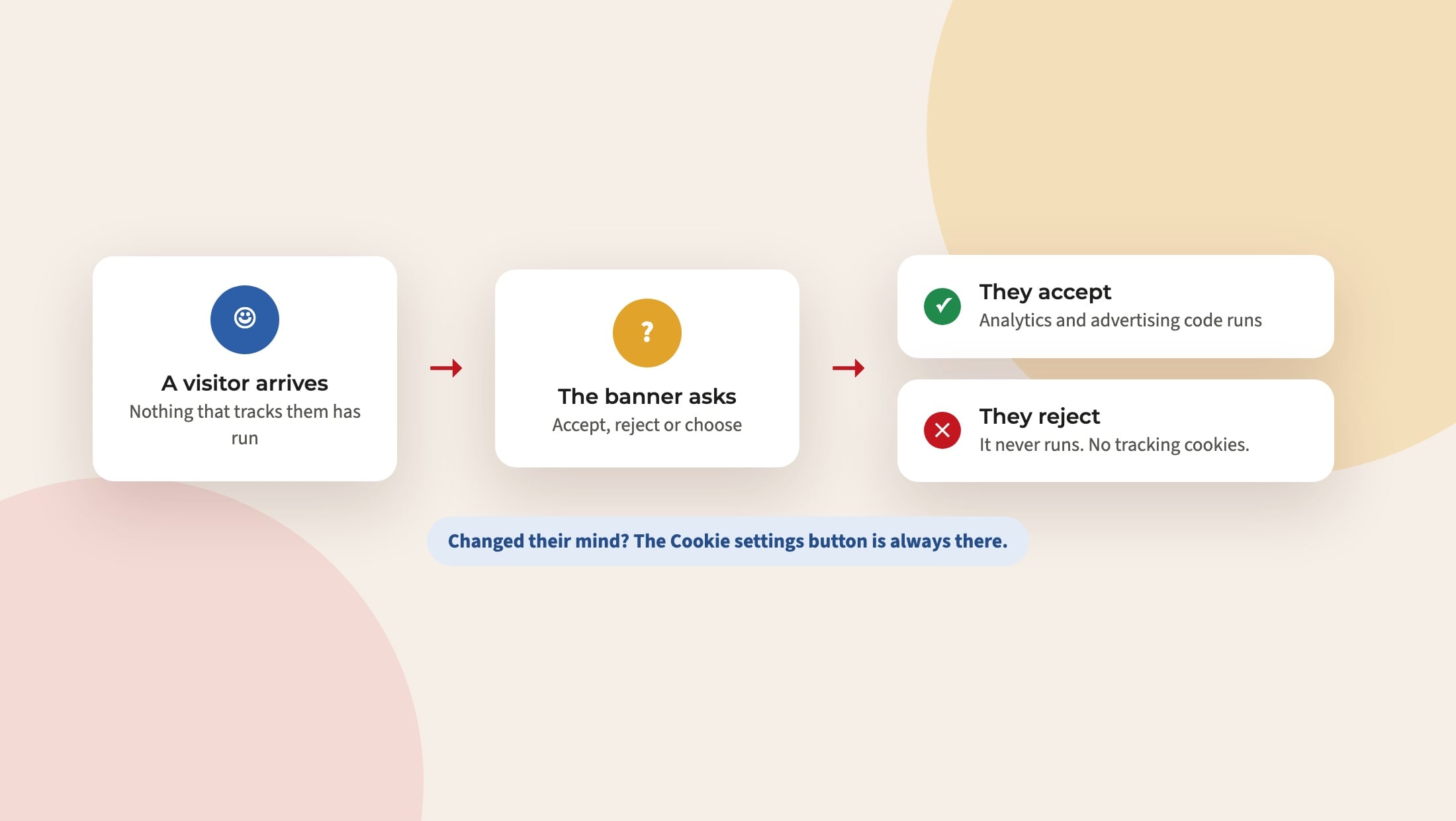
Afterwards, a small Cookie settings button lets them change their mind at any time. If they take their consent back, the tracking cookies are cleared.
Tracking waits until they say yes
This is the important part. Any analytics or advertising code you have added to your website, such as Google Analytics, Microsoft Clarity or a Meta Pixel for admissions adverts, now waits until the visitor agrees. If they reject, it never runs.
The Learn more link on the banner now goes to your own school’s privacy notice, not a generic page.
How to switch it on
- In your dashboard, go to Smart Plugins and switch on Smart Cookies.
- Check that your privacy notice page is published and says which tools you use.
- Visit your website in a private browser window and try Accept, Reject and Manage preferences.
This is not legal advice, and your data protection officer has the final say on your school’s approach. If you are unsure which tools your website is using, email support@realsmart.co.uk and we will tell you.