
Every pupil, teacher and governor at a Realsmart school starts their day in the same place: the sign-in page, and then the launchpad. This summer we have rebuilt both, so they are quicker, clearer and kinder on the eyes.
Find your school in a few letters
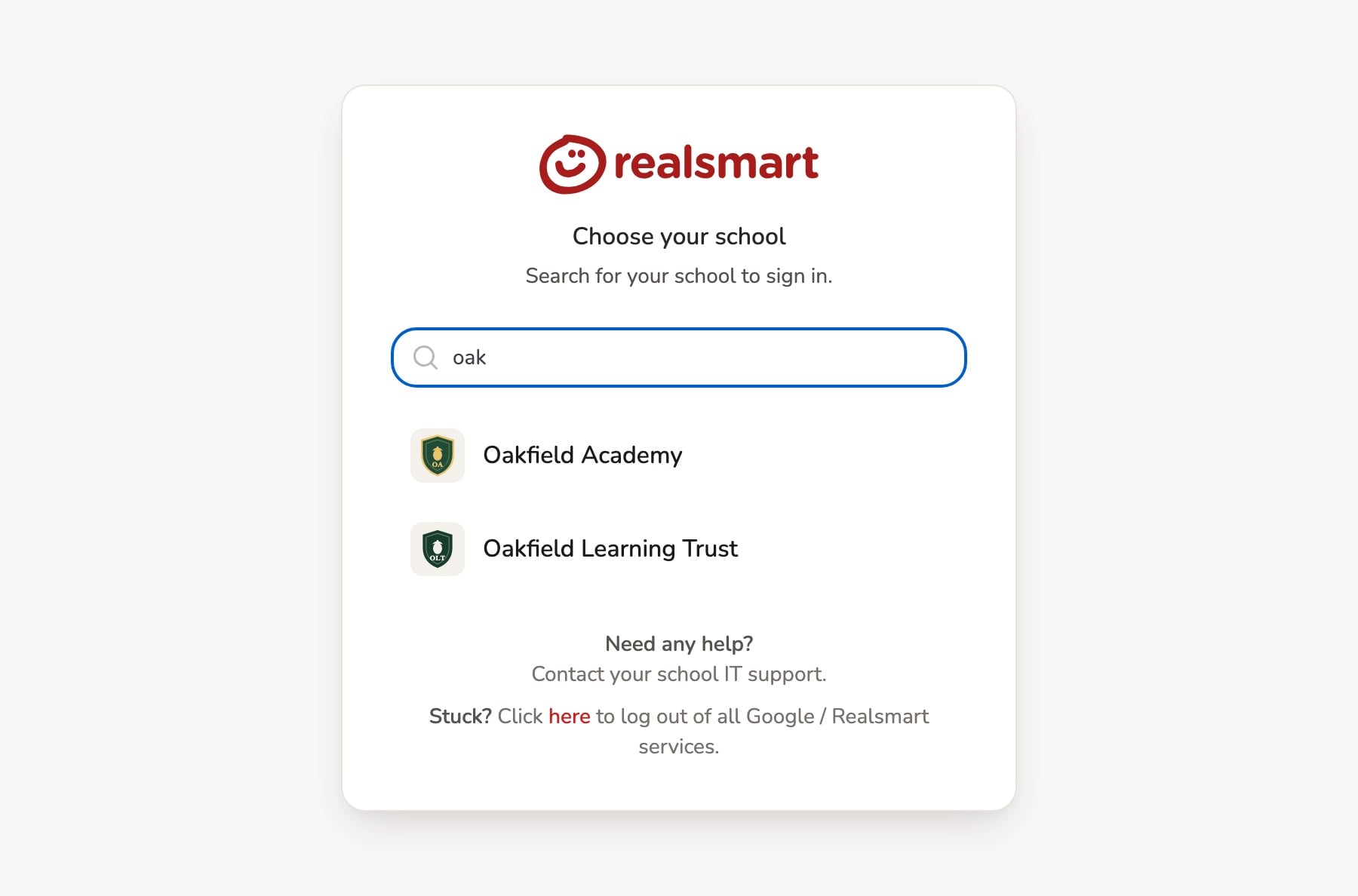
The first screen now asks you to Choose your school. Start typing your school’s name and it appears straight away. Pick it, and you are taken to “Sign in to continue”, with your Username and Password. The username box reminds you to type your school username without the domain, which saves a lot of “why won’t it let me in?” moments.
Light, dark or match your device
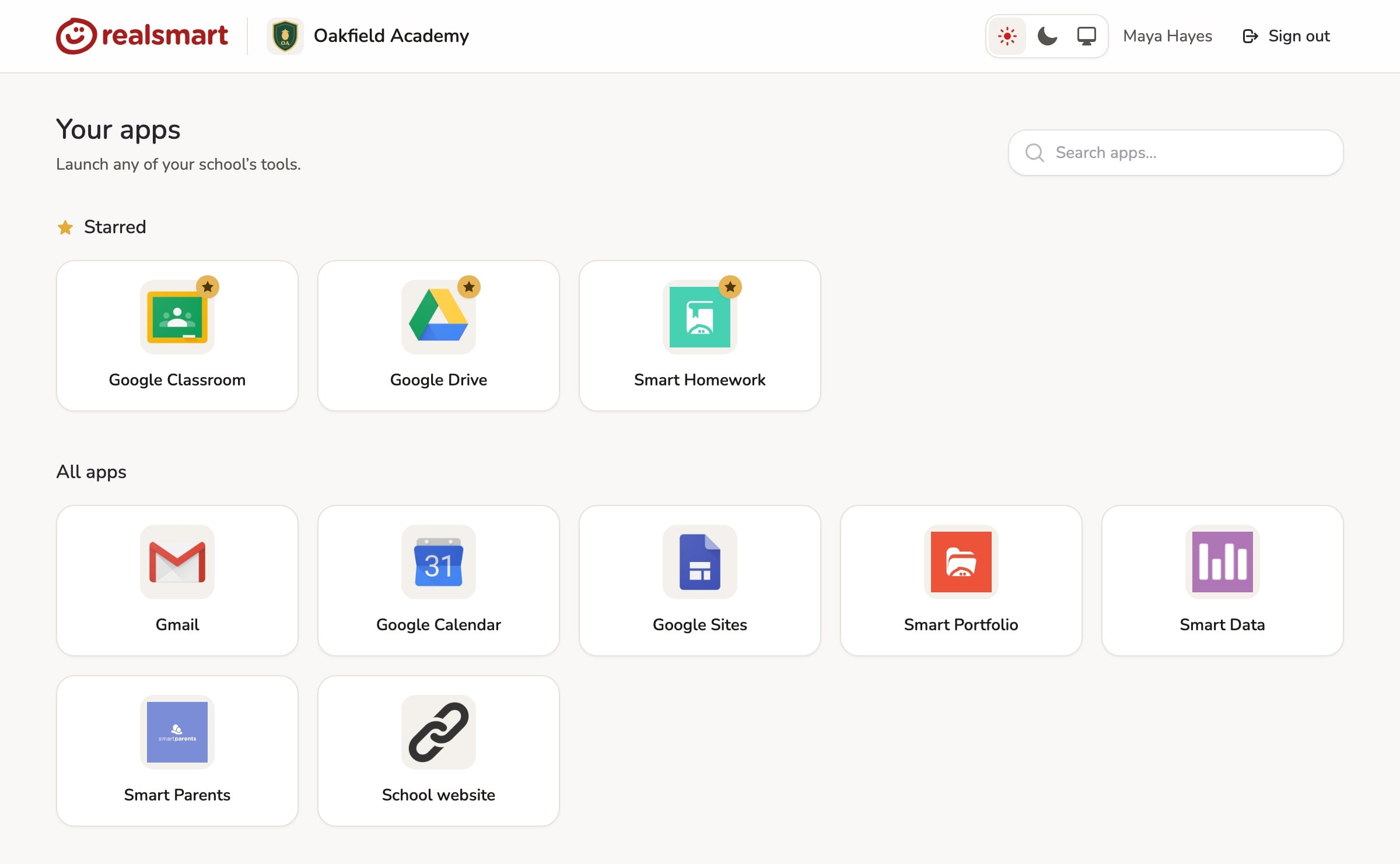
Choose Light, Dark or System from the sign-in screens or the launchpad’s top bar. Your choice follows you into ADAdmin too. Dark mode is easier on tired eyes in an evening, and System simply follows whatever your laptop or phone is set to.
Search your apps
The launchpad is now headed Your apps, with a new Search apps… box at the top. Type a few letters, such as “class” or “maths”, and only the matching apps are shown. Your Starred apps still sit in their own row above All apps, so the ones you use every day are always one click away.
Signing in from Microsoft Teams
On some older Windows computers, signing in from inside the Microsoft Teams app showed a plain, unstyled page. That is fixed, and the sign-in window now looks and works as it should.
Anything to do?
No. The new look is already live for every school. Your apps, stars and settings are all exactly where you left them. If anything looks wrong, email support@realsmart.co.uk.