
Managing student and staff data across multiple platforms can be a time-consuming challenge for schools. At realsmart, we’re always looking for ways to make your workflows smoother and save your IT teams valuable time. In this guide, we’ll cover how to connect your MIS to Apple School Manager via SFTP and upload your data, providing a clear process from start to finish. That’s why we make it incredibly simple to integrate your school’s data directly with Apple School Manager (ASM) using a secure SFTP connection.
By connecting realsmart to ASM, you can automate the creation of Managed Apple IDs, streamline class rosters, and ensure your school’s devices and learning materials are always assigned to the right people from day one.
Here is a quick overview of how to get your realsmart system talking to Apple School Manager.
(For the complete step-by-step technical guide, please check out our full support article: Connecting realsmart to Apple School Manager via SFTP and uploading data)
Step 1: Generate SFTP Credentials in Apple School Manager
First, you’ll need to tell Apple School Manager that you want to securely import data using SFTP.
-
Log into your Apple School Manager account with Administrator privileges.
-
Navigate to your Setup Assistant (or Data Source settings) and choose the option to set up an SFTP connection.
-
Apple will automatically generate a set of SFTP credentials for you. Make a note of the SFTP URL, Username, and Password provided.
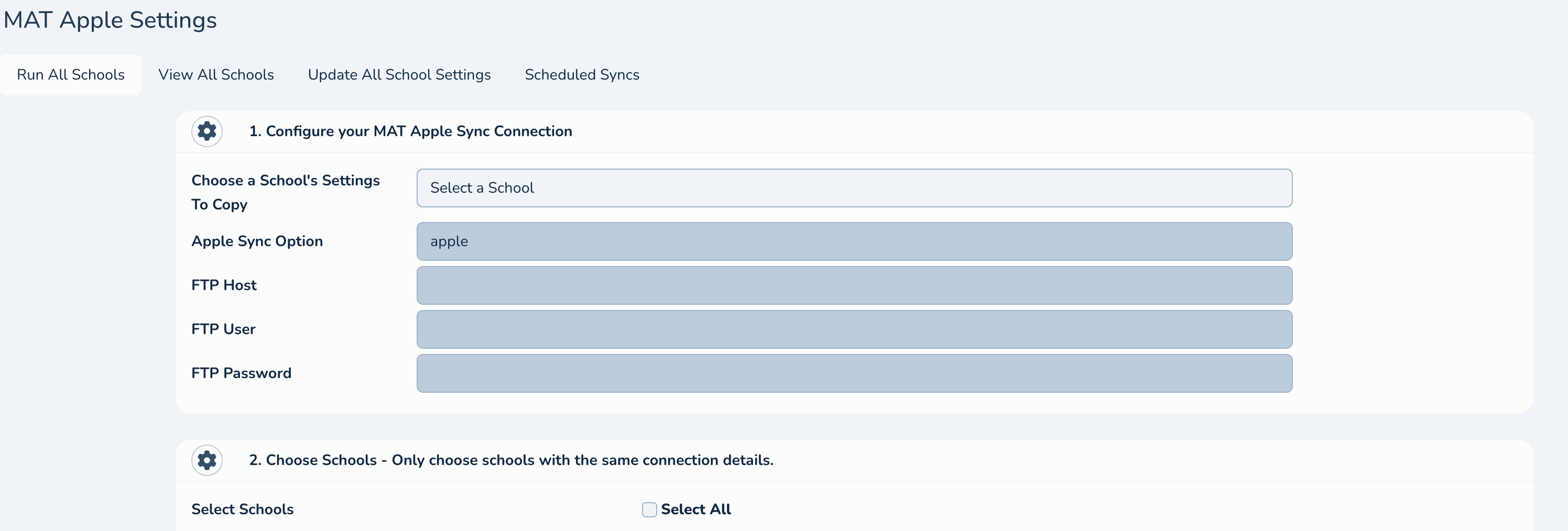
Step 2: Add Your Credentials to realsmart
Once Apple has provided your secure SFTP details, you need to input them into realsmart so our system can do the heavy lifting for you.
-
Log into your realsmart admin console.
-
Navigate to the ASM integration settings.
-
Enter the SFTP URL, Username, and Password exactly as they appeared in Apple School Manager.
-
Save your configuration.
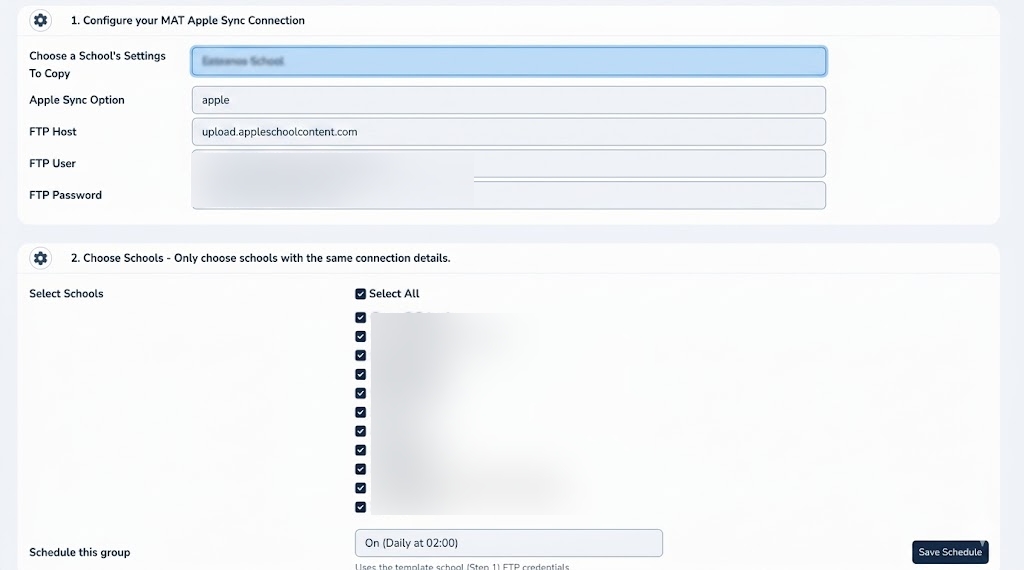
Step 3: Uploading Data and Reviewing the Sync
With the connection established, realsmart will compile your MIS data—such as students, staff, and classes—into the correctly formatted CSV files and push them directly to ASM.
-
Trigger the data upload from your realsmart dashboard.
-
Head back over to Apple School Manager.
-
You should see that ASM is processing the newly received files. Click to review the SFTP data to ensure your user accounts and class structures look correct.
-
Once you’re happy with the preview, confirm the sync to create your accounts and classes!

Let Us Help You Get Set Up!
Automating your data sync between realsmart and Apple School Manager removes the headache of manual data handling. If you get stuck along the way or would like a hand configuring your SFTP connection, our team is always here to help.
Read the full technical documentation here: https://help.realsmart.co.uk/help/connecting-realsmart-to-apple-school-manager-via-sftp-and-uploading-data
Or, reach out to our support team directly to get in touch: http://realsmart.co.uk/get-in-touch/
*** Happy syncing!