
Your MIS holds a lot of groups: registration groups, year groups, houses, subjects, teaching groups and more. Not every school wants all of them in Google Workspace or Microsoft 365. A Year 7 pupil doesn’t need to see forty groups in their Gmail, and a busy staff Teams list is hard to use.
You can now choose exactly which kinds of group are synced.
Pick your group types
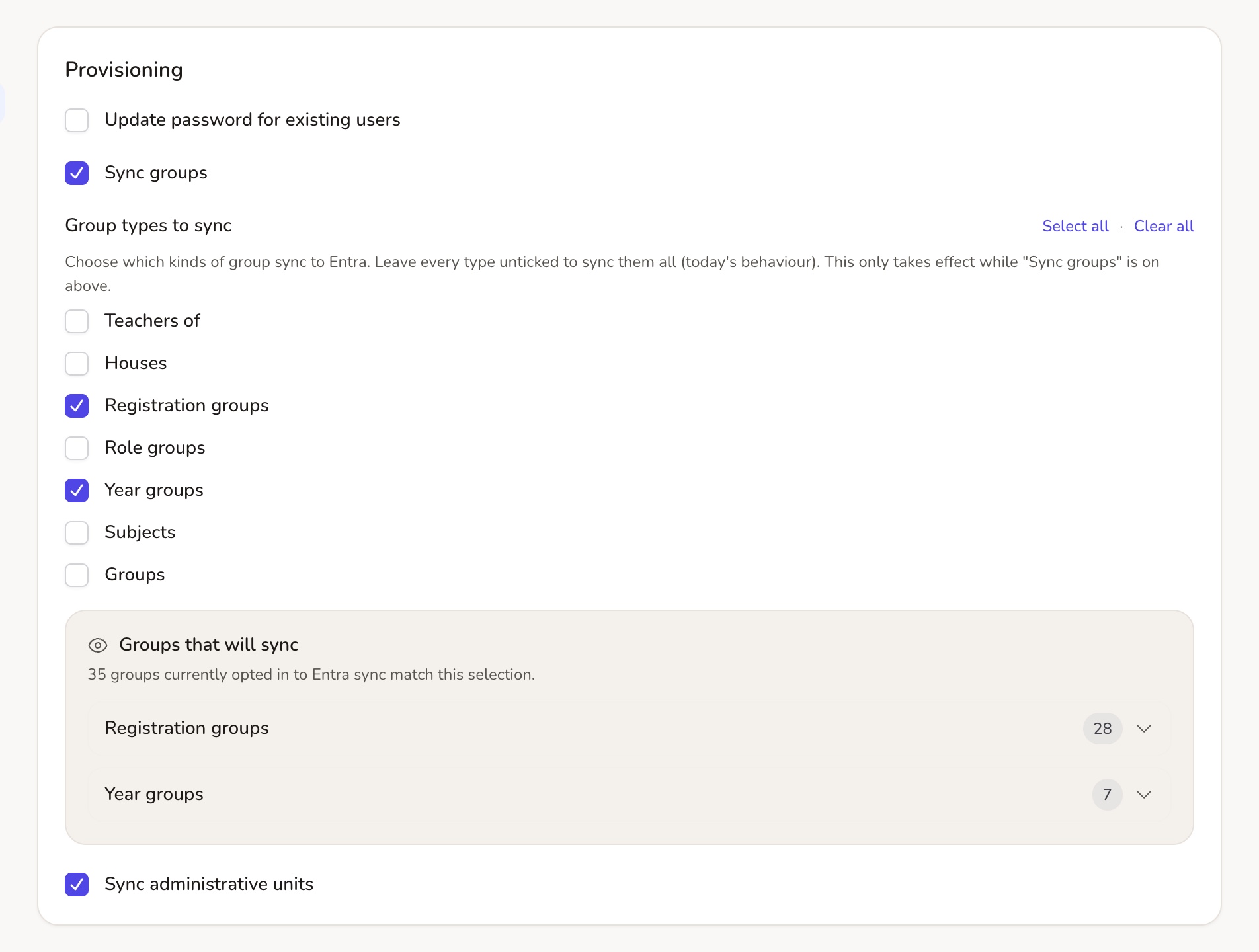
You’ll find this in Google Workspace → Settings (in the Sync section) and in Microsoft Entra settings → Provisioning. With Sync groups on, Group types to sync lets you tick:
- Teachers of
- Houses
- Registration groups
- Role groups
- Year groups
- Subjects
- Groups (everything else, including any group without a type yet)
Leave them all unticked to sync every type, which is how it works today. So nothing changes until you choose.
See it before you save
As you tick and untick, Groups that will sync shows the matching groups by type, so there are no surprises. You can still switch off a single group with Sync this group to Google or Sync this group to Entra on its own page.
Unticking a type stops new groups of that type being created. It doesn’t delete groups that are already in Google or Microsoft 365.
Trusts can use Apply across MAT to give every school the same choice in one go.
Choose whose passwords Google gets
In the Google Passwords settings, Sync passwords to Google is still the school-wide switch. New beside it is Skip password sync for these user types, where you can tick Students, Staff, Admins, Governors or Observers.
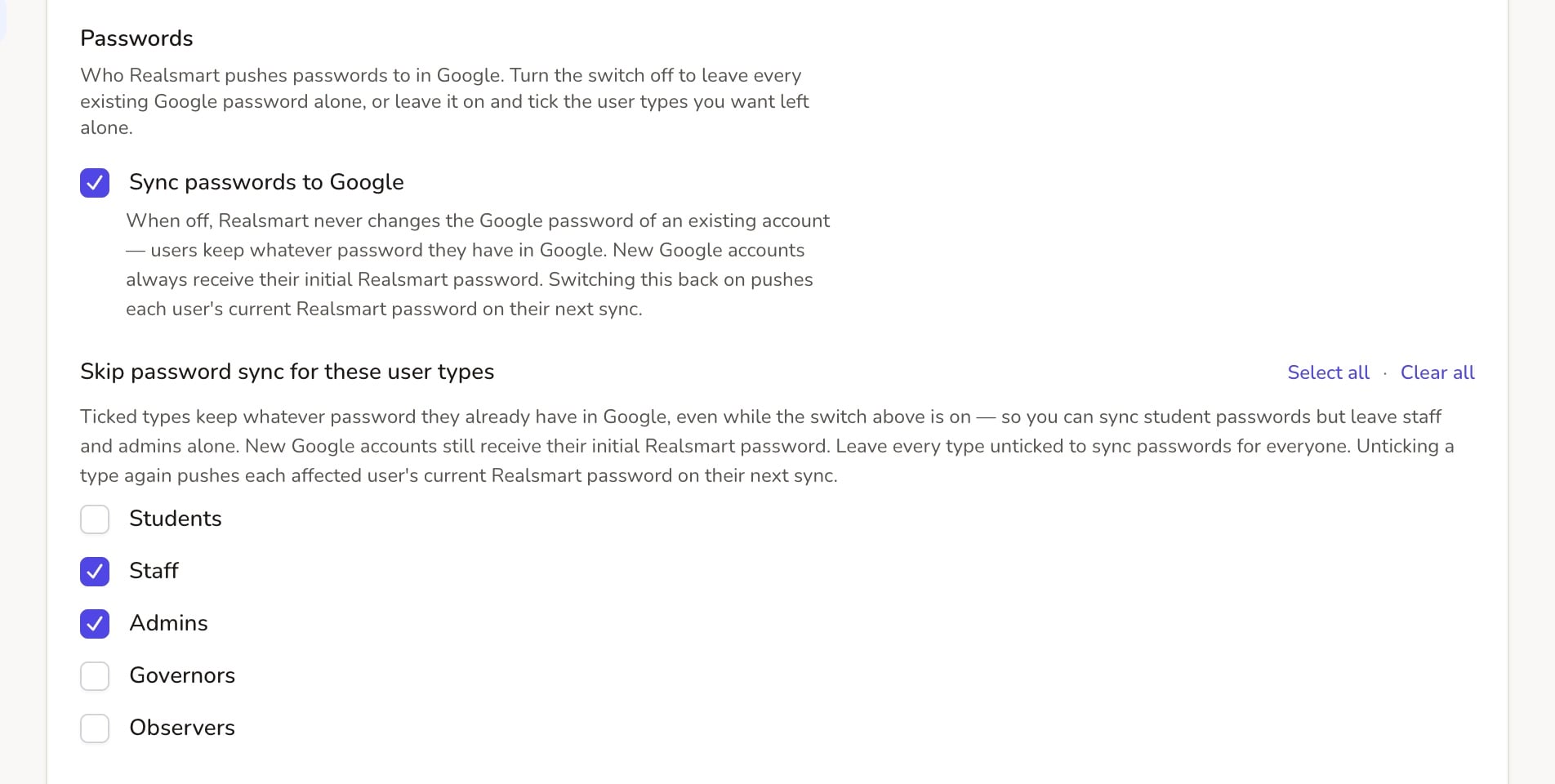
For example, you can keep pupils’ passwords in step with Realsmart while staff manage their own Google passwords. New accounts still get their first password, so nobody is left unable to sign in. If you untick a type later, their current password goes to Google at the next sync.
Questions? Email support@realsmart.co.uk.