
The summer holidays are when we do the jobs that make the autumn term smoother. Here are three small changes to Realsmart sign-in that you might notice when everyone comes back.
Tell your schools apart in your authenticator app
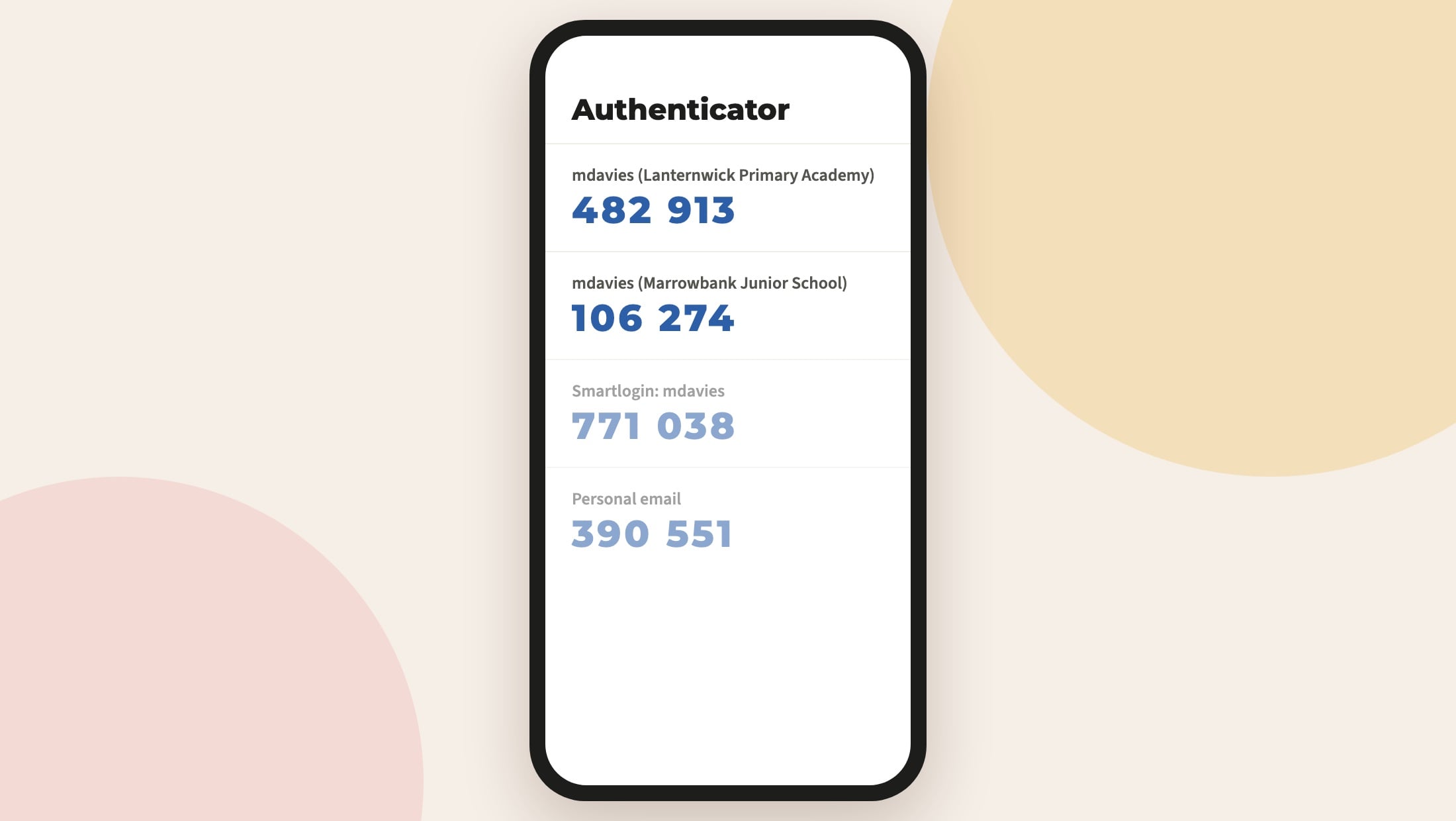
Plenty of staff work across more than one school in a trust. Until now, every Realsmart entry in their authenticator app looked much the same, so picking the right code meant trial and error.
New 2FA set-ups now show your username and your school’s name, such as “mdavies (Lanternwick Primary Academy)”. It works with Google Authenticator, Microsoft Authenticator and other authenticator apps.
Entries you have already set up keep their old name. If you would like the new label, you can remove that entry and set up 2FA again.
No more stuck password screens for pupils
Some schools turn off password changes for pupils, for the whole school or a year group, so that teachers always know a young pupil’s password. Occasionally those pupils were still sent to a “change your password” screen they could not complete. They now go straight in, as intended.
Stronger encryption for every sign-in
Every connection to Realsmart sign-in is encrypted. We have now switched off older, weaker versions of that encryption, so only modern, secure connections (TLS 1.2 and newer) are accepted. Any up-to-date browser, laptop, tablet or phone already uses these, so you should not notice a thing.
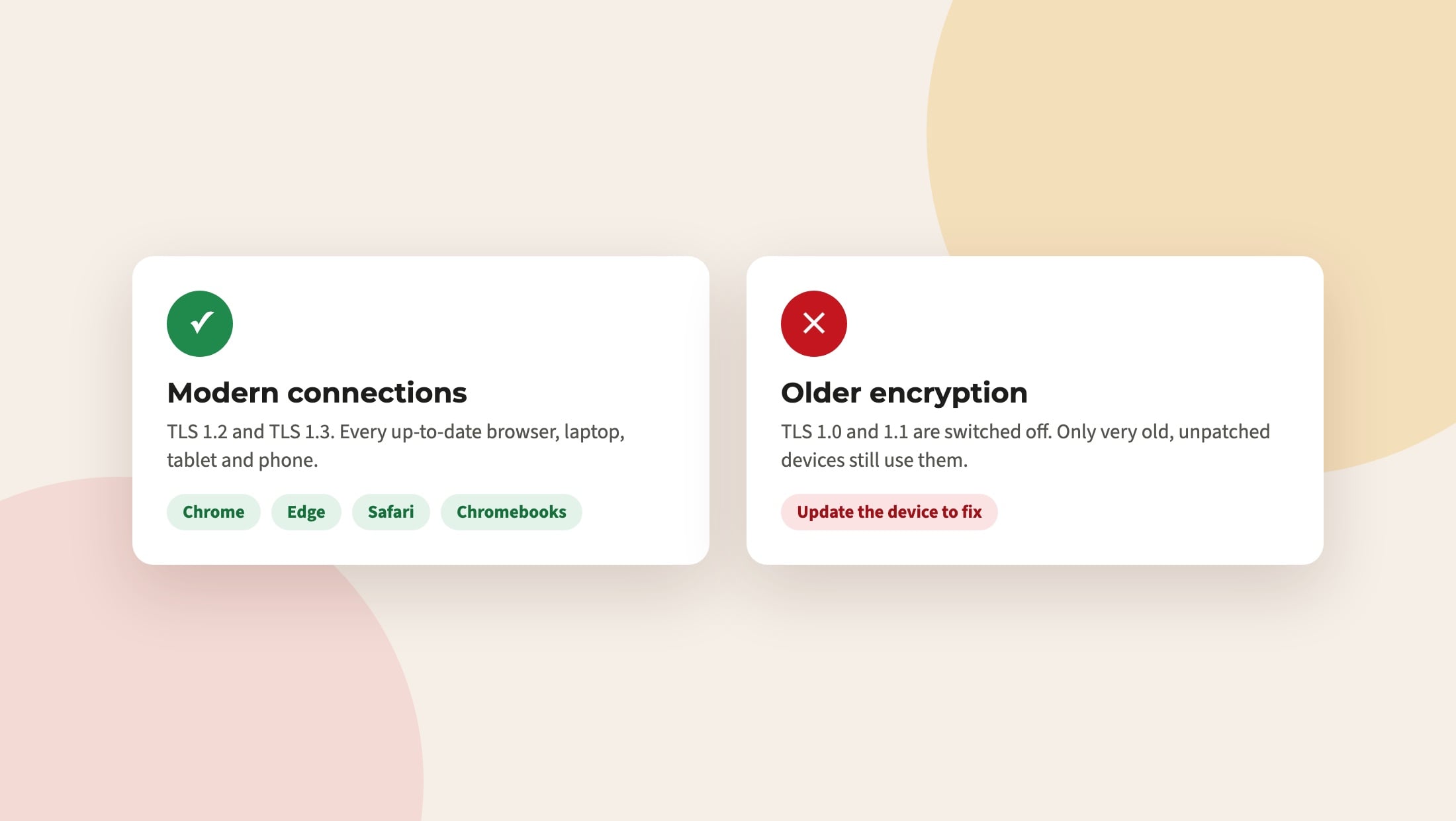
If a very old device has trouble connecting this term, that is usually the reason, and updating it will fix it. As always, email support@realsmart.co.uk if you need a hand.