
Two-factor authentication (2FA) is the single best way to protect staff accounts. But asking a teacher for a code every time they sign in on a classroom computer, in the middle of a lesson, is the quickest way to make people resent it.
That is why Realsmart lets a school name its own network as trusted. Sign in from school and you go straight in. Sign in from home, a café or anywhere else, and you are asked for your code as usual.
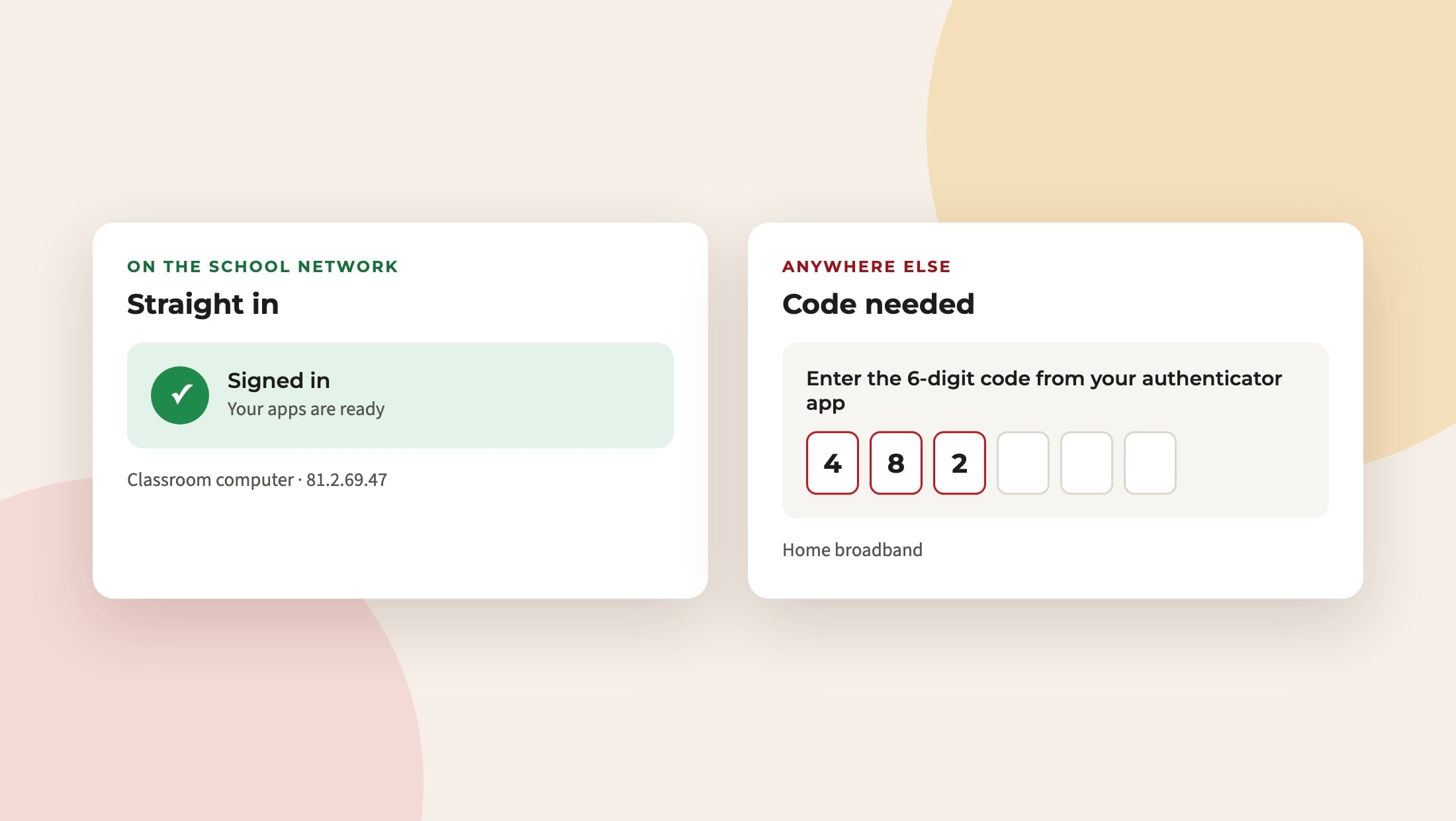
Now with whole ranges, not just single addresses
Until now, the trusted list only took single IP addresses. Most schools have a block of addresses, and some trusts have several, so that meant a long list and a lot of guesswork.
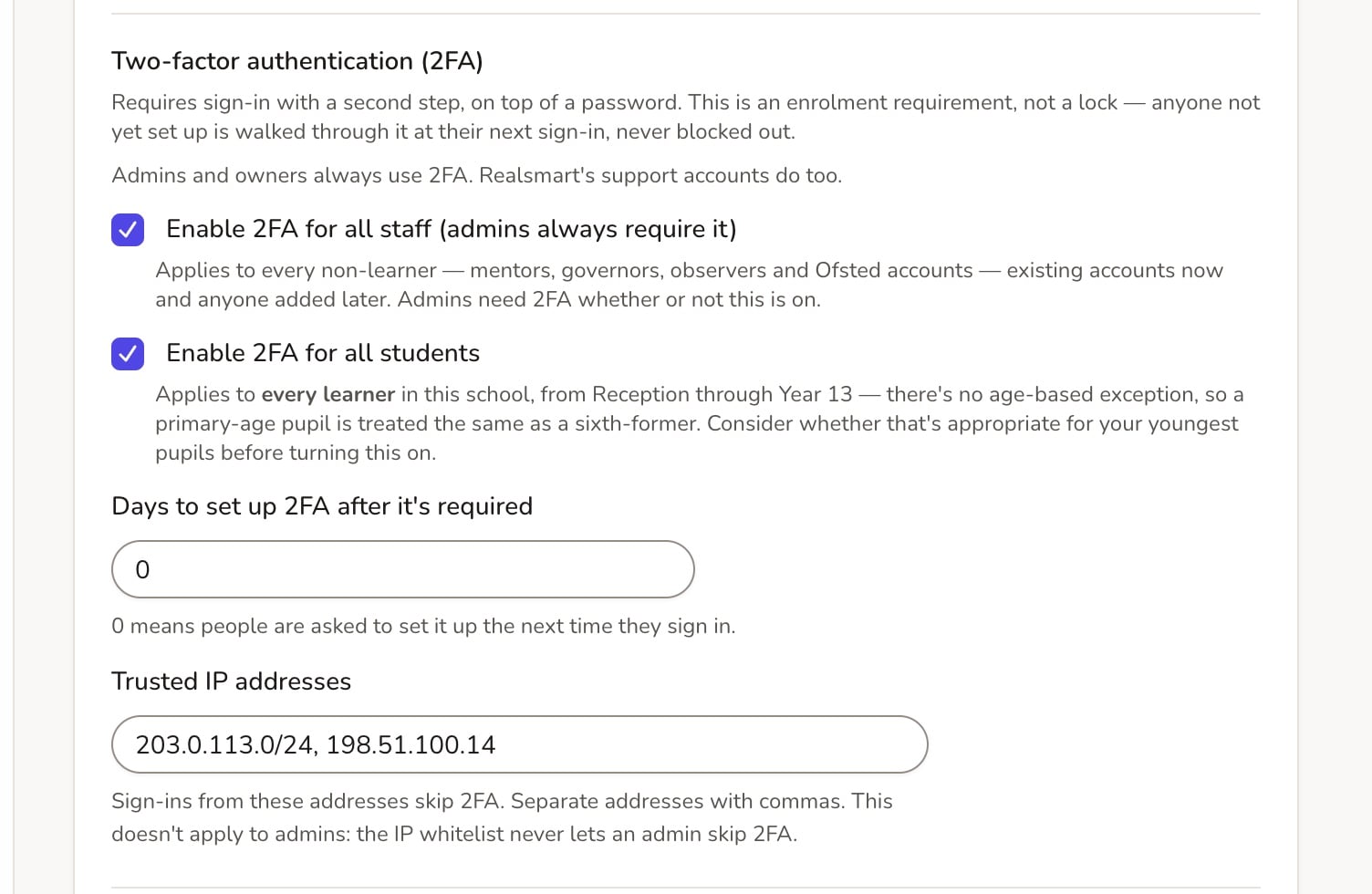
You can now enter a whole range in the usual network format, such as 81.2.69.0/24. You can mix ranges and single addresses, separated by commas, and spaces around the commas are fine.
Where to set it
- In ADAdmin, go to School settings → Password.
- Find 2FA IP Address Whitelist, next to Enable 2FA for all staff and Enable 2FA for all students.
- Enter your school’s addresses and ranges, separated by commas, and save.
Not sure what your school’s addresses are? Your network provider or IT technician will know, or email us and we will help you find them.
Good to know
- It only skips the code on your network. Off site, staff are asked for their code exactly as before.
- Keep the list tight. Only add networks your school controls. A range that is too broad lets more places skip 2FA than you intend.
- IPv4 addresses are supported.
Questions? Email support@realsmart.co.uk.