
A school admin account can reach every pupil’s account, every staff password reset and every setting that keeps your systems running. That makes it the account attackers want most. So this term we have made sign-in to Realsmart safer, starting with the accounts that matter most.
Admins always use two-factor authentication
Two-factor authentication (2FA) means signing in takes your password and something only you have, such as a code from an app on your phone. It stops almost every attack that relies on a stolen or guessed password.
From now on, every admin and owner account at every school uses 2FA, whatever the school’s other 2FA settings say. Realsmart’s own support accounts do too.
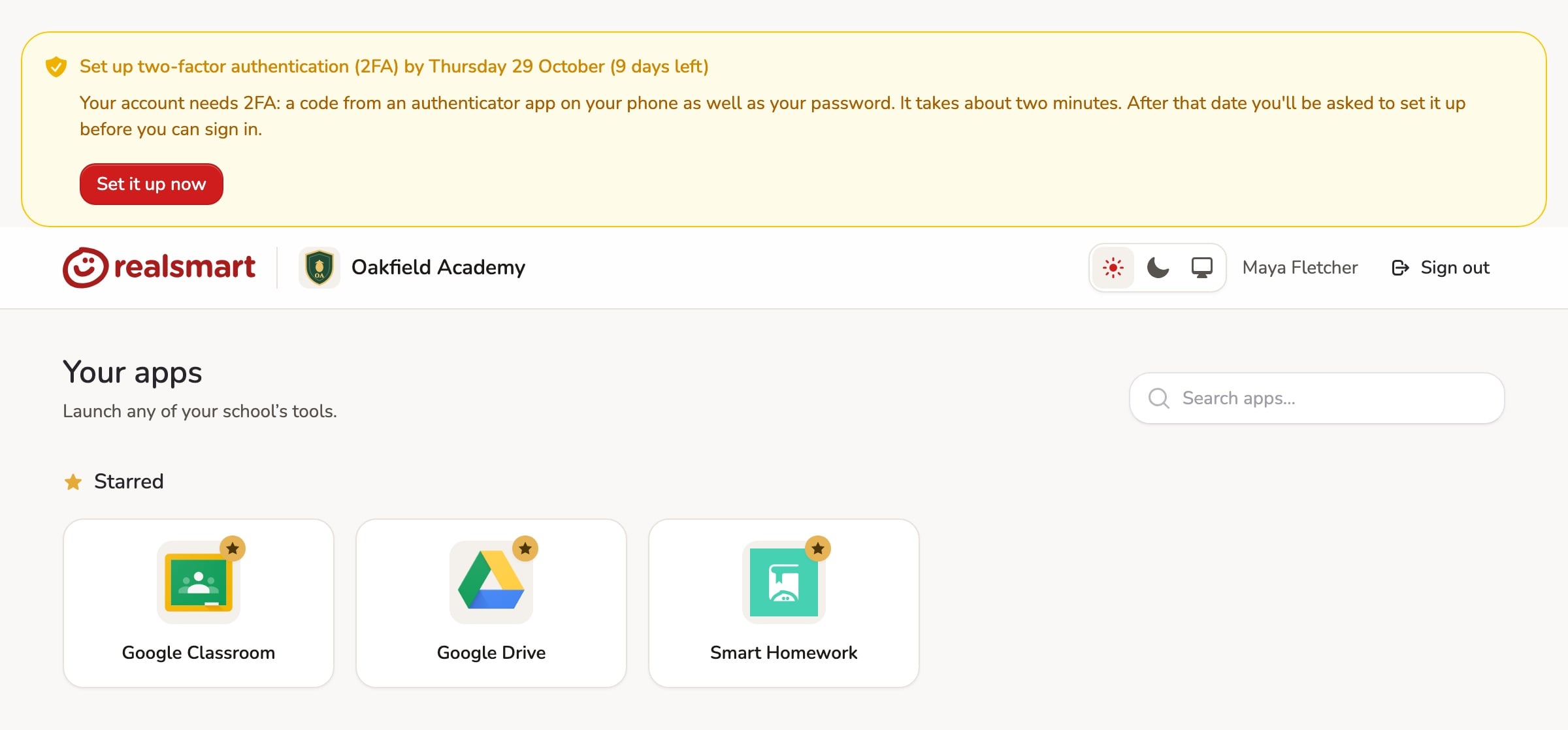
- You have 14 days. Each admin has 14 days from their next sign-in to set it up. Until then, sign-in works as usual, and the launchpad shows the date with a Set it up now button.
- After that date, admins are taken to set up 2FA before they can carry on. It takes about two minutes.
- No exemptions for admins. Admin accounts cannot be exempted from 2FA, and your school’s trusted IP addresses no longer let an admin skip it.
- See who still needs to do it. In ADAdmin, a list shows the admins at your school who are not using 2FA yet.
Your school’s own settings for staff and students work as before. If you have Enable 2FA for all staff or Enable 2FA for all students turned on, it now takes effect at each person’s very next sign-in, including people your MIS sync added minutes ago. You can also give people a few days to set it up, under School settings → Password.
Passkeys: 2FA without typing a code
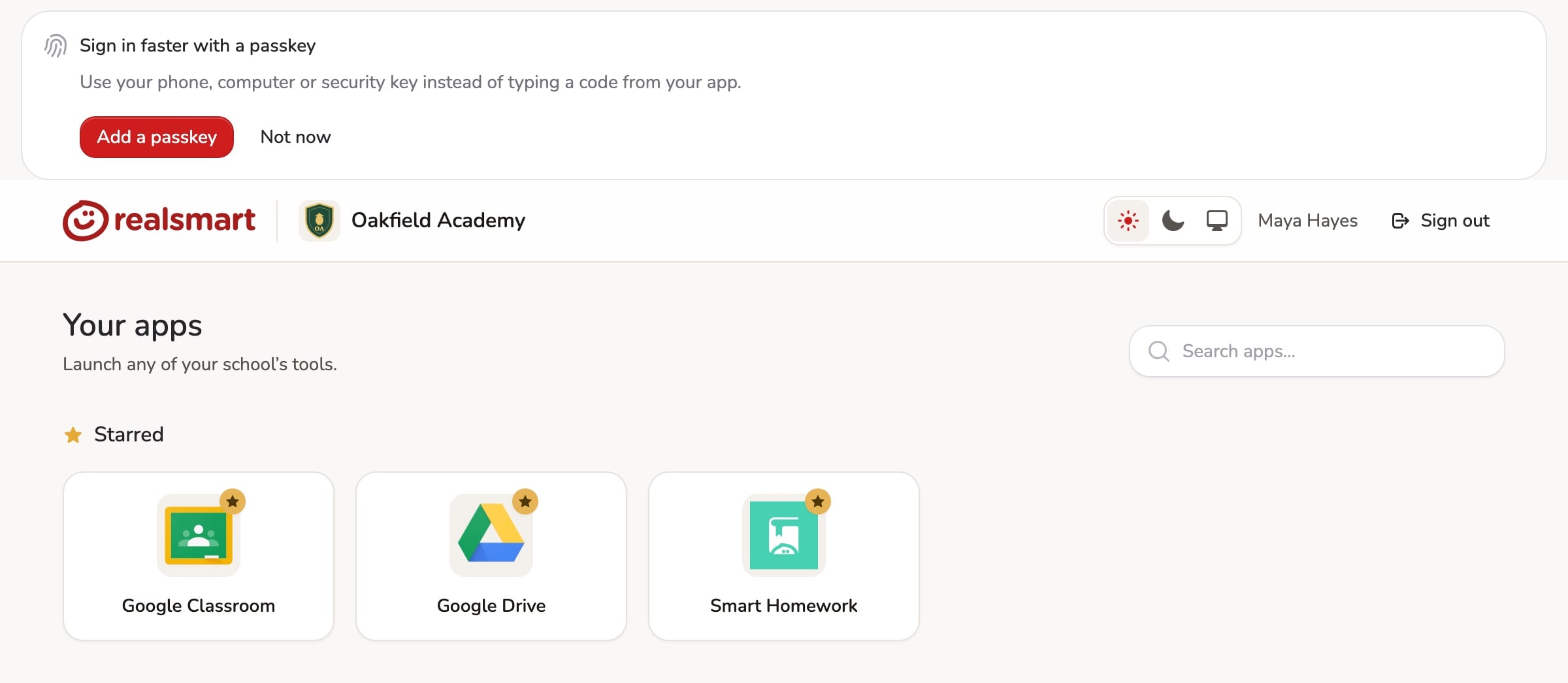
A passkey lets your phone, laptop or security key confirm it is you, with your fingerprint, face or device PIN. There is no code to type, and nothing an attacker can trick you into handing over. You can now use a passkey as your second step, alongside or instead of an authenticator app. If you already use an app, the launchpad will offer to add a passkey too.
Choose how long sign-ins last
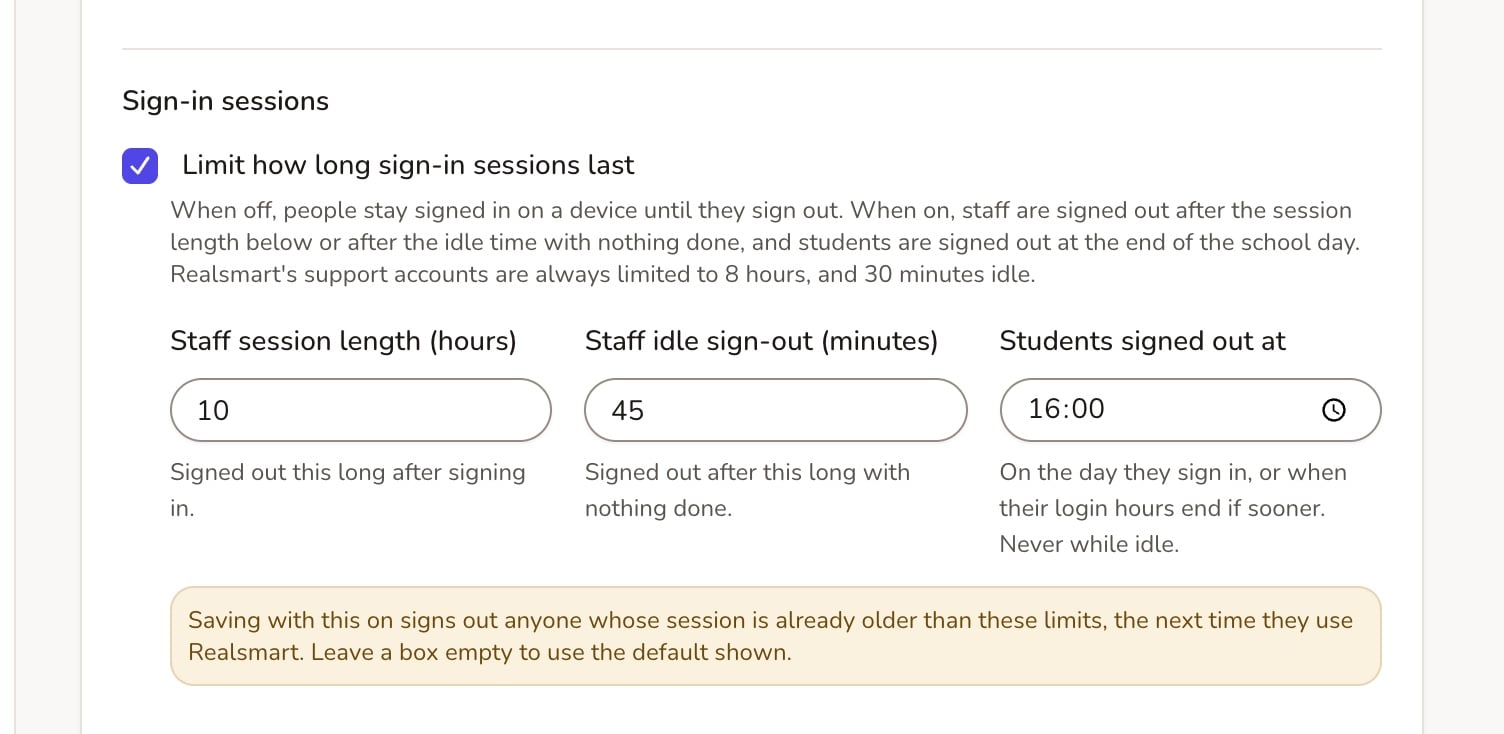
By default, people stay signed in on a device until they sign out. That is convenient, but not ideal on a shared classroom computer or a laptop left in the staffroom. Schools can now set limits under School settings → Password → Sign-in sessions:
- Staff are signed out after a session length you choose (12 hours unless you change it) or after a spell with nothing done (60 minutes unless you change it).
- Students are signed out at the end of the school day (6pm unless you change it), so the next pupil on a shared device starts fresh. Students who sign in later in the evening for homework stay signed in until the end of that day.
This is off until you turn it on.
An acceptable use policy at sign-in
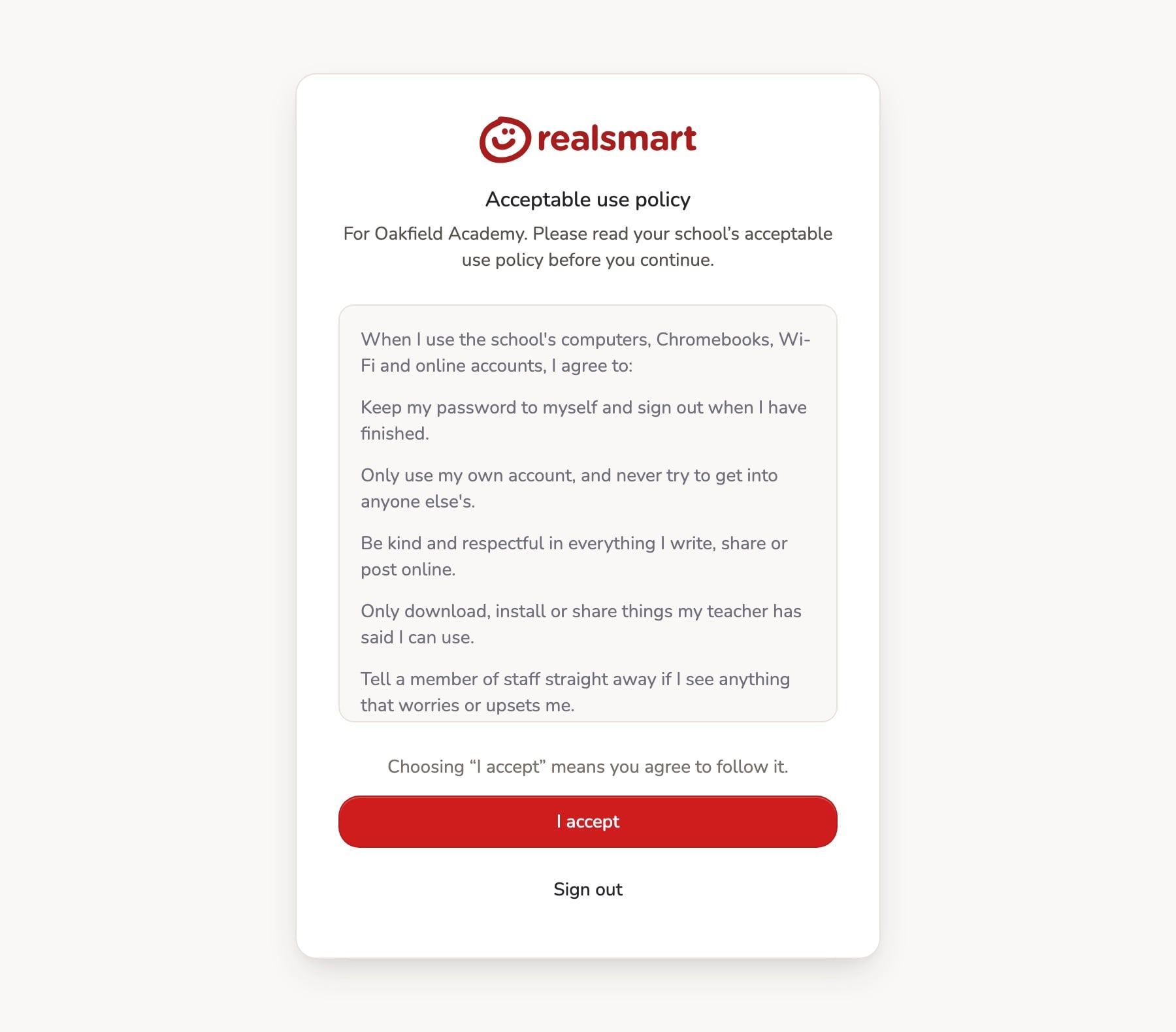
Schools can now ask staff, students or both to accept their acceptable use policy when they sign in. You write the policy (or link to it) under School settings → Acceptable use policy. You can also ask people to accept it again each academic year, and see who has and has not accepted. This is off until you switch it on.
A warning before leaving for another website
If you want an extra safeguard against phishing links, you can turn on a short page that appears after sign-in when a link leads somewhere outside Realsmart and your school. It names the website before opening it. Turn it on under School settings → Password → Other websites.
What you need to do
- Admins: set up 2FA the next time the launchpad asks. You will need your phone.
- Check the list of admins not yet using 2FA, and give anyone who is stuck a nudge.
- Think about session limits, especially if pupils share devices.
If anyone is locked out or unsure what to do, email support@realsmart.co.uk and we will help them get set up.