
Many schools have asked us for a simple way to say “these accounts are for school hours”. Perhaps younger pupils should not be signing in at midnight, or a group of devices should only be used during the school day.
From today you can set sign-in hours for any users you choose.
How it works
- You choose a start time and an end time for the users you select.
- Inside that window, they sign in as normal, with their password, their QR code or 2FA.
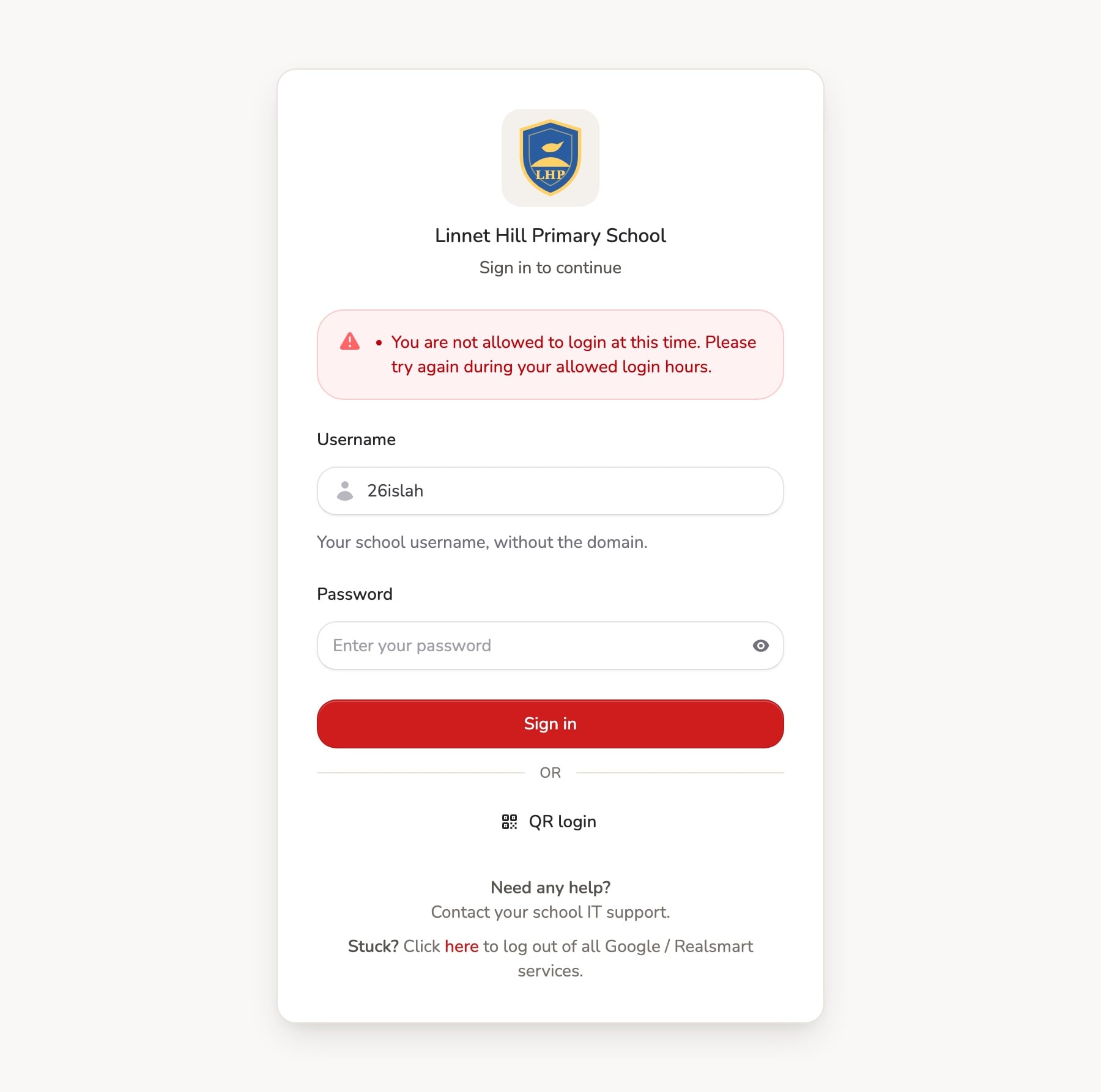
- Outside it, Realsmart politely refuses: “You are not allowed to login at this time. Please try again during your allowed login hours.”
- Windows can run overnight too, for example from 20:00 to 06:00, if that suits a particular group.
- Times are in your school’s local time.
Setting sign-in hours
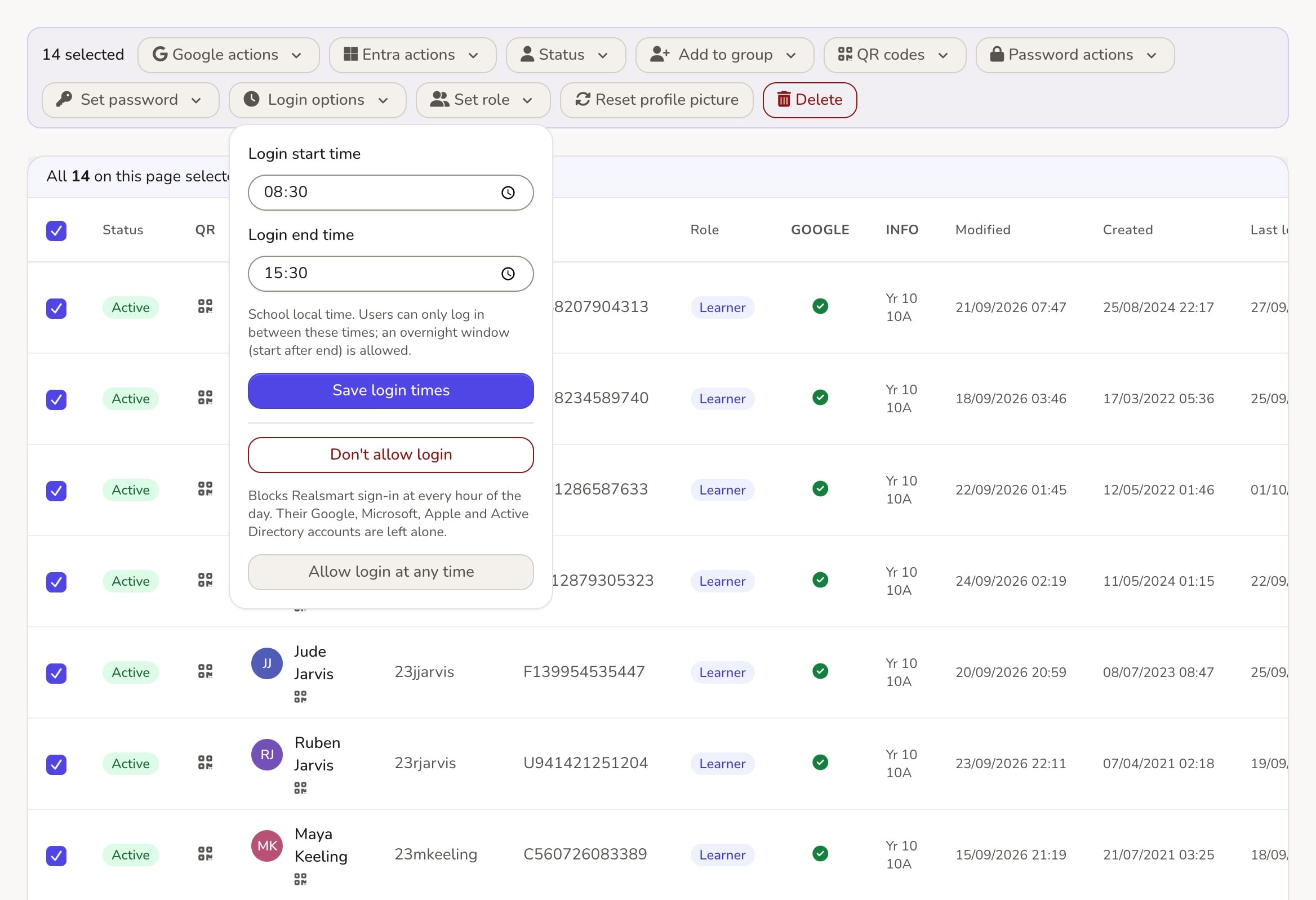
- In ADAdmin, open Users and select the people you want, such as a class or a year group.
- Choose the Login Times bulk action.
- Enter a Login Start Time and a Login End Time, then choose Save Login Times.
The users list shows each person’s window in the Login Times column. To remove a window, select the users again and choose Clear Login Times.
Good to know
- It is checked when someone signs in. Anyone already signed in when the window closes is not signed out.
- It covers Realsmart sign-in. That includes the apps your pupils reach through their Realsmart launchpad.
- Nothing changes until you set it. Users without a window can sign in at any time, as before.
If you would like help choosing sensible hours for your school, email support@realsmart.co.uk.