
The Effortless Way to Organise Your School’s Parents’ Evenings
Parents’ evenings are a cornerstone of school–home communication, but organising them can be time-consuming and frustrating. Managing time slots, handling bookings, and avoiding double-bookings often means hours spent juggling spreadsheets, emails, and paper sign-up sheets.
The Smart Parents Evening Booking System removes that complexity. Built directly into your WordPress dashboard, it gives teachers and administrators everything they need to create, manage, and share professional booking pages in minutes entirly online.
Why Schools Love It
- Set up in minutes – Create a complete parents’ evening event with just a few clicks.
- Works on any device – Parents can book from their phone, tablet, or computer.
- In-person or online meetings – Support hybrid evenings with video call options per slot.
- Built-in breaks – Protect your schedule by marking slots as unavailable.
- Everything in one place – View all bookings with parent contact details at a glance.
- One link to share – Each event has a unique booking page you can email or add to your website.
How It Works: A Teacher’s Guide
Getting Started
In your WordPress admin area, find Parents Evening in the main menu (identified by the calendar icon). This is your central hub for creating and managing all parents’ evening events.
Creating Your First Event
Click the Create New Event button to open the event setup wizard.
Step 1: Enter Your Event Details
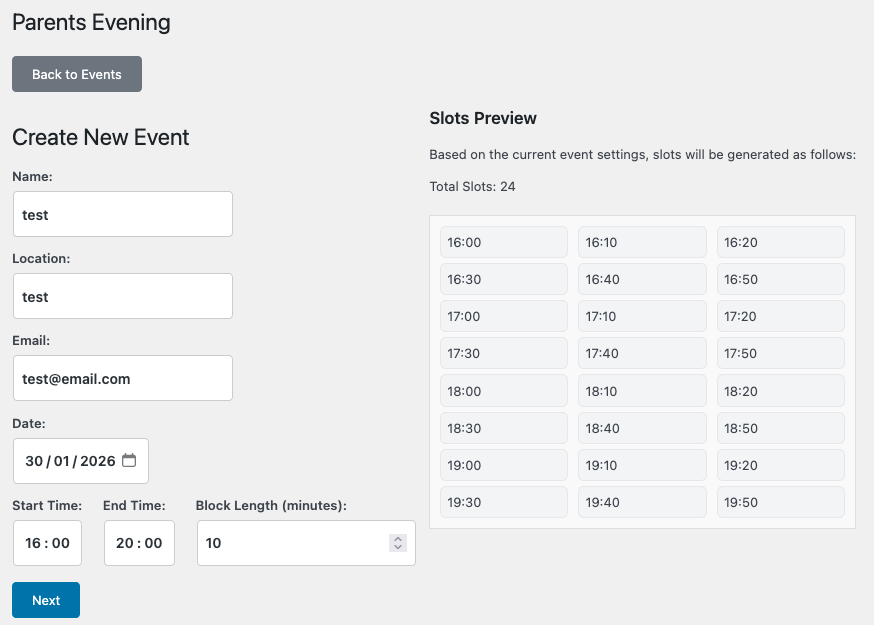
| Field | Description | Example |
|---|---|---|
| Name | A clear title for your event | Year 9 Options Evening |
| Location | Where the event takes place | Main Hall or Online via Teams |
| Your email to get notified of bookings | admin@school.com | |
| Date | The event date | 15 March 2026 |
| Start Time | When appointments begin | 16:00 |
| End Time | When appointments finish | 20:00 |
| Block Length | Duration of each appointment | 10 minutes |
The system automatically calculates the number of available slots. For example, a four-hour evening with ten-minute slots provides 24 appointment slots.
Click Next to continue.
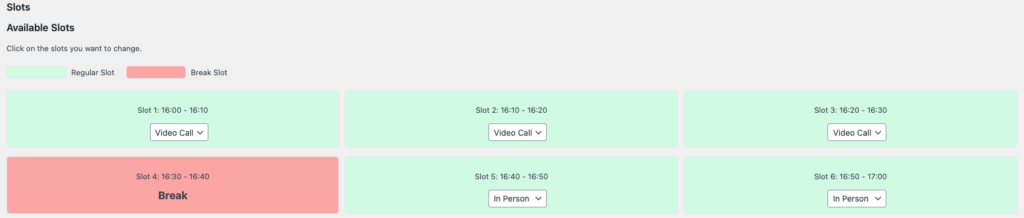
Step 2: Configure Your Time Slots
All appointment slots are displayed in a clear visual grid, allowing you to customise your evening.
Setting Breaks
Click any slot to mark it as a break. Break slots are clearly highlighted and cannot be booked by parents. Scheduling regular breaks throughout the evening is recommended.
Choosing In-Person or Video Call Appointments
For each available slot, choose how the meeting will take place:
- In person – A traditional face-to-face meeting.
- Video call – Ideal for parents who cannot attend on site.
This flexibility allows you to run fully in-person, fully online, or hybrid parents’ evenings.
Once you are happy with your configuration, click Submit to create the event.
Sharing Your Booking Page
After creating an event, it will appear in the main events list. In the Booking Page column you will find:
- A direct link to the booking page.
- A copy button for quick sharing.
You can share this link via:
- Your school newsletter
- Parent email communications
- Your school website
- Class or school messaging apps
Parents simply choose a slot, enter their details, and their booking is confirmed instantly.
Managing Your Events
The events table provides a complete overview of all parents’ evenings.
| Column | Information Shown |
|---|---|
| Name & Location | Event title and venue |
| Date & Times | When the event takes place |
| Block Length | Length of each appointment |
| Total Slots | Number of available appointments |
| Created At | Date the event was created |
| Booking Page | The public booking link |
Quick Actions
- Edit Details – Update the event name, location, date, or times.
- Duplicate – Create a copy of an event for another class or year group.
- Delete – Remove an event (confirmation required).
- Manage Bookings – View and manage all appointments.
Viewing and Managing Bookings
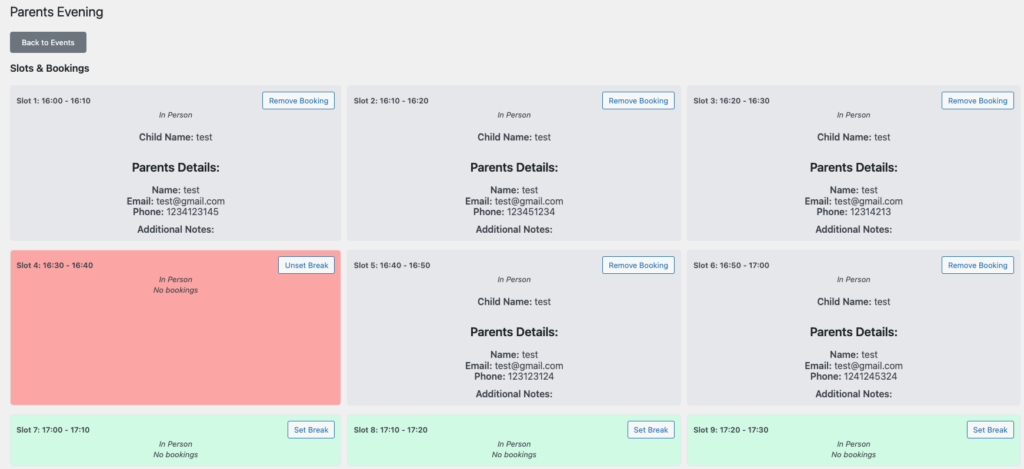
Select Manage Bookings for an event to see all appointment slots.
Each slot shows:
- Slot number and time range
- Status indicator (available, booked, or break)
- Meeting type (in person or video call)
For booked slots, you will also see:
- Child’s name
- Parent or guardian names
- Contact email and phone number
- Any additional notes provided
If a parent needs to reschedule, you can remove a booking to free up the slot or convert unused slots into breaks if your availability changes.
Top Tips for a Smooth Parents’ Evening
- Create events at least two weeks in advance to give parents time to book.
- Use clear, descriptive event names.
- Schedule regular breaks to stay on time and focused.
- Duplicate previous events to save setup time each term.
- Review bookings the day before the event.
- Offer video call options where possible to improve attendance.
What Parents See
Parents are presented with a clean, mobile-friendly booking page where they can:
- View all available time slots
- Select their preferred appointment
- Enter contact details
- Add optional notes
- Confirm their booking instantly
No accounts to create and no apps to download — just simple, stress-free booking.
Ready to Transform Your Parents’ Evenings?
The Smart Parents Evening Booking System helps schools run smoother, more organised parents’ evenings. Teachers save hours of administration time, parents enjoy an easy booking experience, and everyone knows exactly where they need to be and when.
Say goodbye to paper sign-up sheets and scheduling chaos