
Understanding the different ways to create links on the web is essential for anyone involved in managing a school website. Two concepts you’ll encounter are absolute hyperlinks and relative hyperlinks. While both achieve the goal of hyperlinking one web page to another, they function slightly differently and one method can save you a headache if you ever change domain.
Absolute Hyperlinks: The FULL Address
An absolute hyperlink is the complete, full URL to a destination. Think of it as a street address that includes the recipient’s name, street number, city, state, and post code. It contains all the information needed for a browser to locate the resource, regardless of where the current page is located. Here is an example of an absolute hyperlink – https://realsmart.co.uk/school-websites/primary-school-websites/
Key Characteristics of an Absolute Hyperlink:
- It includes the protocol: It must start with http:// or https://.
- It includes the domain name: It specifies the website’s address (e.g., www.realsmart.co.uk).
- It works anywhere: It can be used to link to any resource on the internet, including a different website entirely.
Attention! If you are linking to your website’s main page from an external site, you must use an absolute URL, for example: https://www.realsmart.co.uk/
When to Use Absolute Hyperlinks:
- Linking to external websites.
- Including links in emails (since you don’t know where the email will be opened).
- Referring to files that will be consumed outside of your website’s structure, such as in a PDF document.
Relative Hyperlinks: The Shortcut
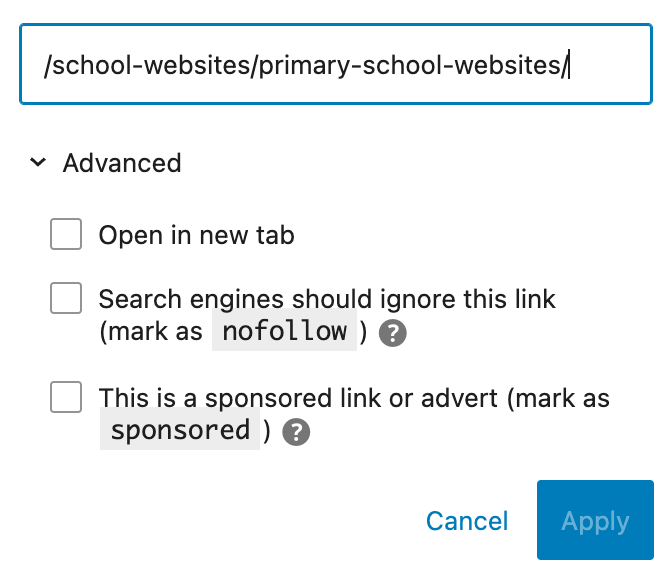
A relative hyperlink provides a path to a resource relative to the current page. It’s like giving directions to a friend that start with “From where you are right now…” It only includes the parts of the URL that are different from the current page’s URL. The browser automatically assumes the current domain name. In our example, instead of applying a link using – https://realsmart.co.uk/school-websites/primary-school-websites/ We would only use /school-websites/primary-school-websites/
Key Characteristics of a Relative Hyperlink:
- It does not include the domain name, it is assumed by the browser.
- It only works within the same website.
Consider the following examples of relative paths using realsmart.co.uk as an example:
This link is using /school-websites/primary-school-websites/ and will take you to our primary school websites page.
This link is using /microsoft-active-directory-sync/ and will take you to our Microsoft sync page.
When to Use Relative Hyperlinks:
- Linking between pages on the same website. This is the primary use case.
- Making your website more portable. If you move your entire site to a new domain name, all relative links will still work without modification, whereas absolute links would need to be updated. We see this more and more commonly with schools now joining trusts etc and their domain name will change.
Comparison Chart
Choosing between absolute and relative links is usually straightforward once you know the destination. Below is a brief comparison:
| Feature | Absolute Hyperlinks | Relative Hyperlinks |
|---|---|---|
| Structure | Full URL | Partial path |
| Use Case | Linking to external sites, emails | Linking between internal pages |
| Portability | Low (must be updated if domain changes) | High (works if the entire site moves) |
| Performance | Can be marginally slower (more characters to process) | Marginally faster (fewer characters) |
Summary
As you can see there are use cases for both types of hyperlink but it is worth knowing the difference. Now that schools change domains a lot more frequently than in the past it is worth knowing about and implementing relative hyperlinks. Using these across your website will save you a lot of time and headache if your school ever changes its domain name, which in present day with schools joining trust, trusts merging etc is more common than ever.